
Your credit card expired, you switched banks, or you simply don’t want your personal card stored in Shopify anymore. Whatever the reason, sooner or later every merchant needs to update the card that pays the Shopify bill. The tricky part is that Shopify doesn’t let you just delete the only card on file, which confuses a lot of store owners searching for how to remove credit card info from Shopify.
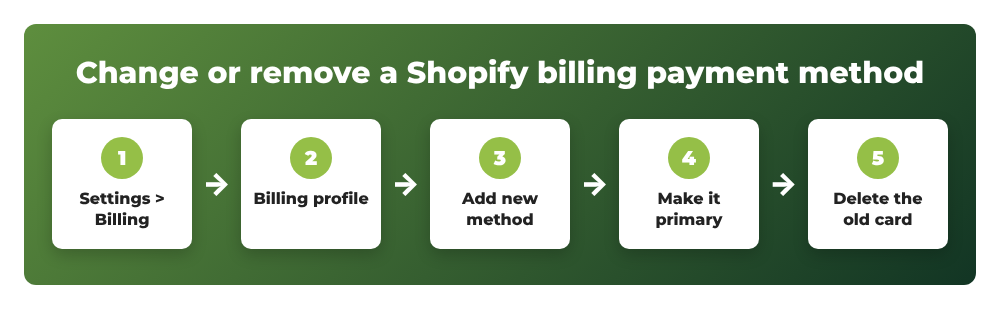
In this tutorial, we will learn how to change or remove the payment method on your Shopify bill step by step: how to add a new card or PayPal account, how to make it the primary payment method, how to delete the old credit card, and what to do if the Delete option is missing.
Previously, I published a tutorial on how to change your Shopify store name. Updating billing details is the other half of keeping your store settings clean after a rebrand or a change of business owner.
Contents
Billing payment method vs. checkout payment methods
Before we start, make sure you are changing the right thing. Shopify uses the words “payment method” in two different places:
- Billing payment method (Settings > Billing): the card, PayPal account or bank account that you use to pay Shopify for your plan, apps, themes and transaction fees. This is what this tutorial is about.
- Checkout payment methods (Settings > Payments): the ways your customers pay you, such as Shopify Payments, PayPal or manual payments. If you want to remove PayPal from your checkout, jump to the last section of this article.
What you need to know before removing a card
- You can’t delete your only payment method. Shopify needs at least one payment method on file while the store is active, so you always add the new method first and delete the old one second.
- Who can do it: you need to be the store owner or a user with permission to manage billing.
- Accepted cards: Visa, Mastercard, American Express, Diners Club and Discover credit cards, plus debit cards co-branded with Mastercard, Visa or Amex. The card must allow recurring payments. Prepaid and virtual cards are not accepted.
- Other methods: depending on your country and billing currency, you may also be able to use PayPal, your Shopify Balance card, ACH bank debit (US), SEPA Direct Debit, Revolut Pay or UPI (India).
- A small authorization: when you add a card, your bank may show a temporary authorization of around $1 USD. It’s not a charge and it is usually released within a few business days.
How to change the payment method on your Shopify bill
Step 1: Open Settings > Billing > Billing profile
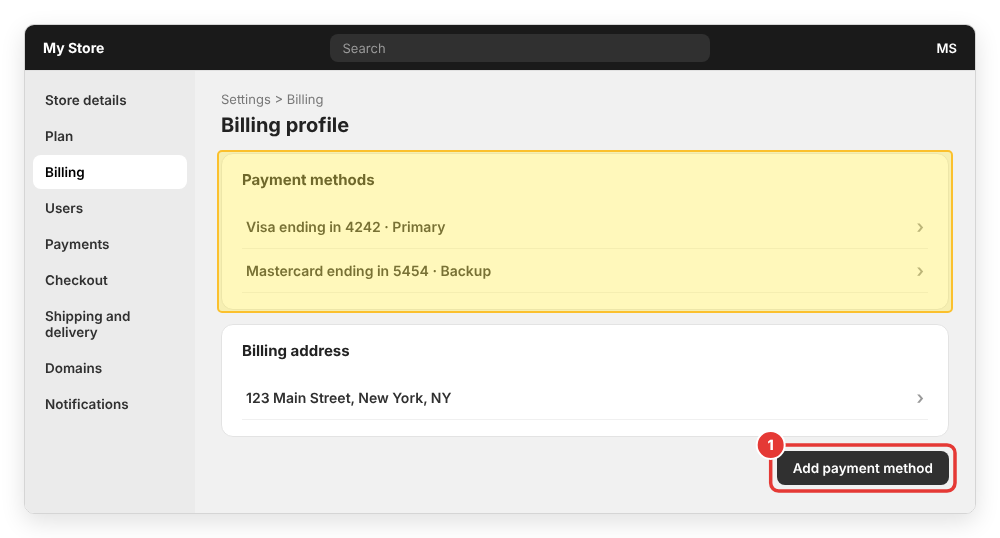
From your Shopify admin, click Settings in the bottom-left corner, then click Billing. On the Billing page, click Billing profile. Scroll to the Payment methods section, where you will see every card or account currently saved, along with labels showing which one is the primary method and which one is the backup.
Step 2: Add the new payment method
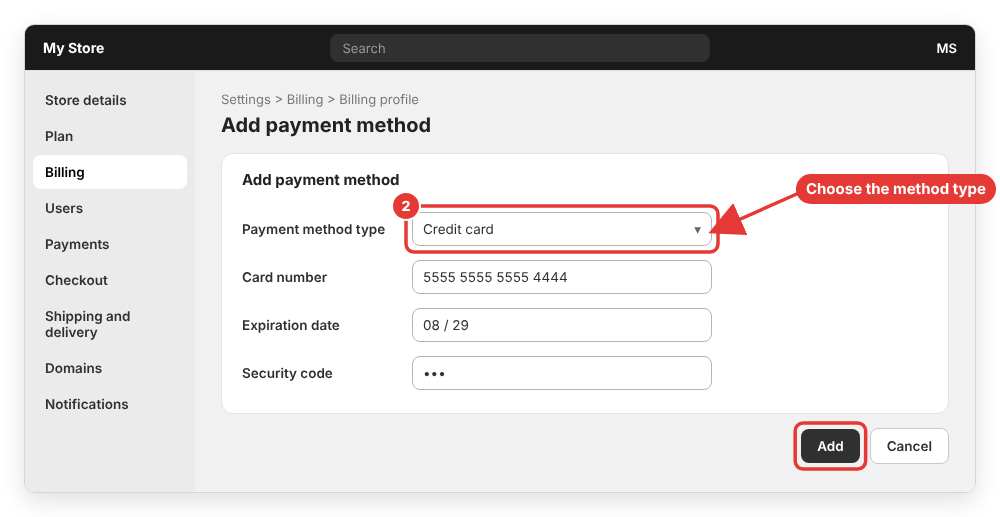
Click Add payment method. If several types are available for your store, choose one from the Payment method type drop-down menu (for example Credit card or PayPal), then follow the on-screen steps:
- For a card, enter the card number, expiration date and security code, then confirm.
- For PayPal, you will be redirected to PayPal to log in and approve billing agreements with Shopify.
- For a US bank account (ACH), you will need to add and verify the account first.
Complete any verification your bank asks for (such as a 3D Secure code sent to your phone). Once it’s done, the new method appears in the Payment methods list.
Step 3: Make the new method primary
Shopify always charges your primary payment method first. If the primary method can’t be charged, Shopify tries the backup method (backup methods aren’t available on Shopify Plus, for manual payments, or when the only other method is your Shopify Balance card).
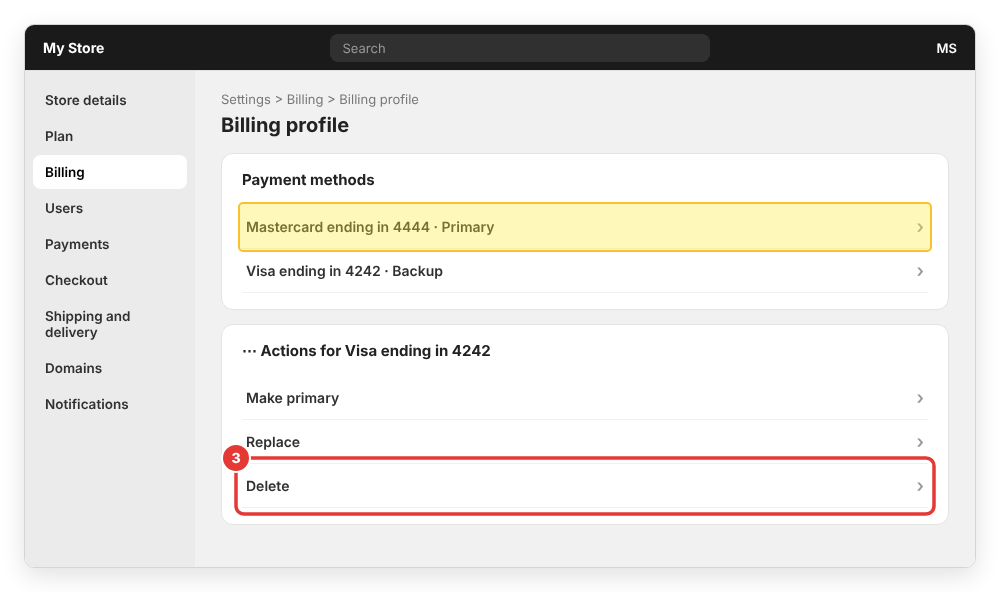
Check whether the new card is marked as primary. If it isn’t, click the horizontal menu icon (⋯) next to the new payment method and click Make primary. With two methods, the previous primary method automatically becomes the backup.
Step 4: Delete the old credit card
Now you can remove the old card:
- In the Payment methods section, click the horizontal menu icon (
⋯) next to the card you want to remove. - Click Delete.
- Click Delete again in the confirmation dialog.
That’s it! The old card is no longer stored in your Shopify billing profile, and future bills will be charged to the new primary method.
The steps above follow the official Shopify Help Center guide on managing payment methods for your Shopify bills, which also lists the methods available in each region.
How to update the billing address on a card
If only the billing address on your card changed (for example, you moved), you don’t need to delete anything. In Settings > Billing > Billing profile, click the menu icon next to the card, then click Replace. In the Replace credit card dialog, enter the card details with the new billing address and click Replace credit card.
Note that the address printed on your Shopify bills is a separate setting, managed in the Billing address section of the billing profile.
How to remove all credit card info from Shopify
Because Shopify always needs one payment method while your store is active, the only way to have no card on file is to stop paying for the store. Your options are:
- Replace the card with another method you are more comfortable sharing, such as PayPal or a business card, and delete the personal card using the steps above.
- Close the store. Before you deactivate, pay any outstanding balance on your bill. You can read the full process in my guide on how to pause, close or delete a Shopify store.
If someone else, such as a business partner or an agency, set up billing with their card, the cleanest fix is for the store owner to add their own method and then delete the old one. If you also need to remove that person’s admin access, see how to add a collaborator or staff account in Shopify, which also covers removing users.
Common errors and questions
The Delete option is missing or greyed out
This almost always means it’s your only payment method, or it’s the current primary method. Add another method first, make it primary (Step 3), then delete the old one.
“Your card was declined” when adding a new card
Check that the card supports recurring or international payments, that it isn’t prepaid or virtual, and that the billing address matches the one your bank has. Some banks block the first authorization from Shopify; approving it in your banking app and trying again usually solves it.
My store is frozen because a payment failed
When a bill can’t be charged, Shopify may freeze the store. Log in, follow the reactivation prompts to reach your billing settings, add a working payment method, then go to Settings > Billing and click Pay bill to settle the outstanding amount.
I can’t find Billing in Settings
Your user doesn’t have billing permissions. Ask the store owner to grant them or to change the payment method for you. Stores that belong to a Shopify Plus organization may manage billing at the organization level instead.
How do I remove PayPal (or another method) from my checkout?
That’s a checkout setting, not billing. Go to Settings > Payments, click the payment provider you want to remove (for example PayPal), and deactivate it. Customers will no longer see that option at checkout. Make sure you keep at least one working payment provider so customers can still pay you.
Wrapping up
That’s it! Now you know how to change or remove the payment method on your Shopify bill: go to Settings > Billing > Billing profile, click Add payment method, make the new method primary, and then delete the old credit card from the ⋯ menu. Remember that Shopify always needs one method on file, so add before you delete.
If you have any questions or Shopify still refuses to remove your card, feel free to leave a comment below and I will try to help.