Maybe you are going on holiday, your supplier stopped shipping, or you simply decided that the business is not for you anymore. Whatever the reason, sooner or later many merchants ask the same question: how do I pause, close or delete my Shopify store without losing data or getting billed again?
The Shopify admin does not have a big red “Delete store” button, and the options have changed over the years (the old Pause and Build plan is no longer offered to new stores). In this tutorial, we will learn the three real ways to take a Shopify store offline, temporarily close it, permanently close it by deactivating it, and what “deleting” a Shopify store really means, step by step.
Previously, I published a tutorial on how to remove the password page and launch your Shopify store. Today we are doing the opposite.
Contents
- Pause, close or delete: which option do you need?
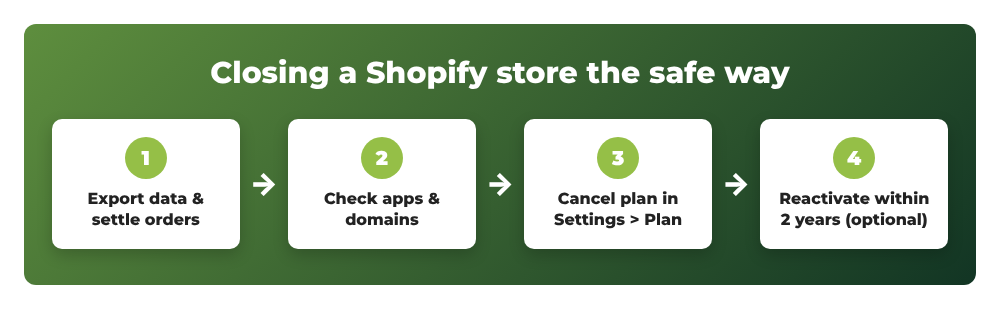
- Step 1: Export your data and settle open orders
- Step 2: Check apps, subscriptions and domains
- Step 3 (option A): Temporarily close your Shopify store with private mode
- Step 3 (option B): Close your Shopify store by deactivating it
- Step 4: Reactivate the store later (optional)
- Can you permanently delete a Shopify store?
- Common errors when closing a Shopify store
- Wrapping up
Pause, close or delete: which option do you need?
Before clicking anything, decide which situation you are in:
- Temporarily close the store (a few days or weeks): keep your plan and turn on Private mode so visitors see a password page instead of your products. Your admin keeps working, but you still pay your plan.
- Pause the store (Pause and Build plan): this is a legacy plan. According to the Shopify Help Center, it is not available to new stores anymore. If your store is already on it, you can keep it; otherwise, use private mode or deactivate the store.
- Close the store for good: cancel your plan in Settings > Plan. Shopify calls this deactivating the store. Billing stops at the end of the current billing cycle and you can reopen the store later.
- Delete the store and its data: there is no instant delete. After deactivation, Shopify keeps your store information for 2 years so you can reactivate it. You can request deletion of your customers’ personal data from a deactivated store before that period ends, but once the data is deleted, the store can no longer be reactivated.
Step 1: Export your data and settle open orders
Once a store is deactivated, you lose access to the admin. So the first step is always to back up everything you may need later:
- Export CSV files for products, customers and orders. Go to Products, Customers or Orders in the admin and click Export on each page.
- Fulfill or cancel open orders. Customers who paid should either receive their items or get their money back. If you need help, see my guide on how to cancel and refund an order in Shopify.
- Gift cards: if you sold gift cards, export the gift card list and decide how you will handle outstanding balances.
- Themes: download a backup of any paid theme (Online Store > Themes > … > Download theme file). Theme licenses are tied to the store.
Also keep in mind that customers can still file chargebacks after you close the store. To respond to a chargeback, you would need to reactivate the store, so keep your order records safe.
Step 2: Check apps, subscriptions and domains
When you cancel the plan, Shopify uninstalls all apps and bills any pending charges (app usage, transaction fees, shipping labels) on your final bill. However, a few things are not cancelled automatically:
- Apps billed outside Shopify (for example, an email marketing tool or a page builder with its own subscription). Cancel those directly on the provider’s website.
- Domains: custom domains are disconnected from the store when it is deactivated. If you bought the domain through Shopify and want to keep it, transfer it to another registrar first. Domain renewals are not cancelled automatically, so turn off auto-renew in Settings > Domains or at your third-party registrar.
- Shopify Payments: pending payouts are still processed after deactivation, but you will not be able to see them in the admin, so take a screenshot of your payout schedule.
Step 3 (option A): Temporarily close your Shopify store with private mode
If you only need a break, the easiest way to “pause” the store is to make it private again:
- From your Shopify admin, go to Online Store > Preferences.
- In the Store access section, turn on Private mode and enter a storefront password.
- Write a short note in Message to your visitors, for example “We are taking a short break and will be back soon!”.
- Click Save.
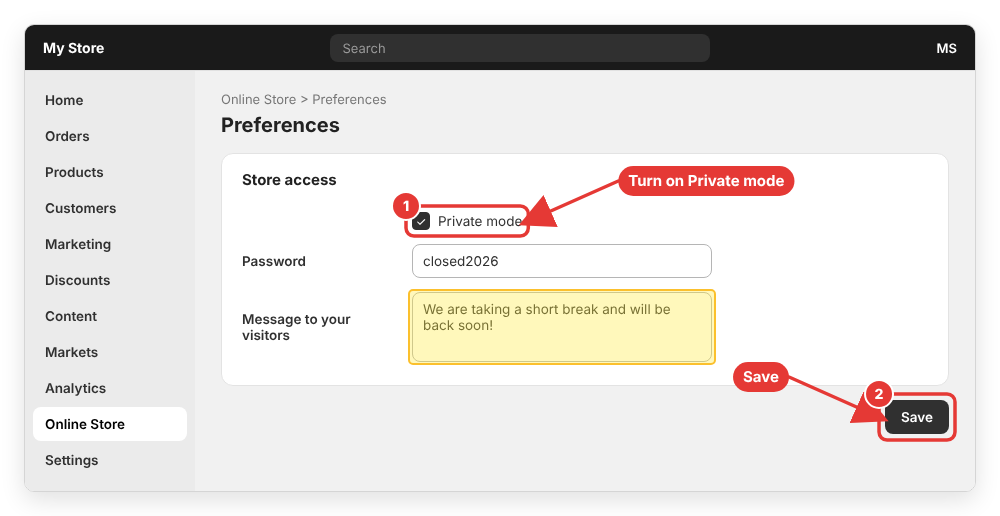
Your products, settings and SEO stay in place, and you can reopen the store in seconds by turning private mode off again. Remember that your plan is still billed during this time.
If your store is already on the Pause and Build plan
Stores on the legacy Pause and Build plan can still use the admin, view basic reports and edit products, but checkout is disabled on all sales channels (including POS). Apps stay installed and may keep charging you, so uninstall the ones you don’t need. To reopen, go to Settings > Plan, click Pick a plan, then Choose plan and Subscribe. Note that once you switch to a regular plan, you can’t go back to Pause and Build.
Step 3 (option B): Close your Shopify store by deactivating it
To close the store permanently and stop billing, you need to be the store owner. Staff accounts cannot cancel the plan. Then follow these steps:
- From your Shopify admin, go to Settings > Plan.
- Click Cancel plan (or Cancel trial if you are still on the free trial).
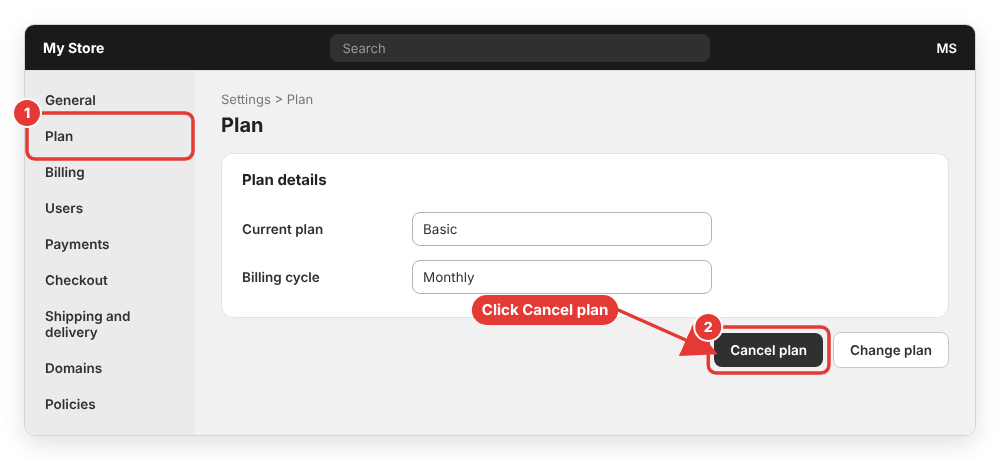
- If Shopify offers you a cheaper plan or other options, review them or skip them.
- Review your Shopify-managed domains and pending charges, select Cancel my plan and uninstall all apps, then click Continue.
- Choose a reason for closing the store (you can add a comment), then click Continue.
- Optionally, select Save payment details to reopen your store faster.
- Enter your account password and click Cancel plan (or Cancel trial) to confirm.
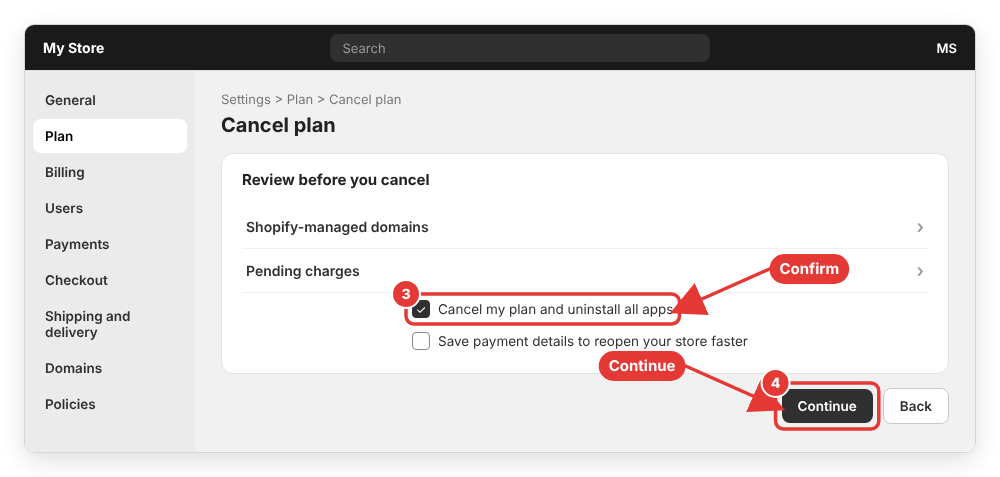
You will receive a confirmation email. Your subscription ends at the end of the current billing cycle. Shopify does not refund the remaining days of your subscription, so if you are close to the next billing date, it is best to cancel a few days before it.
The same flow is available in the Shopify mobile app under Settings > Plan. If you have two-step authentication enabled, you will need to complete the two-step challenge before you can confirm.
The full list of conditions is in the official Shopify Help Center article Deactivating and reactivating your Shopify store.
Closing a store during the free trial
If you are still on the free trial and haven’t selected a paid plan, you don’t have to do anything: you will not be charged when the trial ends. Still, cancelling with Cancel trial makes sure the store is closed. If you already picked a paid plan during the trial, you must cancel it manually before the trial ends to avoid the first charge.
Shopify Plus stores
Plus merchants cannot cancel the Plus agreement from the admin. You need to contact Shopify Plus Support to close the store.
Step 4: Reactivate the store later (optional)
Changed your mind? You can reopen a deactivated store within 2 years:
- Log in to the store as the store owner.
- Click Re-open your-store.myshopify.com.
- Select a plan, enter your payment details on the Review and Subscribe screen and click Subscribe.
If you cancelled but the billing cycle hasn’t ended yet, simply go to Settings > Plan and click Reactivate plan. After reactivating, reconnect your custom domain in Settings > Domains > Connect existing domain.
Can you permanently delete a Shopify store?
Not with a single button. Deactivating is how you close a Shopify store, and the store data is kept for 2 years in case you come back. A few important consequences:
- Your
your-store.myshopify.comaddress can never be used again, even by you. If you want to start over with the same name, reactivate the old store instead of creating a new one. - You can request deletion of your customers’ personal data from a deactivated store. After that data is deleted, the store cannot be reactivated.
- Your Shopify account login can still own other stores, so closing one store doesn’t remove your access to the others.
Common errors when closing a Shopify store
“Cancel plan” button is missing
You are logged in with a staff account. Only the store owner can deactivate the store. Ask the owner to log in, or transfer ownership first.
The store is frozen because of an unpaid bill
Frozen stores must pay outstanding bills in Settings > Billing before they can be paused, deactivated or reactivated.
Still getting charged after closing the store
Check your bank statement for the merchant name. It is usually an app billed outside Shopify or a domain renewal. Cancel the app subscription on the provider’s website and turn off auto-renew for the domain.
Wrapping up
In this tutorial, we learned how to pause, close or delete a Shopify store: export your data and settle orders, check apps and domains, then either turn on Private mode for a temporary break or cancel your plan in Settings > Plan to deactivate the store. If you change your mind, you have 2 years to reactivate it.
Are you closing your store for a break or for good? Leave a comment below if you got stuck on any step, I’m happy to help!