
You install a new extension or upgrade Magento, run php bin/magento setup:upgrade, and the command stops with a short, confusing message: Error while checking if topic "..." is synchronous. Nothing else. No stack trace, no file name. The store may still work, but you can’t finish the deployment.
Previously, I published a tutorial on how to install and enable a new Magento 2 extension. This error is one of the most common problems right after that step, because it is almost always caused by a module’s message queue configuration.
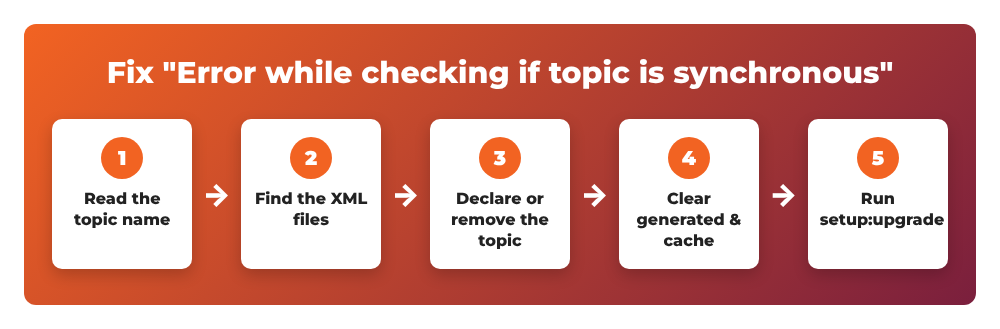
In this tutorial, we will learn what the Magento 2 “Error while checking if topic is synchronous” error means, how to find the module that causes it, and how to fix it step by step. The commands work on Magento Open Source and Adobe Commerce 2.4.x, including 2.4.8.
Contents
- Why does Magento 2 show “Error while checking if topic is synchronous”?
- Step 1: Read the topic name from the error
- Step 2: Find which module uses the topic
- Step 3: Declare the topic or remove the broken binding
- Step 4: Clear generated code and the config cache
- Step 5: Run setup:upgrade again
- How to prevent this error in your own modules
- Common errors
- Wrapping up
Why does Magento 2 show “Error while checking if topic is synchronous”?
Magento uses message queues for background jobs such as bulk attribute updates, exports, inventory reservations and many third-party integrations. Each queue is described by several XML files inside a module’s etc folder:
communication.xmldeclares the topic (its name, request type and, for synchronous topics, the response type).queue_topology.xmlbinds a topic to a queue on an exchange.queue_publisher.xmlandqueue_consumer.xmldefine who sends and who processes messages.
When Magento builds the queue list (for example during the recurring setup scripts of Magento_MysqlMq and Magento_Amqp in setup:upgrade), the class Magento\Framework\MessageQueue\Topology\Config\QueueConfigItem\DataMapper checks every binding in queue_topology.xml and asks the communication config whether its topic is synchronous. If the topic is not declared in any communication.xml, the lookup fails with Topic "..." is not configured. and Magento re-throws it as:
Error while checking if topic "vendor.module.export" is synchronous
In real projects, this happens when:
- A custom or third-party module has a
queue_topology.xmlbinding, but itscommunication.xmlis missing, has a typo in the topic name, or is invalid XML. - The module that declares the topic is disabled or removed, while another enabled module still binds to that topic.
- An extension release ships a new topic in its topology file but forgot the communication entry. A known example is a Meta (Facebook) extension version that failed with the topic
persist.meta.log.immediatelyduringsetup:upgrade. - Old files in
generated/or a staleconfigcache still point to an outdated configuration after an upgrade.
Step 1: Read the topic name from the error
Run the command again and copy the topic name between the quotes (1). This name is the only clue Magento gives you, so write it down exactly.
php bin/magento setup:upgrade
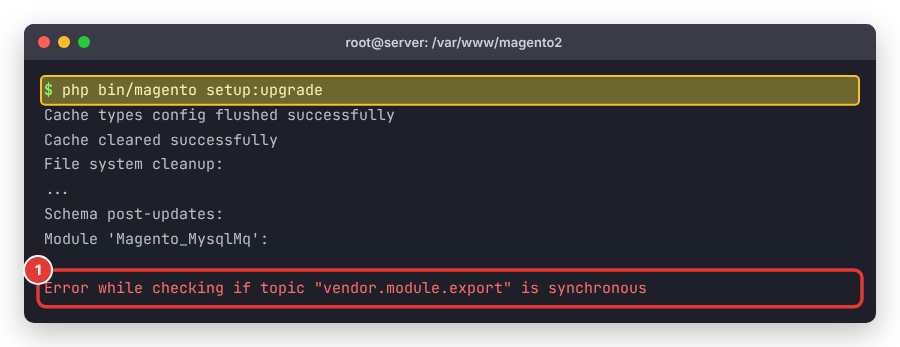
If you see the error in a log file instead of the terminal, check var/log/system.log and var/log/exception.log. Depending on the version, the AMQP installer may log it as AMQP topology installation failed: Error while checking if topic ... is synchronous.
Step 2: Find which module uses the topic
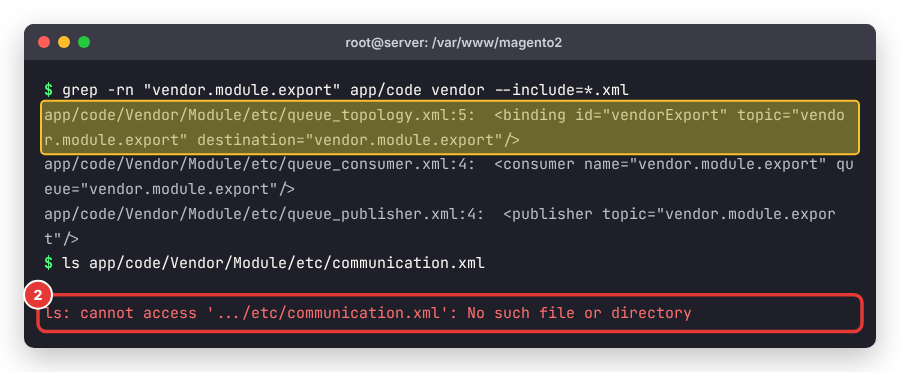
Search all XML files in app/code and vendor for the topic name:
grep -rn "vendor.module.export" app/code vendor --include=*.xml
Look at which files contain it. In a healthy module, you should find the topic in communication.xml and in queue_topology.xml. If it only appears in queue_topology.xml, queue_publisher.xml or queue_consumer.xml (2), the topic declaration is missing.
Next, check whether the module is enabled:
php bin/magento module:status Vendor_Module
If the module that declares the topic in its communication.xml is disabled, but another module still binds to the topic, you have found the conflict.
Step 3: Declare the topic or remove the broken binding
Choose the fix that matches your situation.
Option A: Add the missing topic to communication.xml (your own module)
If the module is yours, create or fix app/code/Vendor/Module/etc/communication.xml. The topic name must match the topic attribute in queue_topology.xml character for character:
<?xml version="1.0"?>
<config xmlns:xsi="http://www.w3.org/2001/XMLSchema-instance"
        xsi:noNamespaceSchemaLocation="urn:magento:framework:Communication/etc/communication.xsd">
    <topic name="vendor.module.export" request="string">
        <handler name="vendorModuleExport" type="Vendor\Module\Model\Consumer" method="process"/>
    </topic>
</config>
An asynchronous topic only needs a request type. A synchronous (RPC) topic needs both request and response. For reference, here is a matching queue_topology.xml:
<?xml version="1.0"?>
<config xmlns:xsi="http://www.w3.org/2001/XMLSchema-instance"
        xsi:noNamespaceSchemaLocation="urn:magento:framework-message-queue:etc/topology.xsd">
    <exchange name="magento">
        <binding id="vendorExport" topic="vendor.module.export" destination="vendor.module.export"/>
    </exchange>
</config>
Adobe documents every attribute of these files in the official guide to configuring message queues.
Option B: Update or re-enable the third-party extension
If the topic belongs to a vendor extension, don’t edit files in vendor/. Instead:
- Update the extension to the latest version with Composer (for example
composer update vendor/module-name), because the vendor has often fixed the missing topic already. - If you disabled one module of a multi-module extension, enable it again or disable all of its modules together with
php bin/magento module:disable Vendor_ModuleA Vendor_ModuleB. - If you don’t use the extension at all, remove it completely with Composer instead of deleting folders by hand.
Step 4: Clear generated code and the config cache
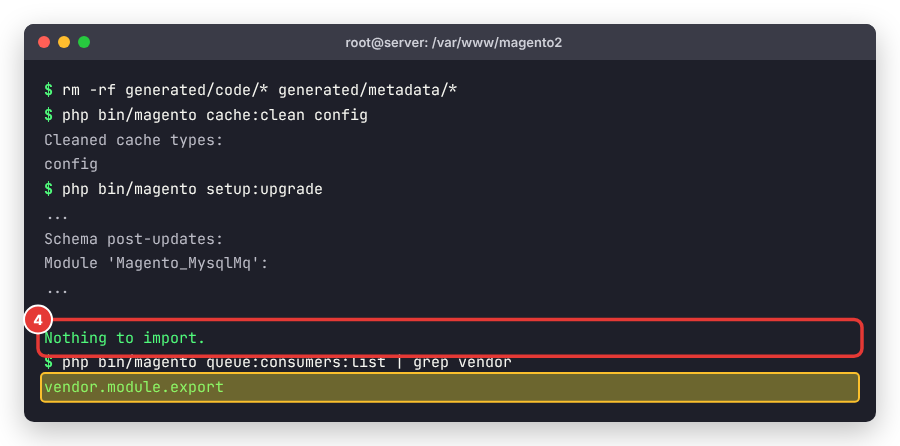
Magento caches the merged communication and topology configuration. After changing XML files or modules, remove the generated code and clean the config cache so Magento rebuilds it:
rm -rf generated/code/* generated/metadata/*
php bin/magento cache:clean config
Step 5: Run setup:upgrade again
Now run the upgrade again. It should finish with Nothing to import. (4) instead of the error. You can also confirm that the consumer is registered:
php bin/magento setup:upgrade
php bin/magento queue:consumers:list | grep vendor
In production mode, finish the deployment as usual:
php bin/magento setup:di:compile
php bin/magento setup:static-content:deploy -f
php bin/magento cache:flush
If setup:di:compile complains afterwards, see my guide on fixing “Please re-run Magento compile command”.
How to prevent this error in your own modules
If you build custom modules that use message queues, a few habits will keep this error away for good:
- Keep all queue files in the same module. Put
communication.xml,queue_topology.xml,queue_publisher.xmlandqueue_consumer.xmlfor a topic together, so the topic can never be enabled without its declaration. - Use one constant for the topic name. Store the name in a PHP constant (for example in your publisher class) and copy it into the XML files carefully. Most real cases of this error are simple typos such as
vendor.module.exportvsvendor.module.exports. - Declare module dependencies. If module B binds to a topic declared by module A, add A to the
<sequence>in B’smodule.xmland to B’scomposer.json, so nobody can disable A alone without noticing. - Test on staging first. Run
setup:upgradeon a staging copy after every extension install or update. It is much easier to fix the topic there than during a production deployment.
Common errors
Topic "..." is not configured.This is the original exception behind the synchronous error. It can also appear when publishing a message from code. The fix is the same: declare the topic incommunication.xmlof an enabled module.- Invalid XML in communication.xml. A single typo makes Magento fail to read the whole file. Validate it against
urn:magento:framework:Communication/etc/communication.xsdin your IDE, or checkvar/log/exception.log. - The error appears right after a Magento upgrade. Some extensions are not compatible with the new version yet. Update all third-party modules before you run
setup:upgrade. My guide on how to upgrade Magento 2 to the latest version shows the safe order of commands. - Consumers don’t process messages after the fix. Make sure cron is running, or start the consumer manually with
php bin/magento queue:consumers:start vendor.module.exportto test it.
Wrapping up
The Magento 2 “Error while checking if topic is synchronous” message simply means that a module binds a queue to a topic that Magento can’t find in any communication.xml. Read the topic name, find the module with grep, declare the topic or fix the extension, clear generated/ and the config cache, and run setup:upgrade again.
If the error still shows up, leave a comment below with the topic name and your Magento version, and I will help you track down the module.