
When a customer lands on a product page and the product is not quite right, you don’t want them to hit the back button and leave. A “You may also like” row with similar items, or a “Pairs well with” block with add-ons, keeps them browsing and often adds one more item to the cart. In this tutorial, we will learn how to add related products in Shopify: how Shopify generates recommendations automatically, how to choose your own related and complementary products with the free Search & Discovery app, and how to show them on your product pages without touching code.
Previously, I published a tutorial on how to add products and variants in Shopify. Once you have a few products in your catalog, related products are the natural next step to connect them together.
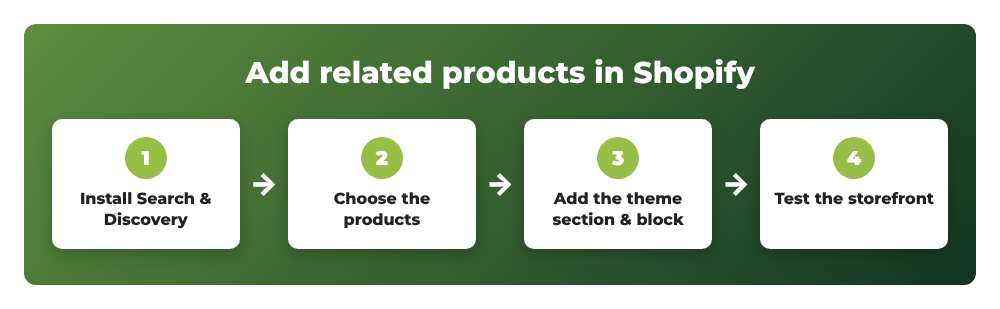
Here is an overview of what we are going to do:
Contents
Related products vs complementary products
Shopify supports two kinds of product recommendations, and it helps to know the difference before we start:
- Related products – products that are similar to the product the customer is viewing, i.e. potential substitutes. Example: another wallet in a different color or style. These are usually shown in a You may also like section below the product.
- Complementary products – products that are often bought in addition to the product. Example: a leather care kit for a leather wallet, or socks for a pair of shoes. These are usually shown in a Pair it with block next to the Add to cart button.
The key difference: Shopify generates related recommendations automatically for every product, while complementary recommendations are never generated automatically. You have to choose them yourself in the Search & Discovery app.
How Shopify picks related products automatically
The automatic recommendation algorithm associates up to 10 products with each product, ordered by relevance. According to the Shopify developer documentation on product recommendations, it looks at:
- Purchase history – products that were historically bought together.
- Product description – products with similar descriptions.
- Related collections – products from the same collections (excluding the
allandfrontpagecollections), used when the first two signals aren’t available.
That means a brand-new store with no orders mostly gets recommendations from shared collections. If your recommendations look random, the fix is usually better collections, better product descriptions, or manual picks, which we will set up in Step 2.
A few products are never recommended: products that are sold out (unless they continue selling when out of stock), products with a price of 0.00, gift cards, products that are not published to the Online Store, and products already in the visitor’s cart.
Step 1: Install the Shopify Search & Discovery app
Manual recommendations are managed in Shopify Search & Discovery, a free app made by Shopify. Many stores already have it because it also handles search filters and synonyms.
- From your Shopify admin, go to Apps and check whether Search & Discovery is already listed.
- If it isn’t, open the Shopify App Store, search for
Search & Discoveryand click Install. - Approve the permissions. The app opens in your admin under Apps > Search & Discovery.
If you only want automatic related products, you can skip to Step 3: the Related products section works without the app. But to control what is shown, or to use complementary products at all, you need the app.
Now let’s tell Shopify exactly which products to recommend for a given product.
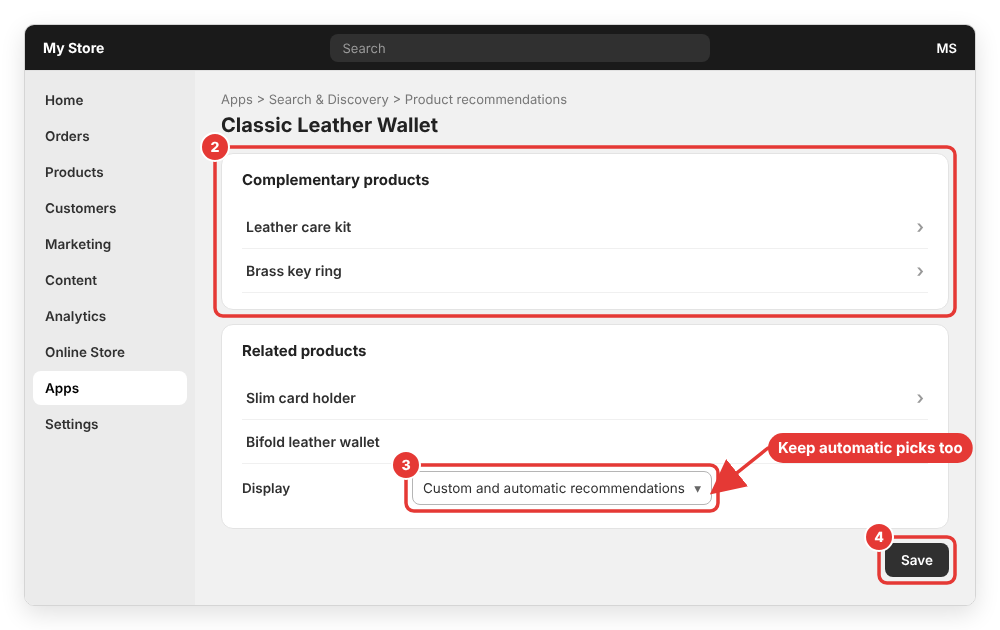
- From your Shopify admin, go to Apps > Search & Discovery.
- Click Product recommendations, and then click Add recommendations.
- Select the product you want to customize, for example
Classic Leather Wallet. - Under Complementary products, select up to 10 add-on products (e.g. a leather care kit, a key ring).
- Under Related products, select up to 10 similar products. Then choose whether the product should display only your custom recommendations or your custom recommendations followed by the automatically generated ones.
- Click Save.
A few tips from experience:
- Keep complementary products cheaper than (or around the same price as) the main product. A $15 care kit next to a $60 wallet is an easy add-on; a $200 bag is not.
- Mixing custom and automatic related products is a good default: your manual picks appear first, and Shopify fills the rest of the row.
- If an automatic recommendation doesn’t make sense, you can’t edit it, but you can hide it for that product in the app.
Bulk edit recommendations for many products
Setting recommendations one product at a time gets slow with a large catalog. On the Product recommendations page, select several products, click Bulk edit, choose the recommendations for each product in the bulk editor, and click Save.
Behind the scenes, the app stores your choices in Shopify standard product metafields (Related products, Related products settings and Complementary products). You will see them in the Metafields section of each product, which is handy for checking what was assigned.
Recommendations don’t appear anywhere until your theme displays them. In Online Store 2.0 themes (Dawn, Horizon and most free Shopify themes) you do this in the theme editor. Section and block names can vary slightly between themes, but the idea is the same.
Add the Related products section
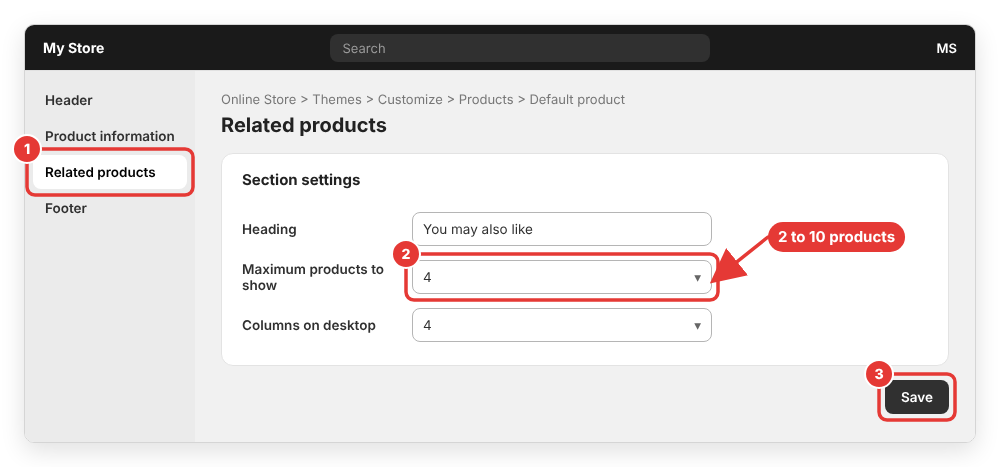
- From your Shopify admin, go to Online Store > Themes and click Customize (or Edit theme) on your current theme.
- From the page drop-down at the top of the editor, choose Products > Default product.
- Look for a Related products section (called Product recommendations in some themes). Most themes include it by default. If it’s missing, click Add section below the product information and select it.
- Set the Heading (e.g.
You may also like) and the Maximum products to show. Four products is a good number because the first recommendations are always the most relevant. - Click Save.
If you use different product templates for different product types, remember to add the section to each template. I explained how templates work in the tutorial on how to add pages and page templates in Shopify; product templates work exactly the same way.
Add the Complementary products block
Complementary products are a block inside the product information section, so they appear right next to the price and buy buttons.
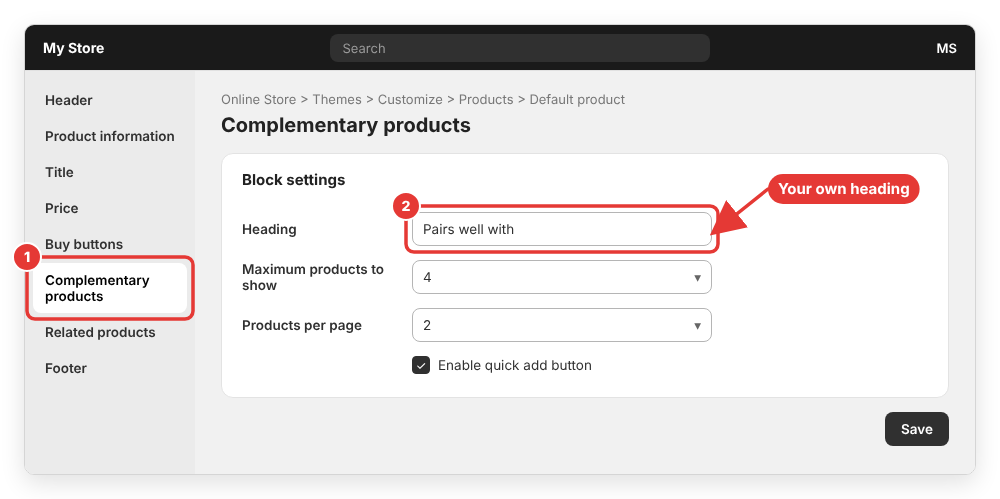
- In the theme editor, still on the Default product template, expand the Product information section.
- Click Add block and select Complementary products. You can add only one complementary products block per product page.
- Enter a Heading such as
Pairs well with, then adjust Maximum products to show (1–10), Products per page, and optionally Enable quick add button so customers can add the item without leaving the page. - Drag the block below the Buy buttons block and click Save.
The complementary products block is only available in themes that support it. If you don’t see it in the block list, update your theme to the latest version or check the theme documentation.
Optional: add related products with Liquid code
If you use a custom or vintage theme without a recommendations section, you can build one yourself. Shopify loads recommendations asynchronously through the Product Recommendations API, so the section must be rendered once with a data-url and then fetched with JavaScript. Here is the core of the section markup from the Shopify docs (sections/product-recommendations.liquid):
<div
  class="product-recommendations"
  data-url="{{ routes.product_recommendations_url }}?section_id={{ section.id }}&product_id={{ product.id }}&limit=4&intent=related"
>
  {%- if recommendations.performed? and recommendations.products_count > 0 -%}
    <h2>You may also like</h2>
    <ul>
      {%- for product in recommendations.products -%}
        <li class="product">
          <a href="{{ product.url }}">
            <img src="{{ product.featured_image | image_url: width: 300, height: 300 }}" alt="{{ product.featured_image.alt }}">
            <p>{{ product.title }}</p>
            <p>{{ product.price | money }}</p>
          </a>
        </li>
      {%- endfor -%}
    </ul>
  {%- endif -%}
</div>
Change intent=related to intent=complementary to load complementary products instead. You then need a small script that fetches the URL in data-url and replaces the section’s HTML with the response; the full example (with an IntersectionObserver so it loads only when the section is visible) is in the developer docs linked above. Keep the loop small: looping over large collections in Liquid is one of the common causes of the Shopify Liquid error: Memory limits exceeded.
- Open the product in your online store (not only in the theme editor preview).
- Scroll down to confirm the You may also like row shows your custom products first.
- Check the Pairs well with block next to the buy buttons and try the quick add button.
- Add one of the recommended products to the cart and reload the page: it should disappear from the recommendations, because products already in the cart are excluded.
After a few weeks, you can measure the impact in Analytics > Reports with the product recommendation conversion report.
Common errors
The related products section is empty
This usually happens on new stores. Make sure the product belongs to at least one collection other than all and frontpage, that the other products are active, in stock, published to the Online Store and priced above zero, or add manual related products in Search & Discovery. Orders imported from another platform are not used by the algorithm.
The complementary products block doesn’t show anything
Complementary products are never automatic, so the block stays hidden until you assign complementary products to that product in the app. Complementary products must also be Active and have inventory above zero.
My manual picks don’t appear on the storefront
Check that you saved the recommendations in the app and that the product uses a template that contains the section or block. Also check the product setting: if it is set to show custom and automatic recommendations, your manual products come first; if the section limit is lower than your number of picks, the rest are cut off.
Recommendations differ from the app preview
Automatic recommendations change frequently as new orders come in, so what you see in the app can differ slightly from the storefront. If a product must always appear, add it as a manual recommendation.
Wrapping up
That’s how to add related products in Shopify: install the free Search & Discovery app, choose up to 10 related and 10 complementary products for each product, then display them with the Related products section and the Complementary products block in your theme editor. With good recommendations, every product page becomes a path to another product instead of a dead end.
Did related products increase your average order value? If you get stuck with any of the steps above, leave a comment below and I will be happy to help.