You open your Shopify store and, instead of the product grid or the product page, you see a short red message: Liquid error: Memory limits exceeded. Sometimes it only shows up on one collection or one product. Sometimes it appears in the theme editor with an “Unable to load page” pop-up. Either way, customers can’t see part of your store, and that costs sales.
Previously, I wrote about how to fix the Shopify “Cannot find variant” error when adding to cart. The memory limit error is a different problem: it happens on the server while Shopify renders your theme’s Liquid code, before the page ever reaches the browser.
In this tutorial, we will learn what causes the Shopify Liquid error: Memory limits exceeded, how to find the exact section that triggers it, and how to fix it step by step without breaking your live theme.
Contents
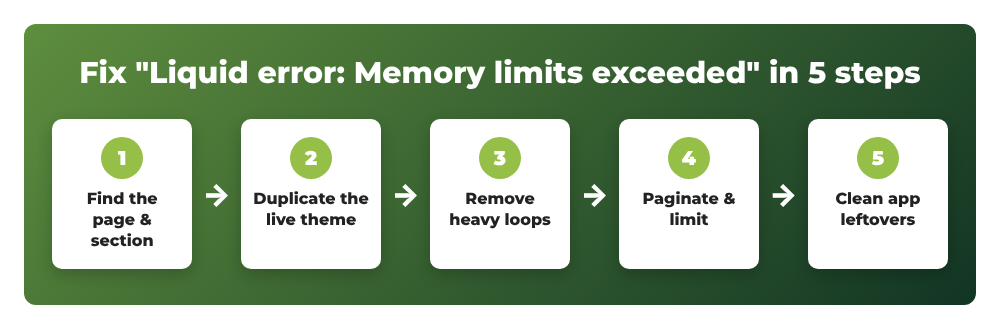
- What does “Liquid error: Memory limits exceeded” mean?
- Step 1: Find the page and the section that throws the error
- Step 2: Duplicate your live theme before editing code
- Step 3: Remove nested loops and heavy lookups
- Step 4: Paginate and limit large loops
- Step 5: Clean up app code and leftovers
- Common errors
- Wrapping up
What does “Liquid error: Memory limits exceeded” mean?
Every storefront page is built on Shopify’s servers by rendering Liquid templates, sections and snippets. To keep the platform fast for every merchant, each page render has a memory budget. When the Liquid code on a page loads or builds too much data, Shopify stops rendering that part and prints Liquid error: Memory limits exceeded instead.
The most common causes are:
- Big or nested loops, for example looping through every product in a collection and, inside it, every variant, tag or metafield.
- Loops over huge arrays such as
collections.all.productsor a collection with thousands of items. - Large string building with
captureorappendinside a loop (for example building a JSON blob of all products). - Products with very many variants rendered with a variant picker or swatches that loop through every combination.
- App code, especially translation, filter, swatch or upsell apps that inject snippets into the theme, including leftover code from apps you already uninstalled.
The good news: the error is almost always caused by one specific section or snippet, so once you find it, the fix is quick.
Step 1: Find the page and the section that throws the error
Open your store in a private browser window and write down every page where the message appears: home page, a specific collection, a product, search results, the cart. Then note where on the page the message is printed. Liquid prints the error in place of the section that failed, so if the product grid is replaced by the error but the header and footer still render, the culprit is the collection grid section.
A few quick checks help narrow it down:
- Does it happen on one product only? Look at that product’s variant count, tags and metafields. A product with hundreds of variants is a typical trigger.
- Does it happen on large collections only? Then the collection grid, filters or a “quick view” snippet is looping over too many products.
- Does it happen everywhere? Look at code in
layout/theme.liquidor snippets rendered in the header, such as a mega menu or an app embed. - Does it only happen in the theme editor? Try another browser with extensions disabled. If the storefront itself works fine, it may be a temporary theme editor issue on Shopify’s side.
Step 2: Duplicate your live theme before editing code
Never experiment directly on the live theme. Go to Online Store > Themes, click the … (actions) button next to your current theme and choose Duplicate (1). Shopify creates a copy in your theme library. On the copy, open the same menu and click Edit code (2).
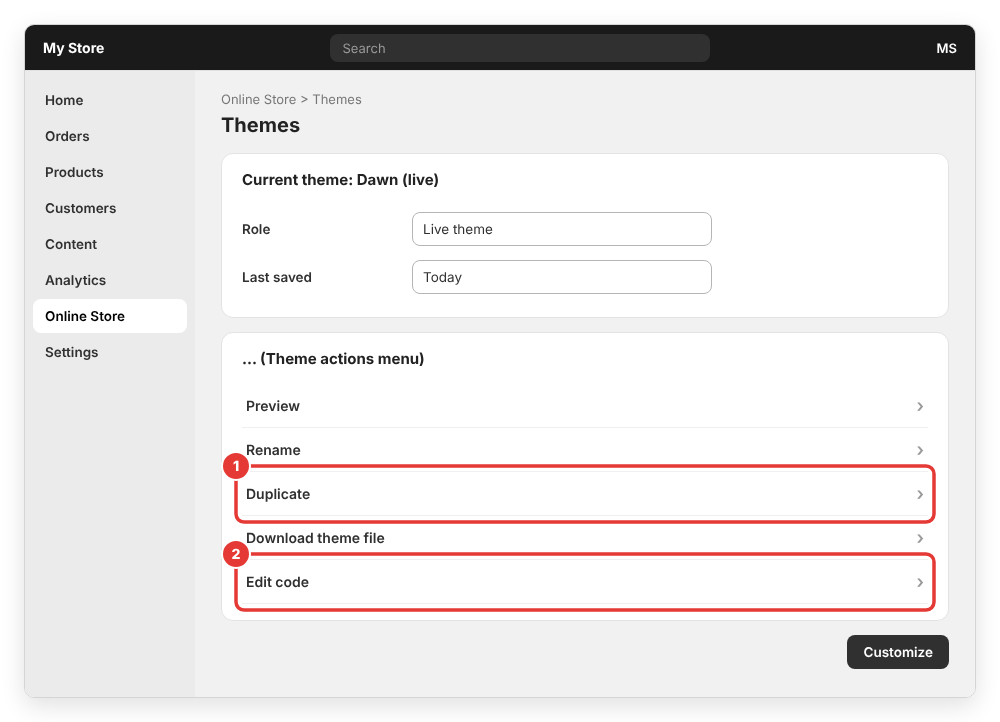
You can preview the duplicated theme and test changes on it safely, then publish it when the error is gone. Shopify explains this in its guide on duplicating themes.
In the code editor, use the search box to look for heavy patterns inside the section you found in Step 1. Good search terms are collections.all, all_products, product.variants, for and capture.
Step 3: Remove nested loops and heavy lookups
The most frequent trigger is a loop inside a loop. Here is a typical example that I see in custom “color swatch” or “related products” snippets:
{% comment %} BAD: loops every product, then every variant, then every tag {% endcomment %}
{% for product in collections.all.products %}
  {% for variant in product.variants %}
    {% for tag in product.tags %}
      {% if tag == variant.option1 %}
        {% capture swatches %}{{ swatches }}<span>{{ variant.title }}</span>{% endcapture %}
      {% endif %}
    {% endfor %}
  {% endfor %}
{% endfor %}
On a store with a few hundred products and many variants, this snippet runs tens of thousands of iterations and keeps growing the swatches string in memory. Rewrite it so it only works with the data the page really needs:
{% comment %} GOOD: only the current product, only what is displayed {% endcomment %}
{% assign current_variant = product.selected_or_first_available_variant %}
{% for value in product.options_with_values.first.values limit: 12 %}
  <span class="swatch">{{ value }}</span>
{% endfor %}
A few rules of thumb:
- Use
product.selected_or_first_available_variantinstead of looping all variants just to find the default one. - Exit a loop as soon as you have what you need with
{% break %}. - Avoid
all_products['handle']in loops. Shopify’s documentation says theall_productsobject has a limit of 20 unique handles per page; for more products, use a collection or a product list setting instead. - Don’t build big strings with
captureorappendinside loops. Output the HTML directly.
Step 4: Paginate and limit large loops
Liquid for loops are limited to 50 iterations per page, so a theme that needs to show more items must use the paginate tag. Wrapping the product grid in paginate with a reasonable page size keeps every render small:
{% paginate collection.products by 24 %}
  {% for product in collection.products %}
    {% render 'product-card', product: product %}
  {% endfor %}
  {{ paginate | default_pagination }}
{% endpaginate %}
Shopify raised the maximum page size of paginate to 250 items, but a bigger page means more memory per render. According to the Shopify pagination best practices, 12 to 24 products per page is a common range, and 50 is a reasonable upper bound. If someone set the grid to show 250 products per page in the theme settings, lower it.
For small widgets like “You may also like”, “Recently added” or a mega menu product preview, add a limit to the loop:
{% for product in collections['new-arrivals'].products limit: 8 %}
  {% render 'product-card', product: product %}
{% endfor %}
Also replace old {% include 'snippet' %} calls with {% render 'snippet' %}. The include tag is deprecated; render gives each snippet its own isolated scope, which makes it easier to see exactly which variables a snippet uses.
Step 5: Clean up app code and leftovers
If you didn’t write any custom code, an app is the most likely cause. Translation apps are a known example: some of them loop through all translations while the page is rendered, which can hit the memory limit on collection pages when the store has many custom translations or translated tags.
Go to Settings > Apps and review the apps that add code to your storefront (1). Then think about apps you uninstalled in the past (2): uninstalling an app doesn’t always remove the snippets it added to older themes.
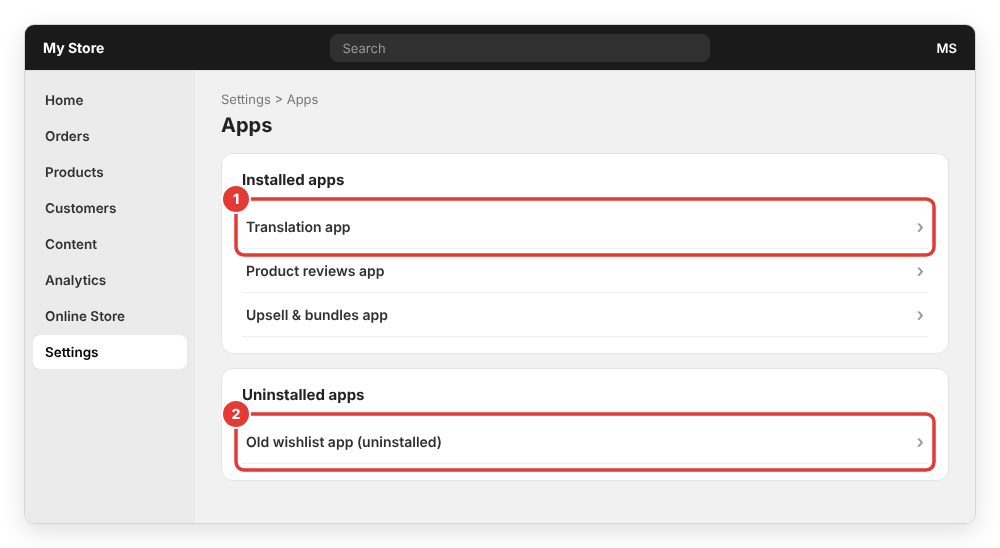
To clean things up:
- In Edit code, open the
snippetsfolder and look for files named after apps you no longer use. - Search the theme for
render 'andinclude 'calls to those snippets inlayout/theme.liquid, sections and templates, and remove them on the duplicated theme. - For apps that still use app embeds, open Online Store > Themes > Customize > App embeds and switch off the ones you don’t need.
- Preview the duplicate. If the error disappears, publish it.
If the culprit is an app you still need, contact the app developer and give them the URL of the page with the error. For translation apps, deleting unused translations or splitting them so each page loads fewer of them usually fixes it.
Because some of these steps touch theme templates, you may also like my guide on how to add pages and page templates in Shopify, which explains how templates and sections fit together.
Common errors
- The error only appears on one product. Check the variant count and the product’s metafields. Products with very high variant counts render heavy variant pickers; simplify the picker or split the product. If you manage variants a lot, see my tutorial on how to add products and variants in Shopify.
- The error appears only in the theme editor with “Unable to load page”. Test in another browser with extensions disabled and check the live storefront. If the storefront is fine, it is likely a temporary theme editor problem; wait a few hours or contact Shopify Support.
- “Can’t be larger than 64 kilobytes”. This is a different error. It appears when a single page or setting stores too much content. Split the content into multiple pages or snippets.
- The error came back after a theme update or an app reinstall. A theme update adds a new copy of the theme to your library, and code edits from the old version are not carried over automatically. Apply your fix again on the new version and re-check the same section.
- Pages deep in pagination show the last page. Shopify limits pagination to 25,000 items. Use filters or smaller collections instead of very deep pagination.
Wrapping up
The Liquid error: Memory limits exceeded message looks scary, but it always points to Liquid code that does too much work in a single page render. Find the section that fails, duplicate your theme, remove nested loops, paginate and limit large lists, and clean up leftover app code. In most stores the fix is a handful of lines.
If you are still stuck, leave a comment below with the page type and the theme you use, and I will try to help you find the culprit.