
You open your Magento 2 store, the icons and fonts are missing (or your PWA/headless frontend can’t load any data), and the browser console is full of red messages like this:
Access to font at 'https://cdn.example.com/static/frontend/Magento/luma/en_US/fonts/opensans/regular/opensans-400.woff2' from origin 'https://www.example.com' has been blocked by CORS policy: No 'Access-Control-Allow-Origin' header is present on the requested resource.
or, if you are calling the API from another app:
Access to XMLHttpRequest at 'https://www.example.com/graphql' from origin 'http://localhost:3000' has been blocked by CORS policy: Response to preflight request doesn't pass access control check: No 'Access-Control-Allow-Origin' header is present on the requested resource.
This is the famous Magento 2 CORS error. In this tutorial, we will learn what causes it and how to fix it in every common situation: a www/non-www or http/https mismatch, static files and fonts served from a CDN or subdomain, and REST/GraphQL requests from a headless frontend. The steps work on Magento 2.4.x, including 2.4.8.
Contents
- What is a CORS error in Magento 2?
- Step 1: Find out which request is blocked
- Step 2: Fix base URL mismatches (www, non-www, http, https)
- Step 3: Add the CORS header for fonts and static files (CDN or subdomain)
- Step 4: Allow REST and GraphQL requests from a headless frontend
- Step 5: Flush cache and test again
- Common errors
- Wrapping up
What is a CORS error in Magento 2?
CORS (Cross-Origin Resource Sharing) is a browser security rule. When a page loaded from one origin (protocol + domain + port, for example https://www.example.com) requests a font, a JSON file or an API response from another origin (for example https://cdn.example.com or https://example.com), the browser only accepts the response if the server sends an Access-Control-Allow-Origin header that allows the requesting origin.
Important: the CORS error is enforced by the browser, not by Magento. The request often succeeds on the server (HTTP 200), but the browser refuses to use the response. That’s why the fix is almost always a header or URL configuration, not a code change.
In Magento 2, CORS errors usually come from one of these three causes:
- The store is opened on a domain that doesn’t match the configured base URL (
example.comvswww.example.com, orhttpvshttps). - Static view files or media files are served from a CDN or subdomain that doesn’t send the CORS header (fonts are the most common victim).
- A headless frontend, PWA or external app calls the REST or GraphQL API from a different origin.
Step 1: Find out which request is blocked
Open the browser developer tools (F12), go to the Console tab and read the full error. Note two things:
- The blocked URL – is it a font/CSS/JS file under
/static/or/media/, or an API endpoint like/graphqlor/rest/V1/...? - The origin – the domain of the page that made the request.
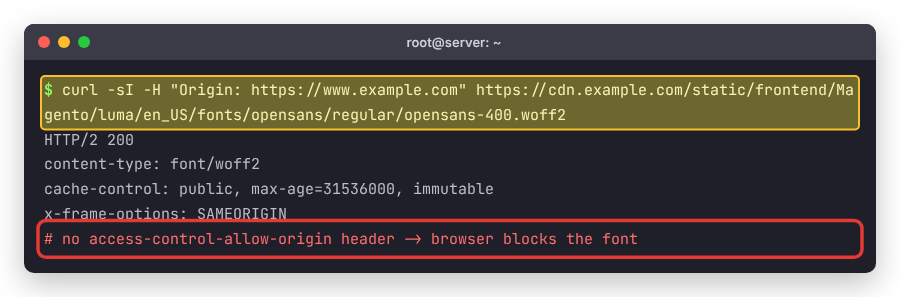
You can reproduce the problem from the command line with curl. Send an Origin header and check whether the response contains access-control-allow-origin:
curl -sI -H "Origin: https://www.example.com" https://cdn.example.com/static/frontend/Magento/luma/en_US/fonts/opensans/regular/opensans-400.woff2
In the example below, the font is returned with HTTP/2 200, but there is no access-control-allow-origin header, so the browser blocks it:
Step 2: Fix base URL mismatches (www, non-www, http, https)
If the blocked URL and the page are on almost the same domain (for example the page is https://example.com and Magento loads https://www.example.com/static/...), you don’t need CORS headers at all. You need consistent base URLs.
Check the configured URLs with:
bin/magento config:show web/unsecure/base_url
bin/magento config:show web/secure/base_url
bin/magento config:show web/secure/base_static_url
bin/magento config:show web/secure/base_media_url
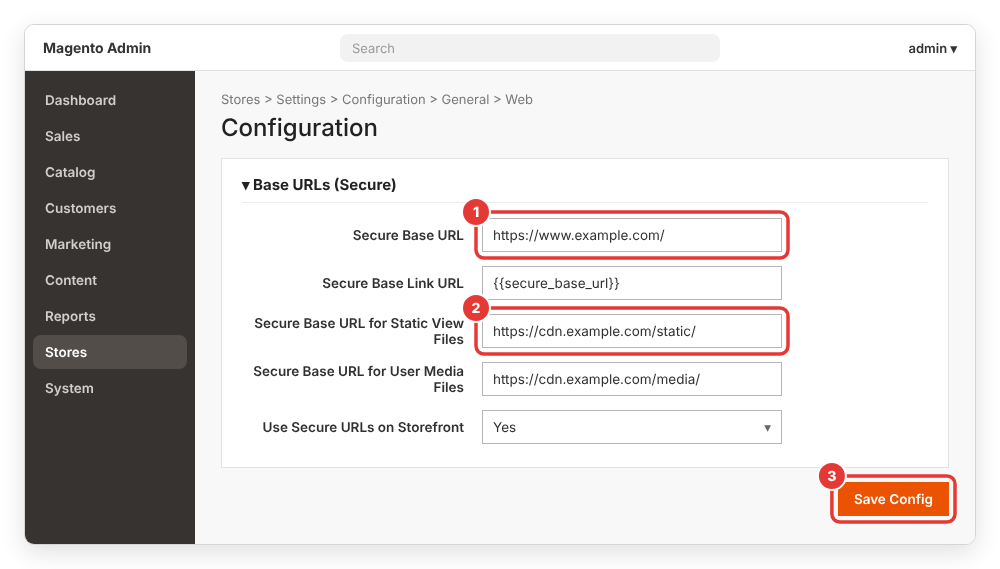
In the admin, the same values are in Stores > Settings > Configuration > General > Web, under Base URLs and Base URLs (Secure). Make sure that:
- Secure Base URL (1) uses the exact domain your customers visit, with
https://and a trailing slash. - Secure Base URL for Static View Files (2) and Secure Base URL for User Media Files are either empty/default (same domain) or point to a CDN that you configure in Step 3.
- You click Save Config (3) and check the setting at the correct scope (Default Config vs Website/Store View).
If you prefer the command line, set the value with config:set and flush the cache:
bin/magento config:set web/secure/base_url https://www.example.com/
bin/magento config:set web/unsecure/base_url https://www.example.com/
bin/magento cache:flush
For all the different ways to do this (admin, CLI, database and env.php), see my guide on how to change base URLs in Magento 2. Finally, redirect the non-canonical domain (for example example.com → www.example.com) with a 301 at the web server level, so visitors always land on the same origin as your base URL.
Step 3: Add the CORS header for fonts and static files (CDN or subdomain)
If you intentionally serve pub/static or pub/media from a CDN or a subdomain, the server (or CDN) that delivers those files must send Access-Control-Allow-Origin. Browsers enforce CORS on web fonts (.woff, .woff2, .ttf, .eot, .otf), so fonts break first while images keep working.
Nginx
Magento’s nginx.conf.sample has a location /static/ block with a sub-location for static file extensions. It sets Cache-Control and X-Frame-Options, but no CORS header. Add the header in the server block that serves the static files (copy the sample’s lines and add the CORS line):
location /static/ {
    # ... keep the existing lines from nginx.conf.sample ...

    location ~* \.(eot|ttf|otf|woff|woff2)$ {
        add_header Cache-Control "public, max-age=31536000, immutable";
        add_header X-Frame-Options "SAMEORIGIN";
        add_header Access-Control-Allow-Origin "https://www.example.com";
        add_header Vary "Origin";

        if (!-f $request_filename) {
            rewrite ^/static/(version\d*/)?(.*)$ /static.php?resource=$2 last;
        }
    }
}
Two things to keep in mind with Nginx:
- Nginx regex locations are matched in order, so put this font block before the generic
\.(ico|jpg|...|woff|woff2|...)$block from the sample, or simply add theAccess-Control-Allow-Originline to that existing block. - When you add any
add_headerinside a location, Nginx stops inheritingadd_headerlines from the parent level. That’s why the example repeatsCache-ControlandX-Frame-Options.
Test and reload the configuration:
nginx -t && systemctl reload nginx
Apache
On Apache, enable mod_headers and add a FilesMatch rule to the virtual host that serves static files (or to pub/static/.htaccess, which already has an <IfModule mod_headers.c> section):
<IfModule mod_headers.c>
    <FilesMatch "\.(eot|ttf|otf|woff|woff2)$">
        Header set Access-Control-Allow-Origin "https://www.example.com"
        Header append Vary Origin
    </FilesMatch>
</IfModule>
Then run a2enmod headers (Debian/Ubuntu) and systemctl reload apache2. Prefer the virtual host over pub/static/.htaccess, because Magento can overwrite that file during an upgrade. If you see an error page right after editing .htaccess, read my guide on fixing the Magento 2 500 internal server error – an unknown directive is a classic cause.
CDN (Cloudflare, CloudFront, Fastly…)
If a CDN sits in front of your static files, make sure it passes the Access-Control-Allow-Origin header from your origin server (or adds it with a response header rule), and that it varies the cache on the Origin request header. After changing the rule, purge the CDN cache – otherwise the CDN keeps serving the old cached font without the header.
Step 4: Allow REST and GraphQL requests from a headless frontend
If the blocked request is /graphql or /rest/... from another origin (a PWA, a React/Vue app, a Next.js storefront or http://localhost:3000 during development), you need CORS headers on the API responses, including the preflight OPTIONS request.
Magento Open Source doesn’t send these headers for the APIs out of the box. The most widely used solution is the free graycore/magento2-cors module, which adds configurable CORS headers to the GraphQL and REST APIs. Install it with Composer:
composer require graycore/magento2-cors
bin/magento module:enable Graycore_Cors
bin/magento setup:upgrade
bin/magento cache:flush
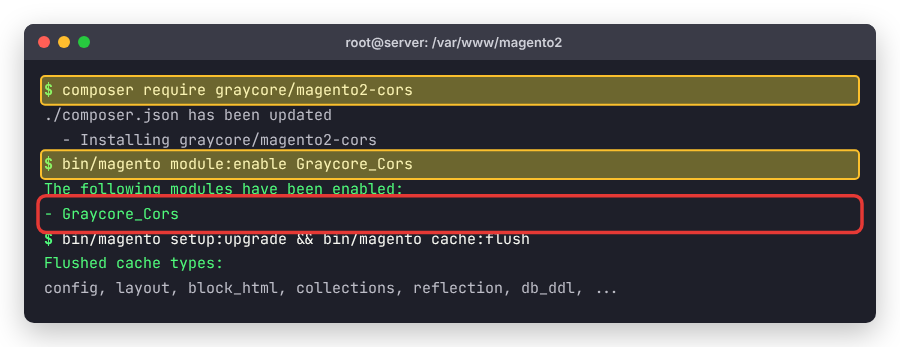
If you have never installed a module with Composer before, follow my tutorial on how to install and enable a new Magento 2 extension (production mode also needs setup:di:compile and setup:static-content:deploy).
The module is configured in app/etc/env.php (by design, there is no admin panel setting for CORS). Add the allowed origins under system > default > web:
'system' => [
    'default' => [
        'web' => [
            'graphql' => [
                'cors_allowed_origins' => 'https://pwa.example.com, http://localhost:3000',
                'cors_allowed_methods' => 'GET, POST, OPTIONS',
                'cors_allowed_headers' => 'Content-Type, Authorization, Store',
                'cors_max_age' => '86400',
                'cors_allow_credentials' => 0
            ],
            'api_rest' => [
                'cors_allowed_origins' => 'https://pwa.example.com',
                'cors_allowed_methods' => 'GET, POST, PUT, DELETE, OPTIONS',
                'cors_allowed_headers' => 'Content-Type, Authorization',
                'cors_max_age' => '86400',
                'cors_allow_credentials' => 0
            ]
        ]
    ]
],
If your env.php already has a 'system' key, merge these lines into it instead of adding a second one. Origins must match exactly: protocol, domain and port, with no trailing slash. On Adobe Commerce Cloud, env.php is not editable, so set the same values as environment variables in the Cloud project instead. Adobe also publishes a useful CORS troubleshooting checklist for storefronts that call the Commerce GraphQL API.
Step 5: Flush cache and test again
After changing the configuration, flush the Magento cache (and Varnish/CDN if you use them):
bin/magento cache:flush
Then test the preflight request for GraphQL. A working setup returns an access-control-allow-origin header with your frontend origin:
curl -i -X OPTIONS https://www.example.com/graphql \
  -H "Origin: http://localhost:3000" \
  -H "Access-Control-Request-Method: POST" \
  -H "Access-Control-Request-Headers: content-type"
For fonts, run the curl -sI -H "Origin: ..." command from Step 1 again and confirm the header is now present. Finally, hard-reload the page in the browser (Ctrl + Shift + R) so it doesn’t reuse a cached response.
Common errors
“The ‘Access-Control-Allow-Origin’ header contains multiple values”
The header is added twice – for example by Nginx and the CDN, or by the web server and a Magento module. Keep only one layer responsible for CORS.
“The value of the ‘Access-Control-Allow-Origin’ header … must not be the wildcard ‘*’ when the request’s credentials mode is ‘include'”
You can’t combine * with credentials (cookies or authorization). List the exact origins instead of *, or disable cors_allow_credentials if your frontend doesn’t need it.
The header value is “not equal to the supplied origin”
The allowed origin doesn’t match the page origin exactly. Check http vs https, www, the port number (:3000) and remove any trailing slash.
It works in one browser but not another
A cache (browser, Varnish or CDN) stored a response without the header, or with the header for another origin. Add Vary: Origin, purge the caches and test again.
Should I just use Access-Control-Allow-Origin: *?
For public, static font files it is usually acceptable. For APIs, avoid it: CORS is a security relaxation, so only allow the origins you really own.
Wrapping up
That’s how to fix the Magento 2 CORS error. First find which URL is blocked, then fix it at the right level: consistent base URLs for www/https mismatches, an Access-Control-Allow-Origin header on the web server or CDN for fonts and static files, and a CORS module configured in env.php for REST and GraphQL calls from a headless frontend. Don’t forget to flush every cache layer before testing.
If you still see a CORS error after these steps, leave a comment below with the full console message and your setup (Nginx/Apache, CDN, headless or not), and I’ll help you track it down.