Have you ever clicked Add to cart on your Shopify store and nothing happened? When you open the browser console, you see a 422 response from /cart/add.js with the message Cart Error: Cannot find variant. This is one of the most common Shopify cart errors, and it usually shows up after you customize a theme, build a custom “add to cart” button, or create variants with an app or the Admin API.
In this tutorial, we will learn how to fix the Shopify “Cannot find variant” error step by step. We will look at what the error really means, how to find the correct variant ID, how to make sure the product is available on the Online Store channel, and how to deal with newly created variants that are not ready for the cart yet.
Previously, I published a tutorial on how to add products and variants in Shopify. If you are not sure how variants work, read that one first, because this error is all about variants.
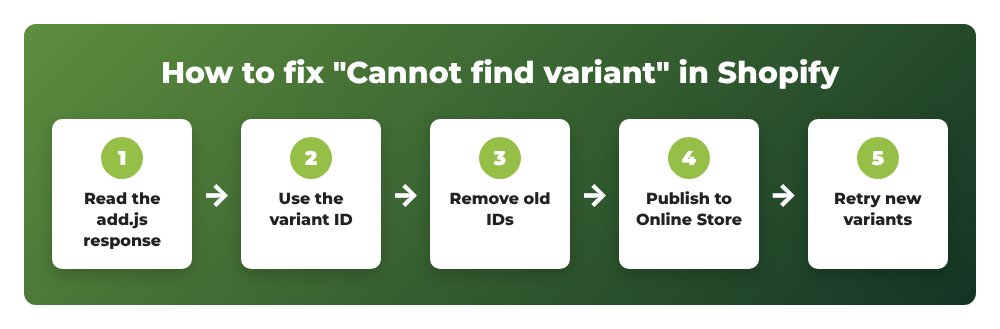
Contents
- What does “Cannot find variant” mean?
- Step 1: Reproduce the error and read the response
- Step 2: Make sure you send a variant ID, not a product ID
- Step 3: Remove deleted or outdated variant IDs
- Step 4: Publish the product to the Online Store channel
- Step 5: Add a retry for newly created variants
- Step 6: Clear the cart and test again
- Common errors
- Wrapping up
What does “Cannot find variant” mean?
Shopify themes and apps add items to the cart with the Cart Ajax API. The POST /cart/add.js endpoint expects an items array, and every item must contain the variant ID in the id field:
{
  "items": [
    { "id": 44718420394219, "quantity": 1 }
  ]
}
When Shopify cannot add that variant, it returns this response:
{"status":422,"message":"Cart Error","description":"Cannot find variant"}
According to the Shopify developer documentation, this error is returned when the variant ID doesn’t exist or isn’t available in the Online Store channel. In practice, that gives us four common causes:
- The code sends a product ID (or an option name) instead of a variant ID.
- The variant was deleted, and the theme, a cached page or an old link still uses its ID.
- The product is not published to the Online Store sales channel, or it is still in Draft status.
- The variant was just created through an app or the Admin API and is not available to the cart yet.
Let’s fix them one by one.
Step 1: Reproduce the error and read the response
First, we need to see exactly what the store sends to the cart. Open your product page, press F12 (or right-click > Inspect) and go to the Network tab. Click Add to cart, then click the add.js (or add) request.
- In the Payload tab, look at the
idvalue that was sent. - In the Response tab, confirm the description is
Cannot find variant.
You can also test the endpoint directly with curl. Replace the domain and ID with your own values:
curl -s -X POST https://your-store.myshopify.com/cart/add.js \
  -H "Content-Type: application/json" \
  -d '{"items":[{"id":8123456789012,"quantity":1}]}'
If your store is still password protected, the request will be redirected to the password page, so test it from the browser console while you are logged in to the storefront instead.
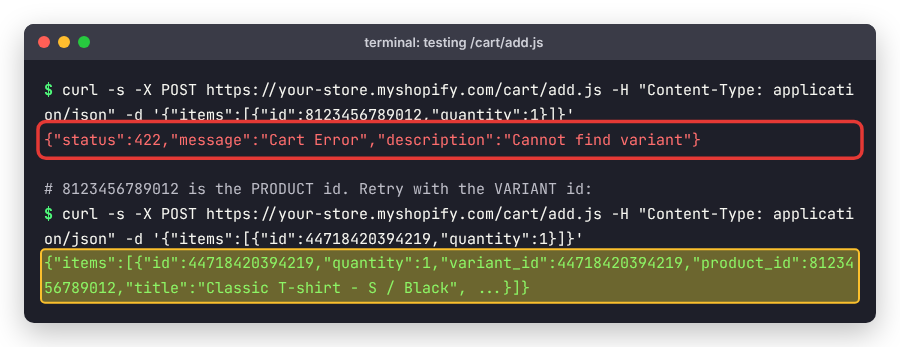
Write down the ID from the payload. We will compare it with the real variant ID in the next step.
Step 2: Make sure you send a variant ID, not a product ID
This is the number one cause of the error. A product and each of its variants have different IDs. Even a product with no options has one default variant, and the cart only accepts that variant’s ID.
Find the variant ID in Shopify admin
Go to Products, open the product and click the variant in the Variants section. Look at the browser address bar. The URL ends with /products/<product-id>/variants/<variant-id>. The last number is the variant ID.
Find the variant ID on the storefront
Add .js to the end of the product URL, for example https://your-store.com/products/classic-t-shirt.js. Shopify returns the product as JSON. The top-level id is the product ID, and the IDs you need are inside the variants array:
{
  "id": 8123456789012,            <-- product ID (wrong for the cart)
  "title": "Classic T-shirt",
  "variants": [
    { "id": 44718420394219, "title": "S / Black", "available": true },   <-- variant ID
    { "id": 44718420426987, "title": "M / Black", "available": true }
  ]
}
Fix the theme code
If you built a custom button or edited the product form, make sure the hidden id field uses a variant object, not the product object. In Liquid, the safe value is:
<input type="hidden" name="id" value="{{ product.selected_or_first_available_variant.id }}">
A common mistake is value="{{ product.id }}", which always triggers “Cannot find variant”. If your product page has option pickers (size, color…), your JavaScript must update this hidden input with the selected variant ID every time the customer changes an option. Sending the option name such as "Black" instead of the numeric ID also fails.
If you send the request yourself with JavaScript, it should look like this:
fetch(window.Shopify.routes.root + 'cart/add.js', {
  method: 'POST',
  headers: { 'Content-Type': 'application/json' },
  body: JSON.stringify({
    items: [{ id: 44718420394219, quantity: 1 }]   // variant ID
  })
})
  .then(res => res.json())
  .then(data => console.log(data));
Step 3: Remove deleted or outdated variant IDs
When you delete a variant, or delete and re-create a product (for example after a CSV import), the old variant IDs disappear and new ones are created. Anything that still points to the old ID will throw the error:
- Hard-coded IDs in theme sections, custom “Buy now” buttons or upsell blocks.
- Cart permalinks or links in emails and ads, such as
/cart/44718420394219:1. - Settings of bundle, upsell or “frequently bought together” apps.
Search your theme code for the old ID: go to Online Store > Themes, click … next to your theme, choose Edit code and use the file search. Replace the old ID with the new variant ID from Step 2, or better, use Liquid so the ID is never hard-coded. Then re-select the product in any app that stores products.
Step 4: Publish the product to the Online Store channel
The Cart Ajax API only works for products that are available on the Online Store sales channel. If a product is only published to another channel (for example Point of Sale or a headless channel), or it is still a draft, the cart cannot find its variants.
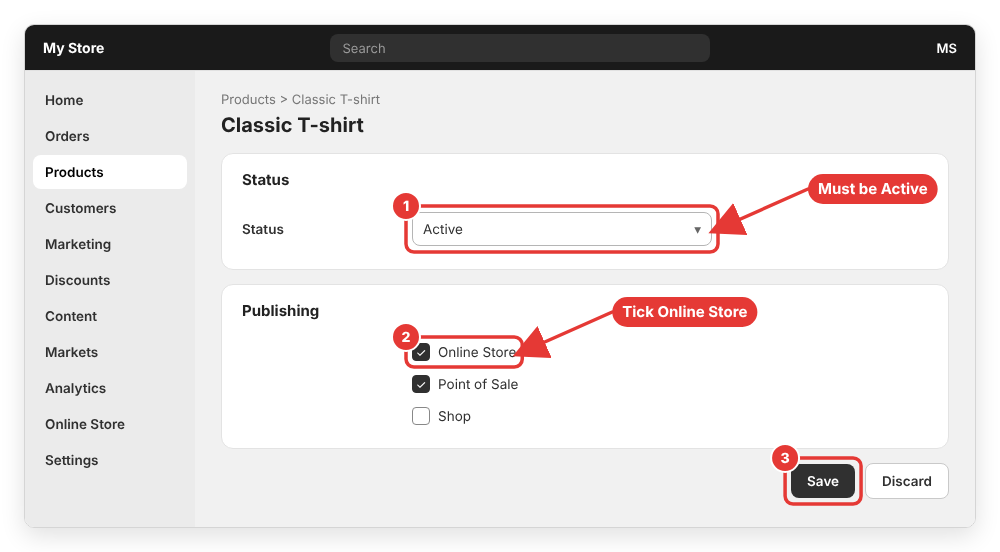
- Go to Products and open the product.
- In the Status card, make sure the status is Active, not Draft.
- In the Publishing card, click Manage, tick Online Store and confirm.
- Click Save.
If you create products with an app or the Admin API, keep in mind that they are not automatically published to every sales channel. Your app must publish them to the Online Store publication (with the publishablePublish mutation, for example) before customers can add them to the cart. You can read more about product status and availability in the Shopify Help Center article on adding and updating products.
Step 5: Add a retry for newly created variants
Some apps (product customizers, “build your own bundle” tools, price calculators) create a new variant on the fly and immediately add it to the cart. In this case, the variant ID is correct, but you still get “Cannot find variant” from time to time.
The reason is that changes made with the Admin API can take a few seconds to become available to the Cart API. Shopify staff confirmed on the developer forum that there is currently no way to detect when a new variant is ready for the cart; the only confirmation is a successful add-to-cart request. The recommended fix is to retry with an increasing delay and stop after a few attempts:
async function addToCartWithRetry(variantId, quantity = 1, attempts = 4) {
  let delay = 1000; // 1 second
  for (let i = 1; i <= attempts; i++) {
    const res = await fetch(window.Shopify.routes.root + 'cart/add.js', {
      method: 'POST',
      headers: { 'Content-Type': 'application/json' },
      body: JSON.stringify({ items: [{ id: variantId, quantity }] })
    });
    if (res.ok) return res.json();

    const err = await res.json();
    if (res.status !== 422 || err.description !== 'Cannot find variant' || i === attempts) {
      throw err;
    }
    await new Promise(r => setTimeout(r, delay));
    delay *= 2; // 1s, 2s, 4s...
  }
}
Do not retry in a tight loop. Too many failed requests can be rate limited with a 429 response. Showing a short “Preparing your item…” message while the request is retried also gives a better experience to the customer.
Step 6: Clear the cart and test again
After fixing the cause, test the full flow in a private browser window so you start with a fresh cart. Choose different variants, click Add to cart and check that the add.js request now returns 200 with the item details. If you use a page caching or speed optimization app, clear its cache too, so customers don’t get an old page with an outdated variant ID.
Common errors
422“The product ‘…’ is already sold out.” – The variant ID is correct, but the variant has no inventory and doesn’t continue selling when out of stock. Add stock or enable Continue selling when out of stock.422“You can’t add more … to the cart.” – The requested quantity is higher than the available stock.429Too Many Requests – Your script retried too fast. Increase the delay and reduce the number of attempts.- “Option does not exist” when creating variants – This one comes from the Admin API, not the cart. See my guide on the Shopify “Option does not exist” error.
Wrapping up
The Shopify “Cannot find variant” error looks scary, but the fix is usually simple: send the variant ID instead of the product ID, remove outdated IDs after deleting variants, publish the product to the Online Store channel, and add a short retry when variants are created on the fly. Check the add.js request in the Network tab first, and you will find the cause in a few minutes.
If you still get the error after following these steps, leave a comment below with the request payload and response, and I will try to help you.