
You changed product prices, imported a catalog or moved products between categories, but the frontend still shows the old data. Or the admin shows a yellow message saying One or more indexers are invalid. In both cases, the fix is the same: run the Magento 2 reindex command.
Previously, I published a tutorial on how to fix the “one or more indexers are invalid” message in Magento 2. This guide goes deeper and covers every indexer command you will use day to day.
In this tutorial, we will learn how to check indexer status, reindex all or specific indexers from the command line, switch between Update on Save and Update by Schedule, reset an indexer, and manage indexers from the admin panel. All commands below work on Magento Open Source and Adobe Commerce 2.4.x, including 2.4.8.
Contents
- What is indexing in Magento 2?
- Step 1: Connect to your server and go to the Magento root
- Step 2: Check indexer status
- Step 3: Run the Magento 2 reindex command
- Step 4: Choose the indexer mode (Update on Save vs Update by Schedule)
- Step 5: Reset or suspend an indexer (optional)
- Step 6: Manage indexers from the admin panel
- Speed up reindexing with parallel threads
- Common errors
- Wrapping up
What is indexing in Magento 2?
Magento stores product, category, price and stock data across many database tables. To keep the storefront fast, it pre-calculates this data into index tables. When you change something in the admin, the related index becomes outdated and must be rebuilt, which is what “reindex” means.
Each indexer has an ID (code) and a title. On a default Magento Open Source 2.4.x installation you will see indexers like these:
design_config_grid          Design Config Grid
customer_grid               Customer Grid
catalog_category_product    Category Products
catalog_product_category    Product Categories
catalogrule_rule            Catalog Rule Product
catalog_product_attribute   Product EAV
cataloginventory_stock      Stock
inventory                   Inventory
catalogrule_product         Catalog Product Rule
catalog_product_price       Product Price
catalogsearch_fulltext      Catalog Search
salesrule_rule              Sales Rule
Adobe Commerce and some extensions add more (for example targetrule_product_rule or data exporter feeds). To see the exact list on your store, run:
php bin/magento indexer:info
Step 1: Connect to your server and go to the Magento root
Log in via SSH as the file system owner (the user that owns the Magento files, not root), then go to the Magento installation folder:
ssh user@your-server-ip
cd /var/www/magento2
Running indexer commands as root is a common cause of permission problems later, because the generated files end up owned by root.
Step 2: Check indexer status
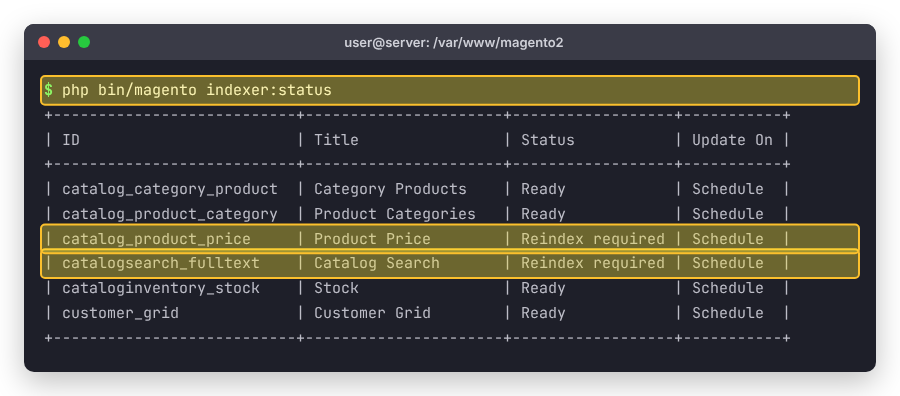
Before reindexing, check which indexers actually need it:
php bin/magento indexer:status
The output is a table with the indexer ID, title, status, mode (Update On) and, for scheduled indexers, the schedule status and backlog. Indexers marked Reindex required are the ones that are outdated.
You can also check only specific indexers by passing their codes:
php bin/magento indexer:status catalog_product_price catalogsearch_fulltext
Step 3: Run the Magento 2 reindex command
Reindex all indexers
To rebuild every index at once, run:
php bin/magento indexer:reindex
Magento prints one line per indexer with the time it took:
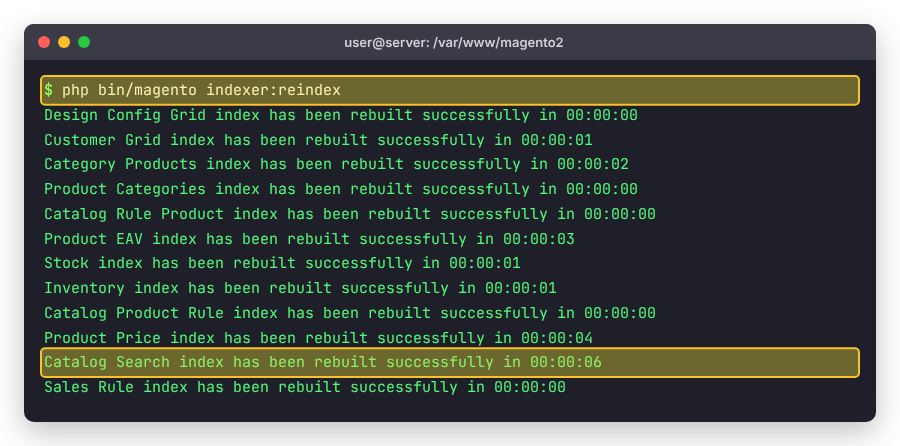
On large catalogs this can take a long time and put a heavy load on the database, so run a full reindex during off-peak hours.
Reindex a specific indexer
Most of the time you only need to rebuild one or two indexes. Pass the indexer codes separated by spaces:
php bin/magento indexer:reindex catalog_product_price catalogsearch_fulltext
Some common examples:
- Products not showing in search results:
catalogsearch_fulltext - Wrong prices or catalog price rules not applied:
catalog_product_priceandcatalogrule_rule - Products missing from a category page:
catalog_category_productandcatalog_product_category - Products showing as out of stock:
cataloginventory_stockandinventory - New customers missing in the admin grid:
customer_grid
After reindexing, flush the cache so the frontend shows the new data:
php bin/magento cache:flush
Step 4: Choose the indexer mode (Update on Save vs Update by Schedule)
Every indexer runs in one of two modes:
- Update on Save (
realtime) – the index is updated immediately when you save something in the admin. Simple, but saving can be slow and, on busy stores, it can cause database deadlocks. - Update by Schedule (
schedule) – changes are tracked with database triggers and processed by the Magento cron job in the background. This is the recommended mode for production stores.
Show the current mode:
php bin/magento indexer:show-mode
Switch all indexers to Update by Schedule:
php bin/magento indexer:set-mode schedule
Or change only specific indexers:
php bin/magento indexer:set-mode schedule catalog_category_product
php bin/magento indexer:set-mode realtime customer_grid
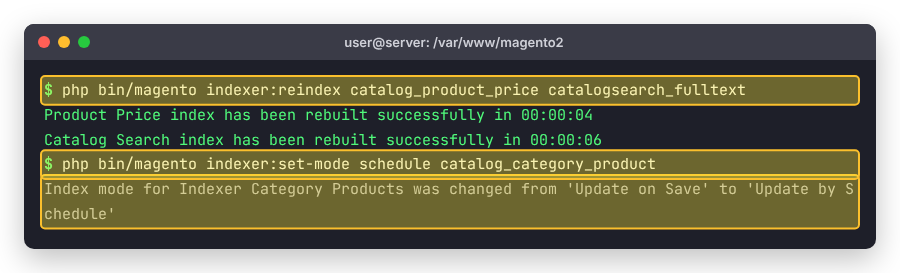
Adobe recommends enabling maintenance mode and stopping cron before switching modes on a live store to avoid table locks. Also note that before Magento 2.4.8, the customer_grid indexer only supports Update on Save; from 2.4.8 it supports both modes and defaults to Update by Schedule.
Important: Update by Schedule only works if the Magento cron job is running. You can check that cron is installed with crontab -l, and install it with:
php bin/magento cron:install
Step 5: Reset or suspend an indexer (optional)
If an indexer is stuck in Processing status (for example after a reindex was killed), reset it so it can run again:
php bin/magento indexer:reset catalogsearch_fulltext
php bin/magento indexer:reindex catalogsearch_fulltext
Since Magento 2.4.7 you can also set the status directly. Suspending an indexer is handy during a big product import, so cron doesn’t reindex after every batch:
php bin/magento indexer:set-status suspended catalog_category_product
# ... run your import ...
php bin/magento indexer:set-status valid catalog_category_product
php bin/magento indexer:reindex catalog_category_product
Step 6: Manage indexers from the admin panel
If you don’t have SSH access, you can still change indexer modes from the admin. Go to System > Tools > Index Management, select the indexers, choose Update on Save, Update by Schedule or Invalidate index in the Actions drop-down, then click Submit.
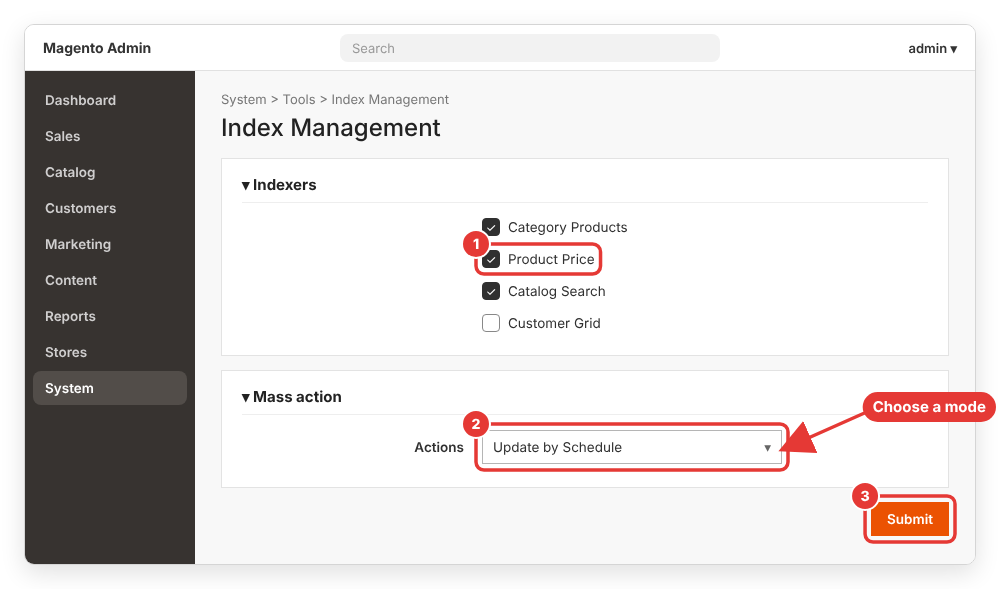
Note that the admin panel can’t run a full reindex by itself. Invalidated indexes are rebuilt by cron (in Update by Schedule mode) or by the indexer:reindex command.
Speed up reindexing with parallel threads
On stores with many store views or customer groups, you can run some indexers in parallel. This requires the PHP pcntl extension. Set the number of threads with the MAGE_INDEXER_THREADS_COUNT environment variable:
MAGE_INDEXER_THREADS_COUNT=3 php -f bin/magento indexer:reindex catalogsearch_fulltext
For the price indexer, first switch it to a dimension mode such as website:
php bin/magento indexer:set-dimensions-mode catalog_product_price website
php bin/magento indexer:show-dimensions-mode
Common errors
“Product Price index is locked by another reindex process. Skipping.”
Another reindex (usually from cron) is already running for that indexer. Wait until it finishes and try again. If no process is actually running, reset the indexer with indexer:reset and reindex.
“Reindex required” comes back after every reindex
This usually means the indexer is in Update by Schedule mode but cron is not running, so the changelog never gets processed. Install and verify the cron job as shown in Step 4. If database triggers are missing, switch the indexer to realtime and back to schedule to recreate them.
PHP Fatal error: Allowed memory size exhausted
Large catalogs may need more memory. Run the command with a higher limit, for example php -d memory_limit=-1 bin/magento indexer:reindex. If you are seeing blank pages or a 500 error on the frontend at the same time, check my guide on fixing the Magento 2 500 internal server error.
Catalog Search reindex fails with a connection error
The catalogsearch_fulltext indexer needs a working OpenSearch (or Elasticsearch) server. Make sure the search engine service is running and the host and port in Stores > Configuration > Catalog > Catalog > Catalog Search are correct.
Always reindex after a version upgrade, too. It’s one of the final steps in my guide on how to upgrade Magento 2 to the latest version.
For the full reference, see Adobe’s official documentation: Manage the indexers.
Wrapping up
That’s everything you need to know about the Magento 2 reindex command. Check status with indexer:status, rebuild with indexer:reindex (all or specific codes), keep production indexers on Update by Schedule with a working cron job, and use indexer:reset when an indexer gets stuck.
If you run into a reindex error that isn’t listed here, leave a comment below with the full error message and I will try to help.