When using Magento 2, in some cases you may want to check the current version of Magento 2 store for different purposes. For example:
- You want to check the current version of Magento 2 to upgrade to a newer version with enhanced security and performance
- You want to check the current version of Magento 2 to make sure that the theme/extension you are going to purchase is compatible with your store.
- You are about to transfer your Magento 2 website to a new hosting provider and you want to make sure that the new hosting support the current Magento 2 version.
In this tutorial, I will guide you all possible method you can use to track the current version of Magento 2
Contents
- Method 1: Check Magento 2 version in store backend (easiest)
- Method 2: Check Magento 2 version using SSH
- Method 3: Check version of Magento 2 using Composer.json
- Method 4: Check version using command line
- Method 5: Check Magento 2 version using HTTP GET Request
- Method 6: Check Magento 2 version using online tool
- Method 7: Check Magento 2 version using PHP
- Conclusion
Method 1: Check Magento 2 version in store backend (easiest)
This is the quickest method, you don’t need to use code or ssh commands.
Login to Magento 2 backend with an Admin account and go to the bottom of the page.
In footer section of the page, you will find Magento 2 version at bottom right, above Privacy Policy | Report an Issue links

In this example, the current version of Magento 2 is 2.3.5
Sometimes the admin design was modified and footer is removed, in this case navigate to System => Web setup wizard

Input public key and private key to access setup wizard, the current Magento 2 version will be displayed right here in step 1. In this example, the version is: 2.3.0 Community Edition

Method 2: Check Magento 2 version using SSH
In case you have SSH access, you can check Magento 2 version using SSH command.
Login to your Magento 2 server using SSH and use this syntax
php bin/magento --version
Sample output
Magento CLI version 2.4
=> The current Magento 2 version is: 2.4
Method 3: Check version of Magento 2 using Composer.json
Another method to find the current version of Magento 2 is using Composer.json file.
Connect to your server using SFTP or FTP protocol (or use filemanager if you have Cpanel/Directadmin) and look for composer.json file
Magento 2.4 composer.json file path
If you find composer.json in \vendor\magento\magento2-base\composer.json => Your Magento 2 version should be 2.4.x+
Go to \vendor\magento\magento2-base\composer.json
Open this file with a text editor (such as notepad)
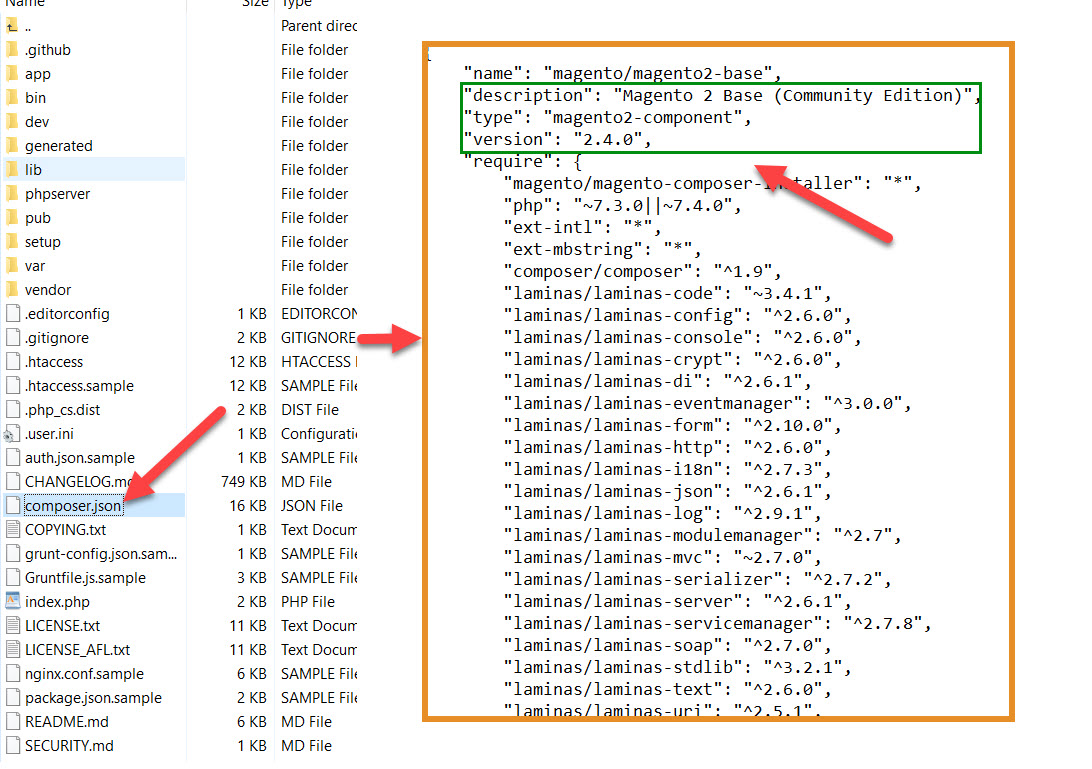
In line 3 and line 5 you will find the current version of Magento 2 installation.
{
"name": "magento/magento2-base",
"description": "Magento 2 Base (Community Edition)",
"type": "magento2-component",
"version": "2.4.0",
"require": {
"magento/magento-composer-installer": "*",
"php": "~7.3.0||~7.4.0",
For example, the current version here is: Magento 2.4.0 – Community Editon
Magento 2.3.X composer.json file path
In Magento 2.3.x, composer.json file is located in root folder of your Magento 2 installation
Go to root folder and edit composer.json, you will find Magento 2 version in line 2 and line 340
- Line 2: Tell you if Magento 2 version is CE or EE

"name": "magento/magento2ce",
- Line 340: Tell you the version of Magento 2

"version": "2.3.3",
In Magento 2.2.x, version line is on line 3 & line 5

Method 4: Check version using command line
If you have SSH access to your server, you can check current magento 2 version with just a single command
php bin/magento --version
The output will be like this
Magento CLI version 2.3.4
This output indicates that your current Magento 2 version is 2.3.4
The shortage of this method is that it does not tell you whether Magento 2 version is Community or Enterprise.
If you installed Magento 2 using composer, you can use this command to check Magento 2 version.
composer licenses | grep Version:
And this command to check Magento 2 is Community or Enterprise
composer licenses | grep Name:
Method 5: Check Magento 2 version using HTTP GET Request
Magento has a built-in HTTP GET request to show current version of Magento 2
To use this feature, simply insert /magento_version at the end of the URL you want to check.
For example, your store URL is https://mywebsite.com => to check the version of your store use this URL in browser: https://mywebsite.com/magento_version
- Sample output 1: Magento/2.3 (enterprise)

- Sample output 2: Magento 2.2 (community)

The shortage of this method is that you can’t retrieve full version, eg: 2.2, 2.3 only, not 2.2.3, 2.3.5. If you want to get full version, use method 1, 2, 3
I have some sample live stores for you to check using this method:
- https://supplies.sparefoot.com/magento_version/
- https://www.shoebacca.com/magento_version/
- https://scufgaming.com/magento_version/
- https://shop.in-n-out.com/magento_version/
- https://shop.sunset.com/magento_version/
Method 6: Check Magento 2 version using online tool
There are several online tools to check Magento 2 version. All you need to do is input URL and wait for the system to check Magento 2 version for you.
You can check version of Magento 2 using https://www.magereport.com/ , a free online tool by Hypernode.
Insert URL you want to check and press “SCAN” button.

Wait a few seconds, the result page should be like this: EE 2.3.3 – 2.3.3-p1, that means the current version of that URL is: Magento Enterprise 2.3.3 – 2.3.3-p1

This page also told you that this is an outdated version and you should upgrade to the latest version of Magento 2
The author also published this tool on Github, you can get it here: https://github.com/gwillem/magento-version-identification
Method 7: Check Magento 2 version using PHP
You can also check Magento 2 version using PHP (only working with Magento 2.0, 2.1.) If you found working method on Magento 2.2 +++ please drop a comment below
Create a PHP file with the following code lines:
$objectManager = \Magento\Framework\App\ObjectManager::getInstance();
$productMetadata = $objectManager->get('Magento\Framework\App\ProductMetadataInterface');
echo $productMetadata->getVersion();
Next, go to this file on browser and you will see the current version of Magento 2.
Related: how to apply security patches in Magento 2.
Conclusion
All the methods mentioned in this tutorial are working. If any method is not working for you, try the others.
Method 1 is the best and easiest method, I always recommend this method to my clients.
Because most exploits tend to aim outdated versions of software, you should always keep your Magento 2 website up-to-date with the latest version to protect it from hackers.
In case there are many parts of your website are running on an older version of Magento 2 and you can’t upgrade version of Magento 2 due to compatibility => You still to install security patch. Magento 2 provides security patches separately from software patches, so it will not affect your store’s component.