You just installed or upgraded Magento, the homepage loads fine, but every category page, product page or even the admin panel returns a Magento 2 404 error page not found. Sometimes the whole website shows a plain “Not Found” page from Apache or Nginx instead of your store.
Don’t worry, this is one of the most common Magento problems and it almost always comes from the web server configuration, URL rewrites or the base URL settings, not from your products. In this tutorial, we will learn how to find out which kind of 404 you have and fix it step by step on Magento 2.4.x (including 2.4.8).
Previously, I published a tutorial on how to fix the Magento 2 error 503 Service Temporarily Unavailable. Today we will deal with its cousin, the 404 error.
Contents
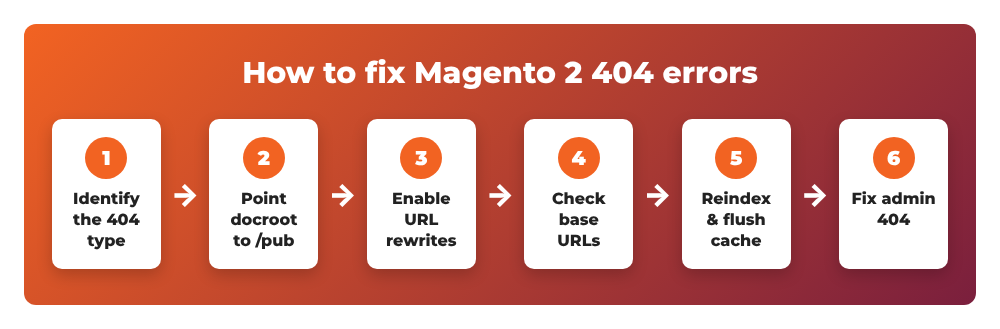
- Step 1: Identify which Magento 2 404 error page not found you have
- Step 2: Point the web server document root to the /pub folder
- Step 3: Enable URL rewrites (Apache mod_rewrite and Magento setting)
- Step 4: Check the base URLs
- Step 5: Fix 404 on product and category pages, then reindex and flush the cache
- Step 6: Fix Magento 2 admin 404 not found
- Common errors
- Wrapping up
Step 1: Identify which Magento 2 404 error page not found you have
Before changing anything, open the broken URL and look carefully at the error page. There are two very different kinds of 404 in Magento:
- A 404 page in your store’s design (the default CMS page says “Whoops, our bad…”). This means the web server and Magento are working, but Magento could not find a product, category or CMS page for that URL. Go to Step 5.
- A plain web server page such as “Not Found – The requested URL was not found on this server” (Apache) or “404 Not Found – nginx”. This means the request never reached Magento’s
index.php. The cause is the document root or URL rewrites. Go to Steps 2, 3 and 4.
If only the admin panel returns 404 while the storefront works, jump to Step 6.
Step 2: Point the web server document root to the /pub folder
Since Magento 2.4.2, the recommended document root is the pub/ directory, not the Magento root folder. Many 404 errors right after a fresh install or after upgrading to 2.4.x come from a virtual host that still points to the old root. Adobe explains the change in the official guide Modify docroot to improve security.
Apache
Open your virtual host file, for example /etc/apache2/sites-available/magento.conf, and make sure DocumentRoot ends with /pub and AllowOverride All is set so Magento’s .htaccess rules are applied:
<VirtualHost *:80>
    ServerName www.example.com
    DocumentRoot /var/www/html/magento2/pub

    <Directory /var/www/html/magento2/pub>
        Options FollowSymLinks
        AllowOverride All
        Require all granted
    </Directory>
</VirtualHost>
Without AllowOverride All, Apache ignores the .htaccess file, so only the homepage works and every SEO-friendly URL returns 404.
Nginx
For Nginx, don’t write the rules yourself. Magento ships a ready-made configuration file named nginx.conf.sample in the Magento root, and it already sets root $MAGE_ROOT/pub;. Your server block only needs to define $MAGE_ROOT and include it:
upstream fastcgi_backend {
    server unix:/run/php/php8.3-fpm.sock;
}

server {
    listen 80;
    server_name www.example.com;
    set $MAGE_ROOT /var/www/html/magento2;
    set $MAGE_MODE production;
    include /var/www/html/magento2/nginx.conf.sample;
}
Adjust the PHP-FPM socket to the PHP version you use, then test and reload Nginx with sudo nginx -t and sudo systemctl reload nginx.
Step 3: Enable URL rewrites (Apache mod_rewrite and Magento setting)
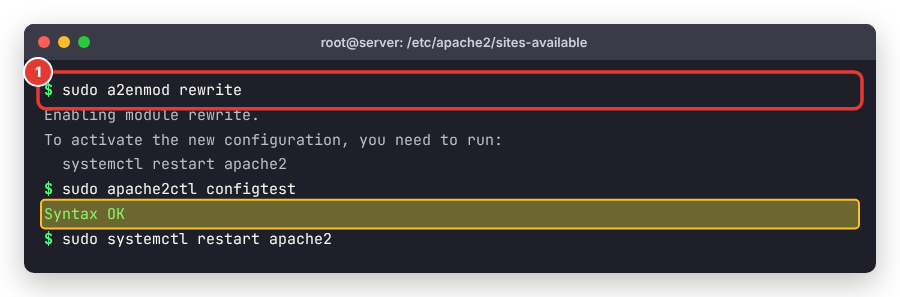
On Apache, the rewrite module must be enabled, otherwise URLs like /women/tops.html can’t be routed to Magento. On Ubuntu/Debian, run:
sudo a2enmod rewrite
sudo apache2ctl configtest
sudo systemctl restart apache2
Next, check the Magento side. Log in to the admin and go to Stores > Configuration > General > Web, expand Search Engine Optimization and set Use Web Server Rewrites to Yes. You can also set it from the command line:
php bin/magento config:set web/seo/use_rewrites 1
If this option is No, Magento generates URLs with index.php in them (for example /index.php/women.html), and the clean URLs you shared or indexed in Google return 404.
Step 4: Check the base URLs
A wrong base URL is another classic cause, especially after moving the site to a new domain or after switching the document root to pub/. In the same Stores > Configuration > General > Web page, expand Base URLs and Base URLs (Secure). The Base URL must:
- match your real domain, including
wwwor not, - end with a slash
/, - NOT contain
/pub/once your document root points to the pub folder.
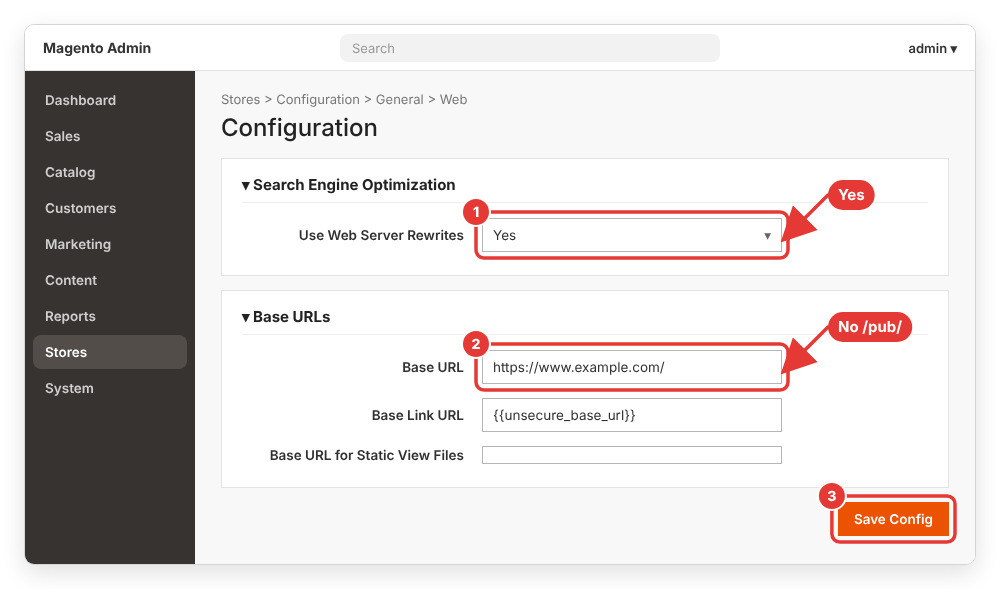
If you can’t open the admin, read the values from the command line:
php bin/magento config:show web/unsecure/base_url
php bin/magento config:show web/secure/base_url
You can find the full procedure (admin, CLI and database) in my guide on how to change base URLs in Magento 2.
Step 5: Fix 404 on product and category pages, then reindex and flush the cache
If you see the “Whoops, our bad…” page from your theme, the server is fine and Magento simply has no entity for that URL in the current store view. Check the following in the admin:
- Product (Catalog > Products): Enable Product is
Yes, Visibility isCatalog, Search, and the product is assigned to the right website under Product in Websites. - Category (Catalog > Categories): Enable Category is
Yesand the category belongs to the root category of the current store. - URL rewrite (Marketing > SEO & Search > URL Rewrites): search for the request path. If it’s missing, open the product or category and save it again so Magento regenerates the rewrite. If you changed a URL key, make sure Create Permanent Redirect for old URL was checked, otherwise the old URL returns 404.
Then reindex and flush the cache so the storefront uses the latest data:
php bin/magento indexer:reindex
php bin/magento cache:flush
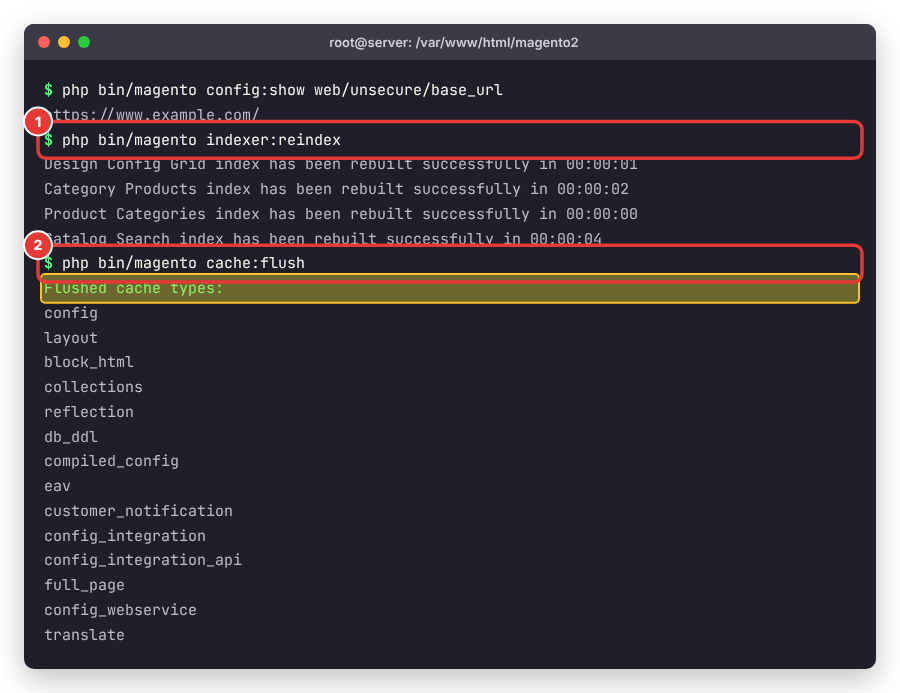
If indexers keep becoming invalid, check that cron is running. I explained it in [SOLVED] One or more indexers are invalid. Make sure your Magento cron job is running.
Step 6: Fix Magento 2 admin 404 not found
When the storefront works but the admin URL returns 404, first confirm the real admin path. The admin URL is random on new installations, and it may have been changed by another developer:
php bin/magento info:adminuri
Open https://www.example.com/ followed by the path shown in the output (for example /admin_1qa8rt). If you want a different path, follow my tutorial on how to change the default admin URL in Magento 2.
If the path is correct and the admin still returns a 404 page, check the store and store_website tables. The admin store and admin website must have ID 0. This ID can be changed by a database import (for example when the SQL dump was imported with NO_AUTO_VALUE_ON_ZERO disabled), and then Magento can’t load the admin area.
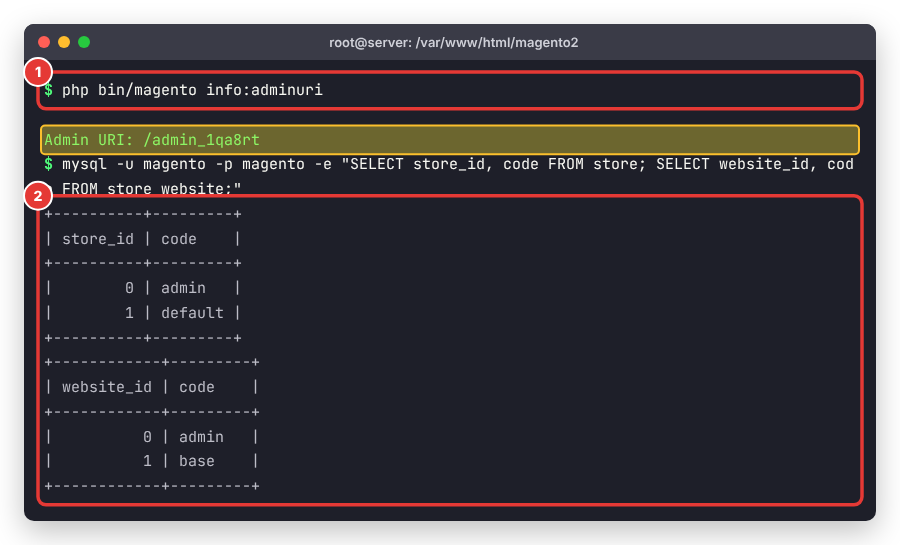
If the admin rows don’t have ID 0, back up your database first, then run:
SET FOREIGN_KEY_CHECKS=0;
UPDATE store SET store_id = 0 WHERE code = 'admin';
UPDATE store_group SET group_id = 0 WHERE name = 'Default';
UPDATE store_website SET website_id = 0 WHERE code = 'admin';
UPDATE customer_group SET customer_group_id = 0 WHERE customer_group_code = 'NOT LOGGED IN';
SET FOREIGN_KEY_CHECKS=1;
Before running the store_group query, check that the group named Default is really the admin group in your database (the main store group is usually named Main Website Store). Then flush the cache with php bin/magento cache:flush and try the admin URL again.
Common errors
404 for CSS, JS and images (static files)
If the page loads but looks broken and the browser console shows 404 for files under /static/, the static content has not been deployed for the current theme and locale. In production mode, run:
php bin/magento setup:static-content:deploy -f
php bin/magento cache:flush
Also make sure pub/static/.htaccess exists on Apache, because it routes missing files to static.php.
The URL contains /pub/ and redirects in a loop or returns 404
This happens when the base URL still contains /pub/ after you changed the document root, or the other way around. Fix the base URL as shown in Step 4.
Only the homepage works on localhost
On XAMPP or WAMP, the usual cause is mod_rewrite disabled in httpd.conf or AllowOverride None for your htdocs folder. Enable LoadModule rewrite_module modules/mod_rewrite.so, set AllowOverride All and restart Apache.
Wrapping up
In this tutorial, we learned how to fix the Magento 2 404 error page not found: identifying whether the 404 comes from the web server or from Magento, pointing the document root to pub/, enabling URL rewrites, checking the base URLs, fixing product and category visibility, reindexing, and repairing the admin 404. In most cases, Steps 2 and 3 solve the problem in a few minutes.
If you still see a 404 after trying all the steps, leave a comment below with your Magento version, web server (Apache or Nginx) and the exact URL pattern that fails, and I will try to help.