If you create products through the Shopify GraphQL Admin API (in a custom app, an import script or a sync tool), sooner or later you may hit this message when you try to add variants: “Option does not exist”. The product is there, the option looks like it’s there too, but Shopify refuses to create the variants. In this tutorial, we will learn what the Shopify error “Option does not exist” really means and how to fix it step by step.
Previously, I published a tutorial on how to add products and variants in Shopify from the admin. Today we look at the same task from the API side, where most of these errors happen.
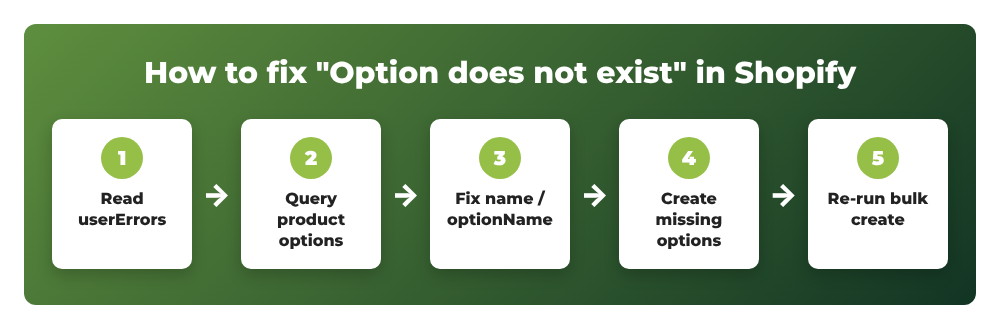
Here is the short version of the fix:
Contents
- What does “Option does not exist” mean in Shopify?
- Step 1: Read the full userErrors response
- Step 2: Query the product options that really exist
- Step 3: Make sure name and optionName are not swapped
- Step 4: Create the missing options first
- Step 5: Don’t delete the standalone variant yourself
- Step 6: Run productVariantsBulkCreate again
- Seeing the error in an app?
- Common errors
- Wrapping up
What does “Option does not exist” mean in Shopify?
In Shopify, a product has up to 3 options (for example Size and Color), and each option has option values (S, M, L…). Every variant is a combination of one value from each option.
When you call productVariantsBulkCreate, each variant gets an optionValues list. Every item in that list points to a product option, either by optionName or by optionId, plus the value with name (or id). If the option you point to is not defined on the product, Shopify returns the error “Option does not exist”. The GraphQL Admin API documents the same problem as the error code OPTION_DOES_NOT_EXIST (“Option does not exist.”) for mutations such as productSet and productOptionUpdate.
In practice, I have seen 3 causes for this error:
- The fields are swapped: the value (
L) is sent inoptionNameand the option name (Size) is sent inname. - The option was never created on the product: you try to create a
Colorvariant on a product that only hasSize, or no options at all. - The standalone variant was deleted manually right after new options were added, which leaves the new options unavailable when the variants are created.
If you see this message inside a third-party app or sync tool, it is usually this same API response passed on to you. Jump to the section “Seeing the error in an app?” below.
Step 1: Read the full userErrors response
The first thing to do is to request all the fields of userErrors, including field. The field path tells you exactly which variant and which option value failed:
mutation productVariantsBulkCreate($productId: ID!, $variants: [ProductVariantsBulkInput!]!, $strategy: ProductVariantsBulkCreateStrategy) {
  productVariantsBulkCreate(productId: $productId, variants: $variants, strategy: $strategy) {
    productVariants {
      id
      title
      selectedOptions { name value }
    }
    userErrors {
      field
      message
      code
    }
  }
}
A failed request looks like this:
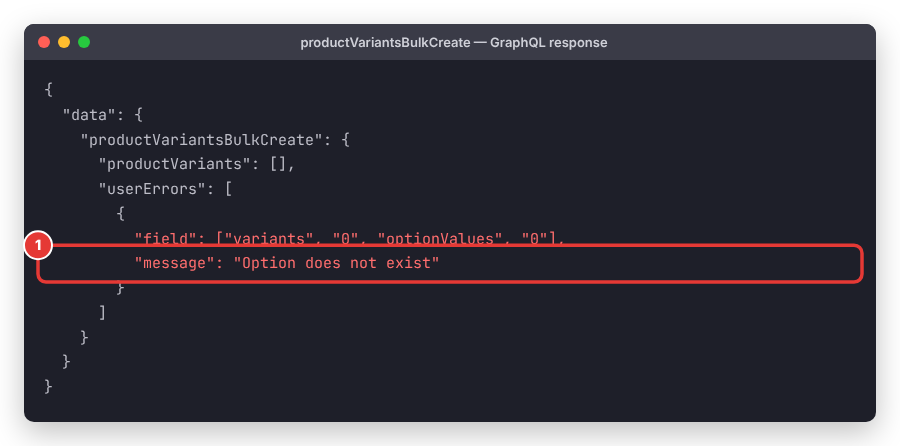
Here ["variants", "0", "optionValues", "0"] means: the first variant in your variants array, first item of its optionValues. So we know exactly which option reference Shopify could not match.
Tip: Make sure all the variables you send are actually declared in the mutation. A common copy-paste mistake is passing strategy in the variables JSON without declaring $strategy in the mutation, so Shopify never receives it. Also remember that variants must be an array ([ ... ]), not a single object.
Step 2: Query the product options that really exist
Next, let’s check which options and values the product has right now. Run this query with your product ID:
query {
  product(id: "gid://shopify/Product/1234567890") {
    title
    options {
      id
      name
      position
      optionValues {
        id
        name
        hasVariants
      }
    }
  }
}
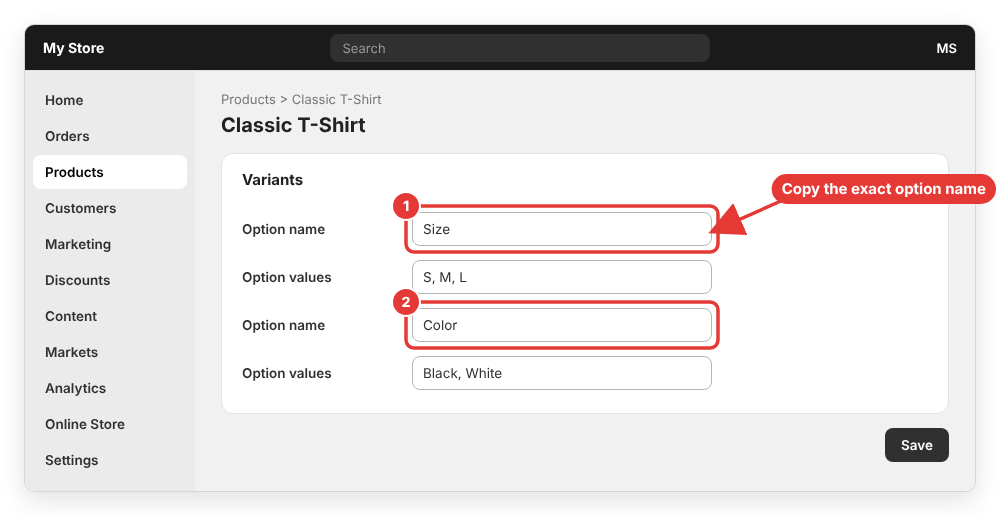
Compare the name of each option with the optionName you send in the mutation. They must match exactly: Colour is not Color, and Size with a trailing space is not Size. If you prefer to avoid spelling problems completely, use the id from this query as optionId instead of optionName.
You can also check the option names in the Shopify admin. Go to Products, open the product and look at the Variants section:
Step 3: Make sure name and optionName are not swapped
This is the most common cause I found in Shopify Community threads. In VariantOptionValueInput:
optionName= the name of the option (Size,Color,Material)name= the value the variant uses (L,Blue,Cotton)
Wrong (Shopify looks for an option called “L”, which doesn’t exist):
{
  "optionValues": [
    { "optionName": "L", "name": "Size" }
  ]
}
Correct:
{
  "optionValues": [
    { "optionName": "Size", "name": "L" },
    { "optionName": "Color", "name": "Black" }
  ]
}
Note that every variant must have one value for every option the product has. If the product has Size and Color, each variant needs both.
Step 4: Create the missing options first
productVariantsBulkCreate can add new values to an existing option, but the option itself must already exist on the product. If your product doesn’t have the option yet, create it first with productOptionsCreate:
mutation productOptionsCreate($productId: ID!, $options: [OptionCreateInput!]!, $variantStrategy: ProductOptionCreateVariantStrategy) {
  productOptionsCreate(productId: $productId, options: $options, variantStrategy: $variantStrategy) {
    product {
      id
      options { id name optionValues { id name hasVariants } }
    }
    userErrors { field message code }
  }
}
Variables:
{
  "productId": "gid://shopify/Product/1234567890",
  "options": [
    { "name": "Size", "values": [ { "name": "S" } ] },
    { "name": "Color", "values": [ { "name": "Black" } ] }
  ],
  "variantStrategy": "LEAVE_AS_IS"
}
A few things to know about variantStrategy:
LEAVE_AS_IS(default): no extra variants are created. The existing variant is updated with the first value of each new option (hereS / Black).CREATE: Shopify also creates a variant for every combination of existing and new option values.
If the option already exists, this mutation returns OPTION_ALREADY_EXISTS, so you can safely run Step 2 first and only create what is missing. Alternatively, when you create a brand new product, you can define all the options you will ever need in the same productCreate call, then create the variants afterwards.
Step 5: Don’t delete the standalone variant yourself
A new product always has one standalone variant called Default Title. Some integrations add options, delete this variant with productVariantsBulkDelete, and then call productVariantsBulkCreate. According to a Shopify staff reply on the Shopify developer forum, deleting it before the bulk create can leave the newly added options unavailable, which triggers “Option does not exist” even though the option exists.
Instead, let Shopify handle the standalone variant with the strategy argument:
DEFAULT: deletes the standalone variant only if it is the default “Default Title” variant.REMOVE_STANDALONE_VARIANT: deletes the existing standalone variant (default or custom).PRESERVE_STANDALONE_VARIANT: keeps it.
Another option is to keep the existing variant and update it with productVariantsBulkUpdate so it becomes your first real variant, then create the rest.
Step 6: Run productVariantsBulkCreate again
Now send the mutation from Step 1 with correct variables:
{
  "productId": "gid://shopify/Product/1234567890",
  "strategy": "REMOVE_STANDALONE_VARIANT",
  "variants": [
    {
      "price": "19.00",
      "optionValues": [
        { "optionName": "Size", "name": "M" },
        { "optionName": "Color", "name": "Black" }
      ]
    },
    {
      "price": "19.00",
      "optionValues": [
        { "optionName": "Size", "name": "L" },
        { "optionName": "Color", "name": "Black" }
      ]
    }
  ]
}
If everything is correct, productVariants contains your new variants and userErrors is an empty array:
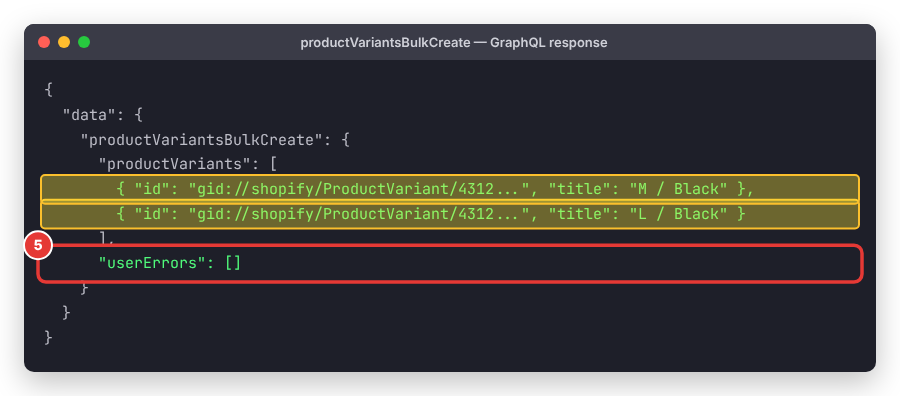
Notice that M and L did not exist as values yet. That’s fine: new values are added to the existing Size option automatically. Only a missing option causes the error.
Seeing the error in an app?
If you’re a merchant and the message appears inside a product import app, a dropshipping app or an ERP connector, the app is sending a variant with an option your product doesn’t have. Here is what you can do:
- Open the product in Products and write down the exact option names in the Variants section.
- Compare them with the option names in your import file or app mapping (spelling, spaces, singular/plural).
- If the product needs a new option, add it in the admin first, or let the app create the product from scratch.
- If it still fails, send the app developer the exact error message and the product ID so they can check their API call.
Common errors
OPTION_VALUE_DOES_NOT_EXIST
This one is related but different: the option exists, but the value you reference does not. It typically shows up in mutations that change existing values (for example productOptionUpdate or productSet) when you pass an option value id or name that isn’t on the product. Query the optionValues again (Step 2) and use the real IDs.
NEED_TO_ADD_OPTION_VALUES
“Variant options are not enough.” The variant doesn’t have a value for every option of the product. Add the missing option to optionValues.
OPTION_VALUES_FOR_NUMBER_OF_UNKNOWN_OPTIONS
“Variant options are more than the product options.” You sent more option values than the product has options, which usually means the option wasn’t created first (see Step 4).
VARIANT_ALREADY_EXISTS
You tried to create a combination that already exists (for example the S / Black variant created by LEAVE_AS_IS in Step 4). Skip that combination or update the existing variant instead.
If you are moving a catalog from Magento, keep in mind that Magento configurable products depend on attribute values in the same way, and a missing one gives the error “attribute value is empty, must be set“. Mapping your Magento attributes to Shopify option names carefully avoids both problems.
For the full reference, see the official Shopify docs for productVariantsBulkCreate and productOptionsCreate.
Wrapping up
That’s it! The Shopify “Option does not exist” error simply means a variant points to an option that the product doesn’t have. In this tutorial, we learned how to read the userErrors field path, query the real product options, fix swapped name/optionName values, create missing options with productOptionsCreate, and let the strategy argument handle the standalone variant instead of deleting it.
If you still get the error after these steps, leave a comment below with your mutation and variables (remove your access token first) and I will help you out.