“I typed my old address, can you change it?” is one of the most common emails a Shopify store receives right after checkout. If you ship the parcel before fixing it, you pay for a lost package and a frustrated customer. In this tutorial, we will learn how to change the shipping address on a Shopify order from the admin, what happens to taxes and shipping rates when you do it, and what to do when the order has already been fulfilled or a label has been bought.
Previously, I published a tutorial on how to cancel and refund an order in Shopify. If the customer wants to move the order to a different country or the new address costs much more to ship, canceling and re-ordering is sometimes the cleaner option – I’ll explain when below.
Here is the whole process at a glance:
Contents
- Before you start: when can you change the address?
- Step 1: Open the order in Shopify admin
- Step 2: Change the shipping address on the Shopify order
- Step 3: Review the tax adjustment
- Step 4: Save the new address
- Step 5: Handle the shipping rate and the label
- Bonus: change the customer’s default address
- Can customers change the shipping address themselves?
- Common errors
- Wrapping up
Before you start: when can you change the address?
Shopify lets you update the shipping address after an order is placed, but you should do it before the order is fulfilled. Keep these points in mind:
- Unfulfilled orders – the best case. You edit the address and ship to the new one.
- Shipping label already bought – the label still has the old address printed on it. Void the old label and buy a new one after editing the address.
- Already shipped – editing the order in Shopify won’t move the parcel. You have to contact the carrier (many carriers offer a paid address correction or redirect service) or wait for the parcel to be returned.
- Fulfillment apps and 3PL warehouses – if an app or warehouse received the order, it may already have the old address. Update the address there too, or ask them to hold the shipment.
You also need the right staff permissions: Manage order information, Edit orders or Fulfill and ship orders. Store owners have all of them by default.
Step 1: Open the order in Shopify admin
From your Shopify admin, click Orders, then click the order number you want to change. Check that the fulfillment status is Unfulfilled. If you can’t find the order, search by the customer’s email or the order number shown in their confirmation email (for example #1031).
Step 2: Change the shipping address on the Shopify order
On the order details page, look at the Customer section on the right-hand side:
- Click the ··· (more actions) icon in the Customer section.
- Click Edit shipping address.
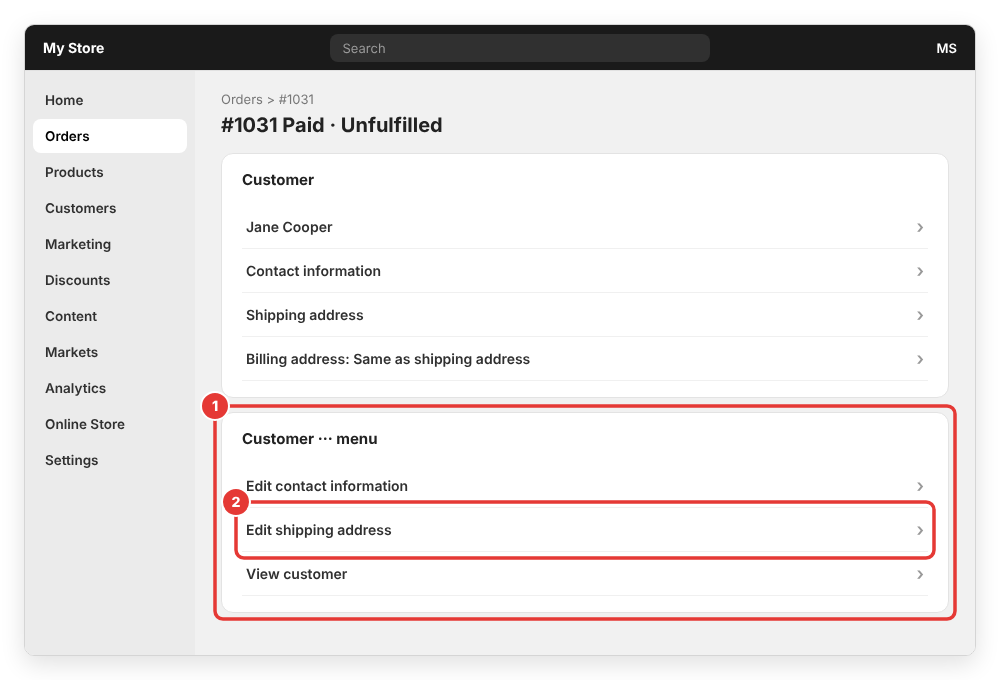
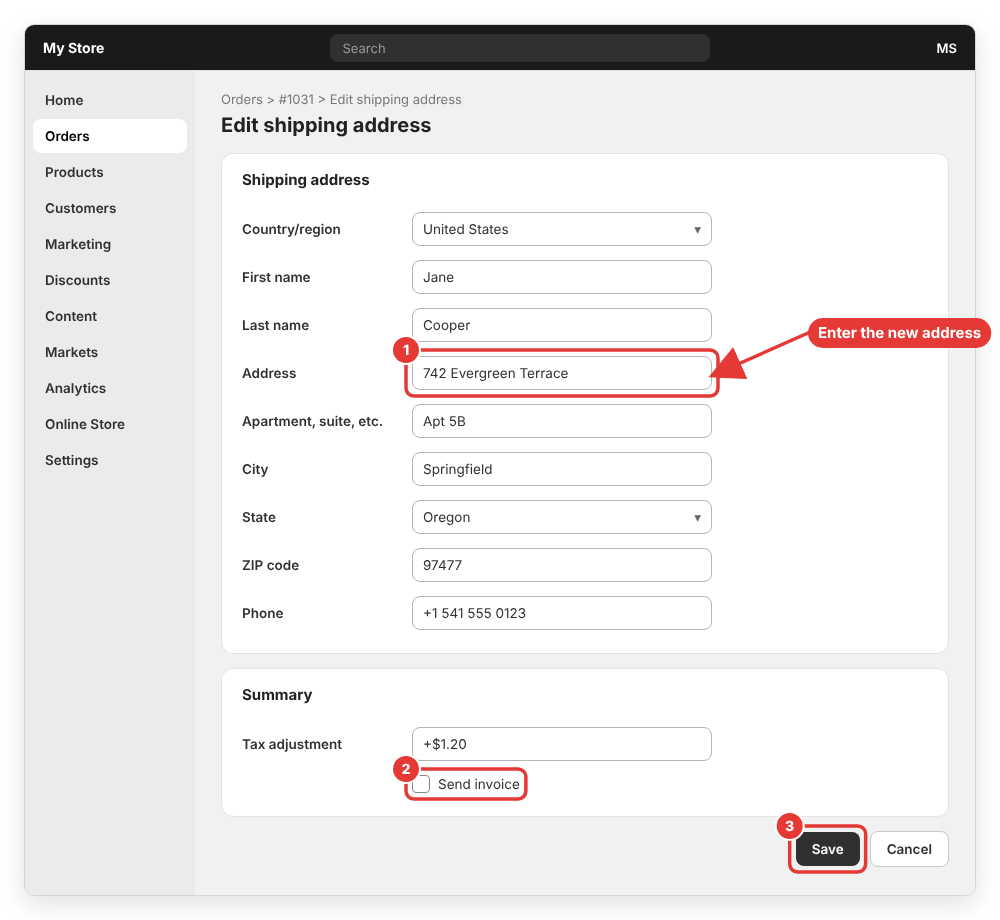
The Edit shipping address dialog opens with the current address. Update the fields you need:
- Country/region, Address, Apartment, suite, etc., City, State/Province and ZIP/Postal code
- First name, Last name and Company if someone else will receive the parcel
- Phone – many carriers need a valid phone number for delivery
If Shopify shows an address validation warning (for example the ZIP code doesn’t match the city), double-check the address with the customer before saving. A warning doesn’t always mean the address is wrong, but it is worth a quick confirmation.
Step 3: Review the tax adjustment
Taxes in Shopify depend on the destination, so changing the shipping address of an unfulfilled order recalculates the tax. If the tax changes, Shopify shows the adjustment in the Summary card of the dialog:
- Tax goes up – select Send invoice to email the customer an invoice for the difference, or leave it unselected and collect the balance later from the order page.
- Tax goes down – after saving, the order shows an amount you can refund to the customer. Use Refund on the order to send it back.
Note that taxes are not recalculated for imported orders, Shop Pay Installments orders and local delivery orders.
Step 4: Save the new address
Click Save. The new address appears in the Customer section and the change is recorded in the order Timeline. From now on, any packing slip or shipping label you create for this order will use the new address.
It’s good practice to reply to the customer and confirm the new address in writing, especially if you also sent an invoice for a tax difference.
Step 5: Handle the shipping rate and the label
Shopify does not recalculate the shipping method or rate when you edit an order. If the customer moves from a nearby city to a remote area, you pay the difference unless you charge it. You have two options:
- Use Edit on the order and add a custom shipping charge (or a custom item) for the difference, then send the customer an invoice.
- For big changes (another country, different currency or a different shipping zone), cancel the order and ask the customer to order again with the correct address.
If you already bought a Shopify Shipping label with the old address, void that label from the order’s fulfillment section and buy a new label after saving the new address. An unused, voided label is usually credited back to your Shopify bill once the carrier confirms it. If you haven’t set up rates yet, make sure your shipping zones cover the new destination before buying the label.
Bonus: change the customer’s default address
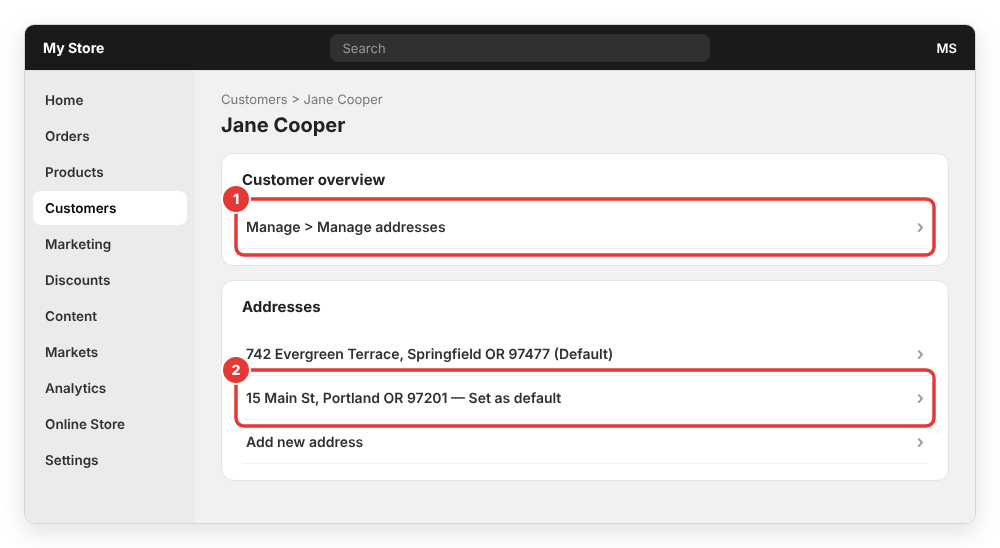
Editing the address on an order changes that order only. If the customer moved and you want their next orders to use the new address by default, update the customer profile as well:
- Go to Customers and click the customer’s name.
- In the Customer overview section, click Manage > Manage addresses.
- Click Edit on an existing address or Add new address, then click Set as default next to the address the customer wants to use.
Can customers change the shipping address themselves?
Out of the box, customers can’t edit the shipping address on an order after checkout – they need to contact you, and you change it with the steps above. If you get many of these requests, you can install an order editing app from the Shopify App Store. These apps let customers fix the address (or swap a variant, like the ones we created in how to add products and variants in Shopify) during a short window before the order is fulfilled.
To reduce wrong addresses in the first place, keep the address fields simple at checkout. Magento store owners often hide fields they don’t need – for example, see how to remove the state/province option in Magento 2. In Shopify, the checkout fields are controlled by Shopify and the address format for each country, so the address autocomplete at checkout usually does a good job.
Common errors
The “Edit shipping address” option is missing
Check your staff permissions first (Manage order information, Edit orders or Fulfill and ship orders). Also check whether the order was created by a sales channel or app that controls the order (for example some marketplace orders); in that case, change the address in that channel.
The package was shipped to the old address
This happens when the label was bought or the order was sent to a 3PL before you saved the new address. Contact the carrier as soon as possible and ask for an address correction or redirect. If the parcel comes back, edit the address on the order and fulfill it again with a new label.
The billing address is wrong too
The billing address on a paid order can’t be edited in Shopify, because it is tied to the payment. This doesn’t affect delivery – only the shipping address is used for fulfillment.
Tax amount looks wrong after changing the address
Remember that tax is only recalculated for unfulfilled orders, and not for imported, Shop Pay Installments or local delivery orders. If the order had a partial fulfillment, review the Summary carefully and adjust with an invoice or a partial refund.
For more details, see the official Shopify Help Center article on editing customer details on an order.
Wrapping up
That’s all you need to know to change the shipping address on a Shopify order: open the order, click ··· > Edit shipping address in the Customer section, review the tax adjustment and click Save – ideally before the order is fulfilled. If a label was already bought, void it and buy a new one, and update the customer’s default address if they moved for good.
If you have any questions or a tricky address case (3PL, marketplace orders, international shipping), feel free to leave a comment below and I will try to help.