
Security patches are the most important updates you can install on a Magento store. Attackers scan the internet for unpatched Magento 2 sites within days of a new bulletin, and a single missed patch can lead to stolen card data or a hacked admin. In this tutorial, we will learn how to apply security patches in Magento 2 step by step, using Composer for full security releases and the patch file method for urgent hotfixes.
A recent example shows why this matters: on September 7, 2026, Adobe published bulletin APSB26-146 (priority 1) for a critical vulnerability, CVE-2026-75650, that allows an unauthenticated attacker to execute arbitrary code. Adobe stated it was being exploited in the wild, and it affected Magento Open Source 2.4.6 to 2.4.9. Stores that applied the hotfix quickly were safe; stores that waited were at risk.
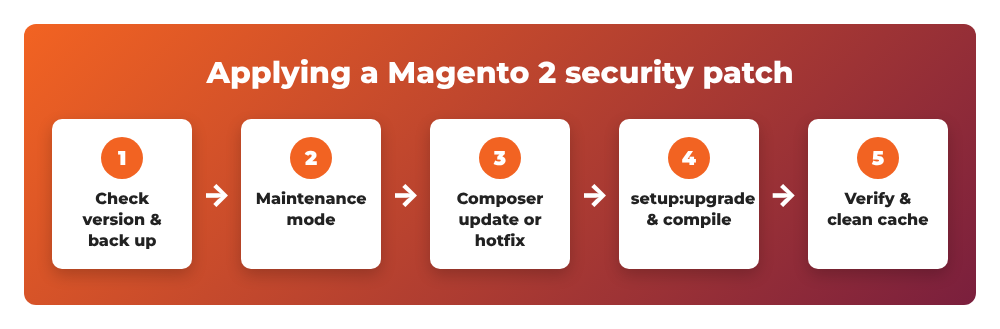
Here is an overview of the process:
Contents
- Security release or hotfix: which one do you need?
- Step 1: Check your Magento version and back up
- Step 2: Put the store in maintenance mode
- Step 3 (Method 1): Upgrade to the latest security release with Composer
- Step 3 (Method 2): Apply an isolated hotfix patch file
- What about the Quality Patches Tool?
- Step 4: Clean the cache and bring the store back online
- Common errors
- Wrapping up
Security release or hotfix: which one do you need?
Adobe delivers security fixes for Magento 2 in two ways:
- Security patch releases: full Composer versions that contain only security fixes on top of a release line, for example
2.4.8-p5or2.4.7-p10. Starting with the July and August 2026 bulletins, Adobe also uses date-based labels such as2.4.9-2026-augin its bulletins, so always read the bulletin to find the right version for your line instead of guessing from the-pnumber. - Isolated hotfix patches: a single
.composer.patchfile (for example theVULN-39341patches for APSB26-146) that Adobe publishes when a vulnerability is too urgent to wait for the next release.
The recommended path is to stay on the latest security release of your line (Method 1) and apply a hotfix file (Method 2) only when a bulletin tells you to.
Step 1: Check your Magento version and back up
First, find out exactly which version you run, because every bulletin and patch file is version-specific. If you’re not sure how, here is my guide on how to check your Magento 2 version. The quickest way is the CLI:
cd /var/www/magento2
bin/magento --version
Then take a backup of the code and the database before you change anything:
cp composer.json composer.json.bak
cp composer.lock composer.lock.bak
mysqldump -u magento_user -p magento_db > magento_db_backup.sql
Always test the patch on a staging copy of your store first, especially if you use many third-party extensions.
Step 2: Put the store in maintenance mode
Enable maintenance mode so customers don’t place orders while files are changing (you can read more in my tutorial on how to put Magento 2 in maintenance mode). Adobe’s upgrade guide also recommends stopping cron and letting the message queue consumers finish:
bin/magento maintenance:enable
bin/magento cron:remove
bin/magento cron:run --group=consumers
Step 3 (Method 1): Upgrade to the latest security release with Composer
This is the cleanest way to apply Magento 2 security patches because Composer updates every affected package at once.
Find the latest security version for your line
List the available versions of the metapackage:
composer show magento/product-community-edition 2.4.* --available | grep -m 1 versions
Pick the newest version of your release line (for example, if you run 2.4.8-p4, move to the latest 2.4.8 security release). Cross-check it with the latest Adobe security bulletin.
Require the new version and update
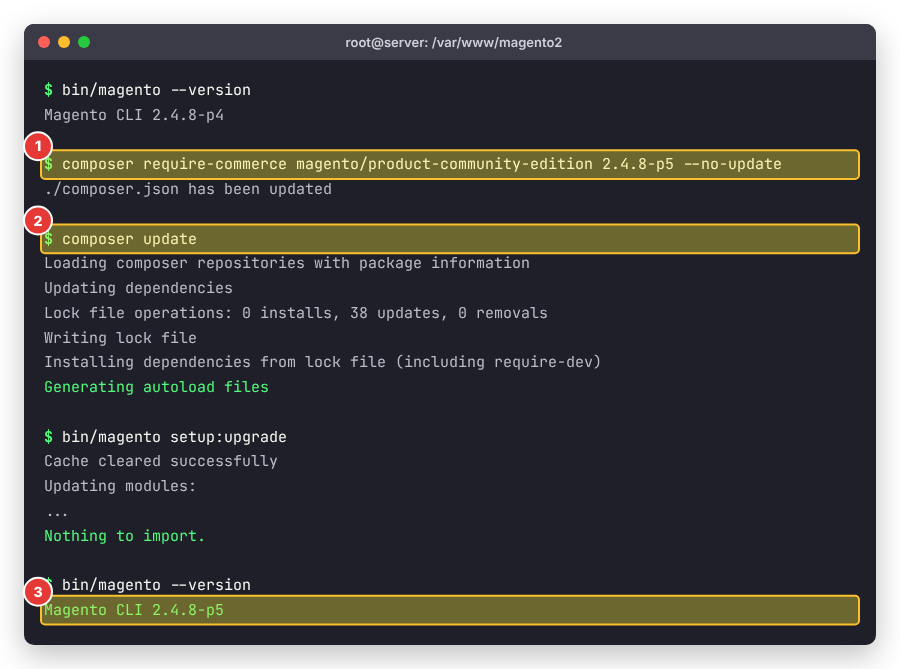
Since Magento 2.4.2, the upgrade command is composer require-commerce, which is provided by the magento/composer-root-update-plugin package. Check that the plugin is installed (composer show magento/composer-root-update-plugin); if not, install it as described in Adobe’s upgrade prerequisites. Then run:
composer require-commerce magento/product-community-edition 2.4.8-p5 --no-update
composer update
Replace 2.4.8-p5 with the version you found above. If Composer reports conflicts with values in your root composer.json, you can add --interactive-root-conflicts to review them one by one.
Clear generated files and upgrade the database
rm -rf var/cache/* var/page_cache/* generated/code/*
bin/magento setup:upgrade
bin/magento setup:di:compile
bin/magento setup:static-content:deploy -f
bin/magento --version
Run setup:di:compile and setup:static-content:deploy only in production mode. If you skip the compile step, you will probably see the message “Please re-run Magento compile command“.
The output should end with the new version number:
Step 3 (Method 2): Apply an isolated hotfix patch file
When a bulletin like APSB26-146 says “apply the hotfix”, you won’t get a new Composer version. Instead you download a patch file for your exact version from the Adobe Commerce knowledge base article linked in the bulletin. For APSB26-146, Adobe provided different files for different versions, for example VULN-39341_248-p3.patch.zip for 2.4.8-p2 and 2.4.8-p3, and VULN-39341-composer-patches.zip for the newer releases. Using the wrong file is the number one reason a patch fails.
Upload and test the patch
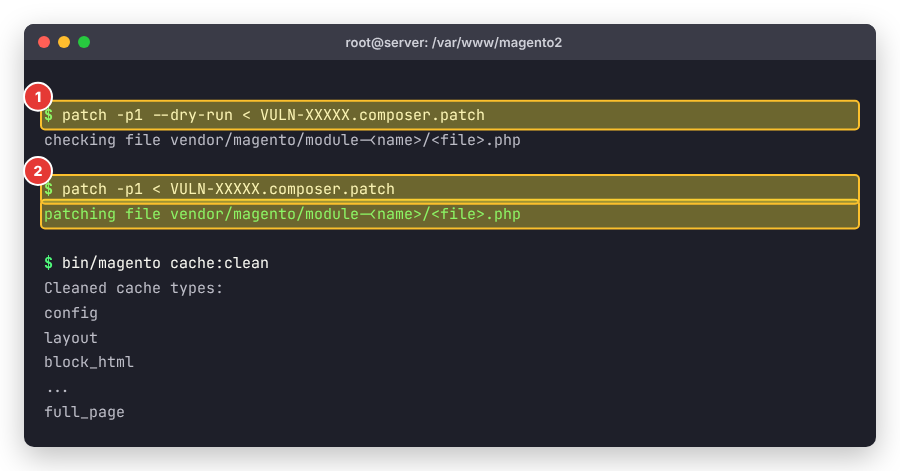
Unzip the archive and upload the .composer.patch file to your Magento root folder (where composer.json is). Then run a dry run first. It changes nothing, it only checks that the patch fits your code:
cd /var/www/magento2
patch -p1 --dry-run < VULN-XXXXX.composer.patch
Apply the patch
If the dry run shows no errors, apply it for real:
patch -p1 < VULN-XXXXX.composer.patch
bin/magento cache:clean
According to Adobe’s instructions, if -p1 doesn’t work you can try -p2. Replace VULN-XXXXX with the real file name from the bulletin.
Important: because a .composer.patch file edits files inside vendor/, the next composer install or composer update can overwrite it. Keep the patch file in your repository and re-apply it after every deployment, or use a plugin such as cweagans/composer-patches so Composer applies it automatically, until you upgrade to a release that includes the fix.
Rotate keys if the bulletin says so
For APSB26-146, Adobe stated that applying the patch alone was not enough: merchants were also told to rotate the encryption key and related credentials (admin passwords, integration tokens, payment and third-party API keys). Always read the “post-patch” section of the bulletin and follow it.
What about the Quality Patches Tool?
You may have heard of the Quality Patches Tool (QPT). It installs individual quality (bug) fixes from Adobe and is also useful to see which patches are applied. Install and use it like this:
composer require magento/quality-patches
./vendor/bin/magento-patches status
./vendor/bin/magento-patches apply MAGETWO-XXXX
./vendor/bin/magento-patches revert MAGETWO-XXXX
bin/magento cache:clean
The status command lists each patch with its ID, title, type and status (Applied, Not applied or N/A), and the tool writes a log to var/log/patch.log. Security fixes, however, are delivered through the security releases and hotfix files above, so QPT does not replace Method 1 or Method 2.
Step 4: Clean the cache and bring the store back online
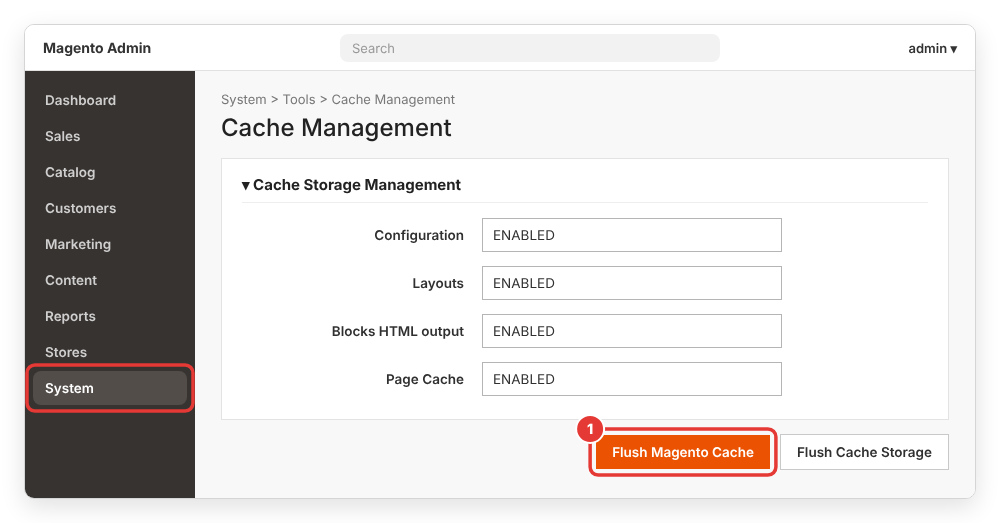
Flush the cache from the CLI (bin/magento cache:flush) or in the admin under System > Tools > Cache Management by clicking Flush Magento Cache:
Then restore cron and disable maintenance mode:
bin/magento cron:install
bin/magento maintenance:disable
Finally, test the critical flows: homepage, product page, add to cart, checkout and admin login.
Common errors
“Reversed (or previously applied) patch detected! Assume -R? [n]”
The patch is already applied, or your version already contains the fix. Answer n, then run the dry run again to confirm. Don’t answer y, because that would remove the fix.
“Hunk #1 FAILED at …”
The patch file doesn’t match your code. Usually you downloaded the file for a different version, or an extension/customization changed the same core file. Re-check your version and download the matching file.
Composer: “Allowed memory size of … bytes exhausted”
Run Composer without the PHP memory limit: COMPOSER_MEMORY_LIMIT=-1 composer update.
Composer asks for a username and password for repo.magento.com
Composer needs your Magento Marketplace access keys. Use the public key as the username and the private key as the password, or store them in auth.json in your Magento root.
Indexers or cron stopped after patching
If the admin shows “One or more indexers are invalid”, you probably forgot to reinstall cron. See my fix for Magento 2 indexers invalid and cron not running.
For more details, check the official Adobe documentation: Perform an upgrade and How to apply a composer patch provided by Adobe.
Wrapping up
That’s it! In this tutorial, we learned how to apply security patches in Magento 2: check your version and back up, enable maintenance mode, upgrade to the latest security release with composer require-commerce, apply an isolated hotfix with patch -p1 when a bulletin requires it, and verify everything before going back online. Subscribe to Adobe’s security notifications so you hear about the next bulletin on day one.
If you get stuck while applying a patch, leave a comment below with your Magento version and the error message, and I will help you out.