
When you sign up for Shopify, you have to type a store name before you have had time to think about branding. A few weeks later you have a real brand name, a logo and maybe a domain, but your admin, your emails and the browser tab still show the old name (or the default My Store). The good news is that Shopify lets you rename your store at any time, for free, and as often as you like.
In this tutorial, we will learn how to change your Shopify store name step by step, both on desktop and in the Shopify mobile app. We will also cover the places the new name does not update automatically: the home page title, the theme header, the checkout and the myshopify.com URL.
Previously, I published a tutorial on how to remove the password page and launch your Shopify store. If you are about to go live, renaming the store before launch day is a good idea, because customers will see the name in every order notification.
Contents
- What changes when you change your Shopify store name?
- How to change your Shopify store name in the admin
- How to change the store name in the Shopify mobile app
- Step 4: Update the home page title and meta description
- Step 5: Update your logo, checkout and theme text
- Step 6 (optional): Change your myshopify.com domain or connect a new domain
- Common errors and questions
- Wrapping up
What changes when you change your Shopify store name?
Before we start, it helps to understand that “store name” in Shopify is just one field in your store settings. Changing it updates the name Shopify shows across your store and admin, but several other things are separate settings:
- Store name (Settings > General) is the public name of your shop. According to Shopify, it’s the name displayed on your website, and customers can see your store contact details in your online store, policies and notifications.
- Home page title (Online Store > Preferences) is the title search engines and the browser tab show for your home page. It doesn’t change when you rename the store.
- Legal business name (Settings > General > Business details) is the name of your company for legal and tax purposes. It is not the same as the store name.
- The
myshopify.comdomain is your store’s permanent internal address. Renaming the store does not change it. - Your custom domain (for example
pennylanecandles.com) is something you buy and connect separately.
So renaming your store is a two-minute job, but a complete rebrand means checking a few more places. Let’s do it in order.
How to change your Shopify store name in the admin
Step 1: Open Settings > General
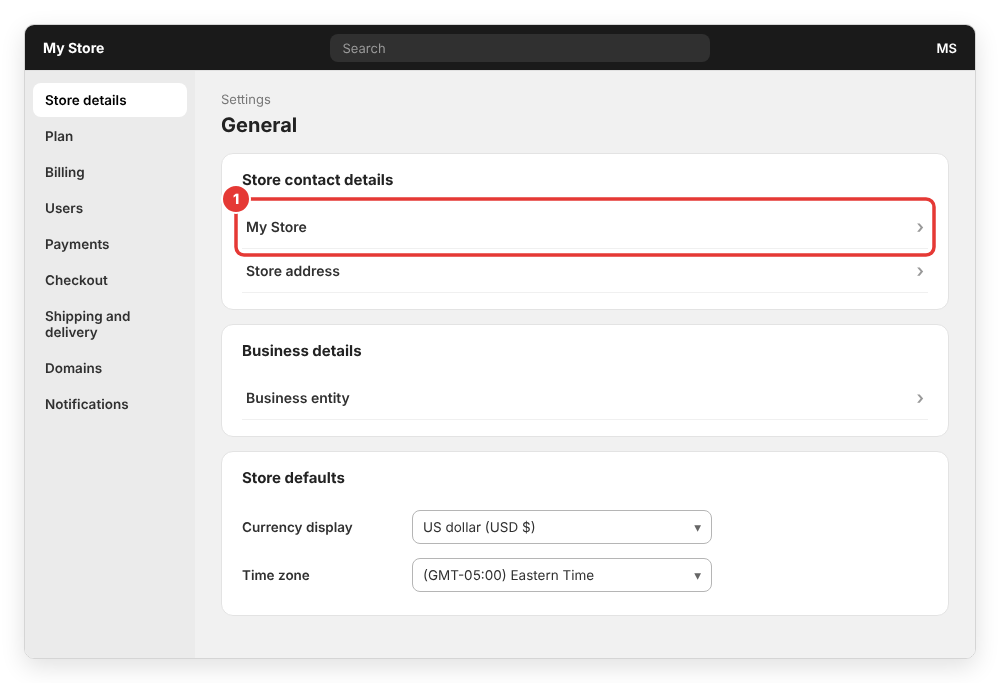
Log in to your Shopify admin as the store owner or as a user with permission to manage store settings. Click Settings in the bottom-left corner of the admin, then click General (on some stores this page is shown as Store details at the top of the settings menu).
Find the Store contact details section. The first row shows your current store name. Click the store name, or click the > arrow next to it.
Step 2: Edit the Store name field
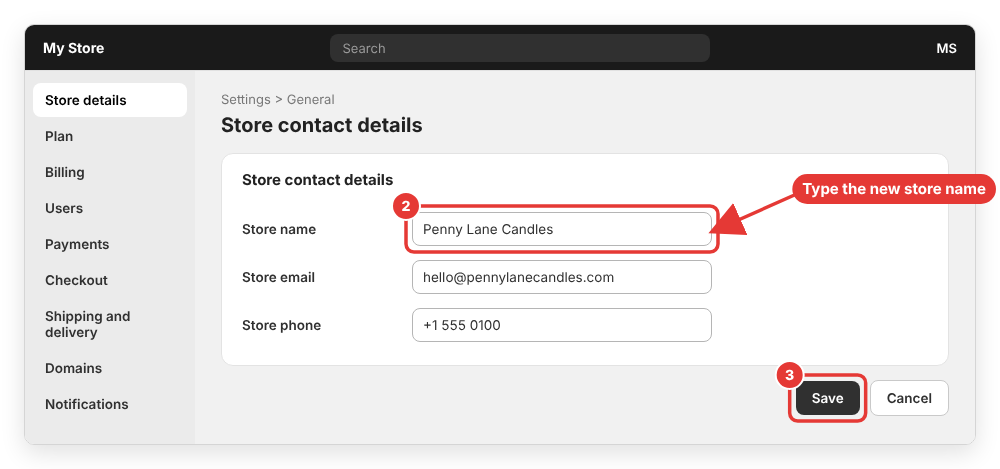
The Store contact details page opens. Here you can see three fields:
- Store name: the name you want to change.
- Store email: required, used by Shopify and by customers to contact you.
- Store phone: optional.
Click inside the Store name field, delete the old name and type the new one. Use the exact spelling and capitalization of your brand, for example Penny Lane Candles instead of pennylanecandles, because this text is shown to customers as-is.
Step 3: Click Save
Click Save. That’s it, the change is applied immediately. There is no approval process, no fee and no limit on how many times you can rename the store.
If you have staff working in the admin, they will see the new name the next time they load a page. If you need to give someone else access to make these changes for you, check my guide on how to add a collaborator or staff account in Shopify and give them the Store settings permission.
How to change the store name in the Shopify mobile app
You can do the same thing from your phone:
- Open the Shopify app and tap the Menu icon.
- Tap Settings.
- Under Store settings, tap General.
- Under Store contact details, tap your store name.
- Edit the Store name field, then tap Save (or the checkmark icon).
The steps are the same as the official instructions in the Shopify Help Center guide on managing store details.
Step 4: Update the home page title and meta description
This is the step most store owners forget. Your store name and your home page title are two different settings, so after renaming the store, Google and the browser tab can keep showing the old name.
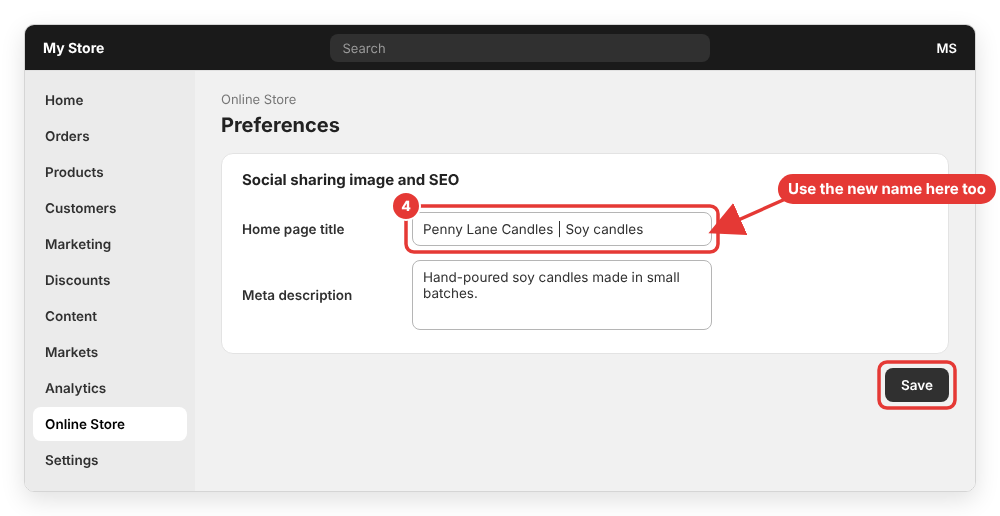
To fix it, go to Online Store > Preferences and scroll to the Social sharing image and SEO section (on some stores you need to click Edit in this section first). Update:
- Home page title: put the new store name first, then a short description, for example
Penny Lane Candles | Soy candles. Shopify recommends keeping titles to around 70 characters. - Meta description: rewrite it so it mentions the new name. Search engines usually show about 140 characters of it.
Click Save. Google will pick up the new title the next time it crawls your home page, which can take from a few days to a few weeks.
Step 5: Update your logo, checkout and theme text
Depending on your theme, the store name may also be hard-coded in a few other places. Go through this quick checklist:
- Theme header and logo: in Online Store > Themes > Customize, open the Header section. If you use a text logo, most themes show the store name automatically. If you uploaded an image logo, upload a new one with the new brand.
- Footer and announcement bar: copyright lines and announcement bars are often typed manually. Search the theme editor for the old name.
- Checkout branding: go to Settings > Checkout and click Customize to update the checkout logo if it contains the old name.
- Pages and policies: check your About page, contact page and store policies in Settings > Policies. These are plain text and won’t update on their own.
- Navigation: if a menu item contains the old brand (for example “Shop OldName”), rename it. My tutorial on how to add a drop-down menu in Shopify shows where to edit menu items.
Step 6 (optional): Change your myshopify.com domain or connect a new domain
Renaming the store doesn’t change your default myshopify.com address. If your old address is old-brand.myshopify.com, it stays like that. Most customers never see it once a custom domain is connected, but if you want a matching address you have two options:
- Change the myshopify.com domain: go to Settings > Domains, hover over your
myshopify.comdomain, click the pencil icon, enter the new name and confirm. Shopify allows most stores to do this only once, and the original address remains the permanent identifier of the store, so choose carefully. Development stores can’t change it. - Connect a custom domain: buy a domain that matches the new name (from Shopify or a third-party registrar) and connect it in Settings > Domains. Then set it as your primary domain so customers are redirected to it.
If you change the primary domain, add redirects from important old URLs and update your social media profiles and Google Business profile so the old links keep working.
Common errors and questions
The old store name still shows in Google
Google displays your Home page title, not the store name field. Update it in Online Store > Preferences (Step 4), then request reindexing of your home page in Google Search Console to speed things up.
Emails still show the old name
The sender name of notification emails comes from your store name, but many notification templates also contain typed text. Open Settings > Notifications, preview the order confirmation and shipping templates, and replace any old name in the content or header image.
I can’t edit the store name
Your user account doesn’t have permission to change store settings. Ask the store owner or an administrator to edit your role, or ask them to change the name for you. If the store is paused or frozen because of billing, you may need to reactivate it first; my guide on how to pause, close or delete a Shopify store explains the store states.
Shopify Payments still shows the old business name
The name on your Shopify Payments account and on customers’ bank statements is tied to your business details, not just the store name. You can review the statement descriptor in Settings > Payments; to change the business name on a Shopify Payments account itself, contact Shopify Support.
Can I use the same name as another Shopify store?
Yes. The store name field doesn’t have to be unique, only the myshopify.com address does. However, you should still check that the name isn’t a registered trademark before rebranding.
Wrapping up
That’s it! Now you know how to change your Shopify store name: go to Settings > General, open Store contact details, edit the Store name field and click Save. To finish the rebrand, update the home page title in Online Store > Preferences, refresh your logo and theme text, and decide whether you need a new domain.
If you have any questions or the old name still appears somewhere on your store, feel free to leave a comment below and I will try to help.