Once orders start coming in, the next job is getting the packages out of the door. If you are wondering how to print shipping labels in Shopify, the good news is that you do not need a separate shipping app: with Shopify Shipping you can buy discounted postage and print the label straight from the order page. And if you made a mistake (wrong box size, wrong service, wrong address), you can void the label and get the postage credited back.
In this tutorial, we will learn how to print shipping labels in Shopify for a single order, how to print labels in bulk, and how to void a shipping label when something goes wrong. Previously, I published a tutorial on how to set up shipping rates in Shopify, so make sure your shipping zones and packages are configured before you start.
Contents
Before you start: requirements for Shopify shipping labels
Buying labels inside the Shopify admin is part of Shopify Shipping. Before the Create shipping label button shows up on your orders, check these points:
- Your store ships from a country where Shopify Shipping is available (for example the United States, Canada and Australia) and your fulfillment location is eligible for labels.
- The order contains at least one item that requires shipping and has a valid shipping address.
- You have a desktop printer (8.5″ x 11″ paper) or a supported thermal label printer (4″ x 6″ labels).
- You have a default package saved in Settings > Shipping and delivery > Packages with accurate dimensions, and your products have a weight.
If your location is not eligible, you can still fulfill orders manually and use a third-party shipping label app instead.
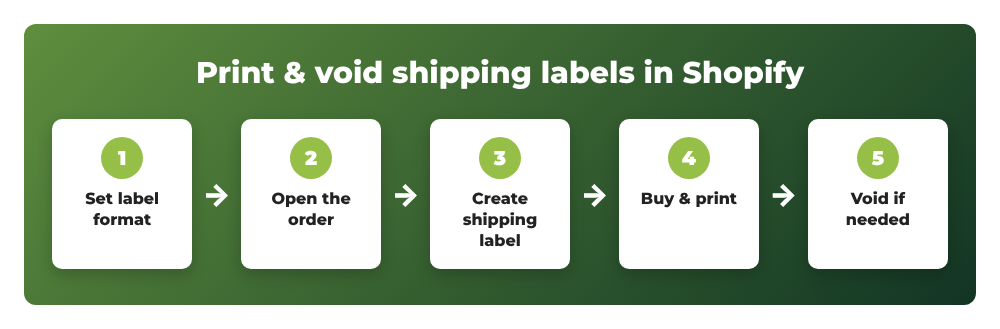
Step 1: Choose the shipping label format
Shopify can print labels for a regular desktop printer or a thermal label printer. Choosing the right format first saves you from wasting labels.
- From your Shopify admin, go to Settings > Shipping and delivery.
- Scroll to the Shipping labels section and set the Label format to match your printer:
4" x 6"for a label printer or8.5" x 11"for a desktop printer. - Click Save.
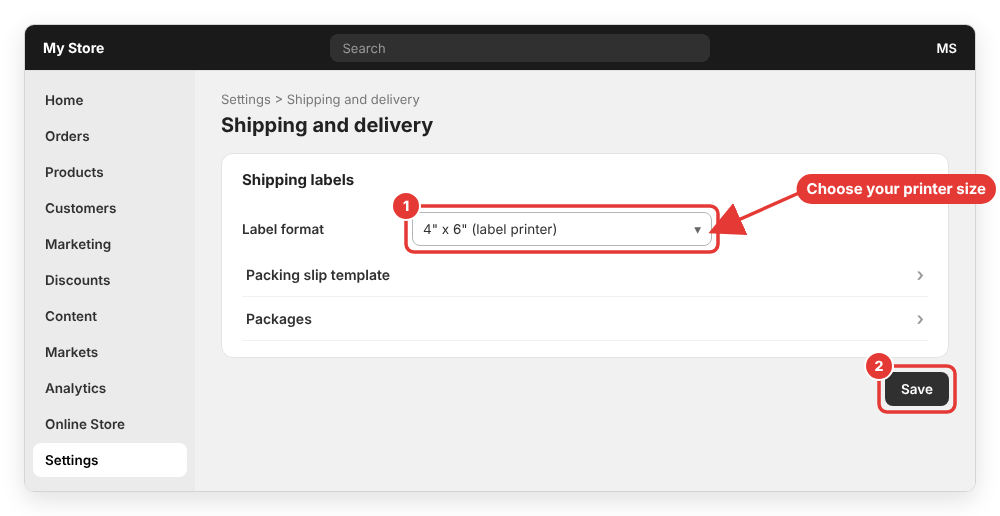
While you are on this page, open Packages and double check that your default box dimensions are correct. Carriers calculate the rate from the package size and weight, so a wrong package is the number one reason merchants need to void a label later.
Step 2: Open the order you want to ship
Go to Orders and click the unfulfilled order you want to ship. In the Unfulfilled card, you will see the Create shipping label button.
Before buying anything, look at the shipping address on the right side of the order. If the customer typed the wrong street or ZIP code, fix it first — I explained the whole process in how to change the shipping address on a Shopify order. A label is printed with the address that is on the order at the moment you buy it.
Step 3: Create the shipping label
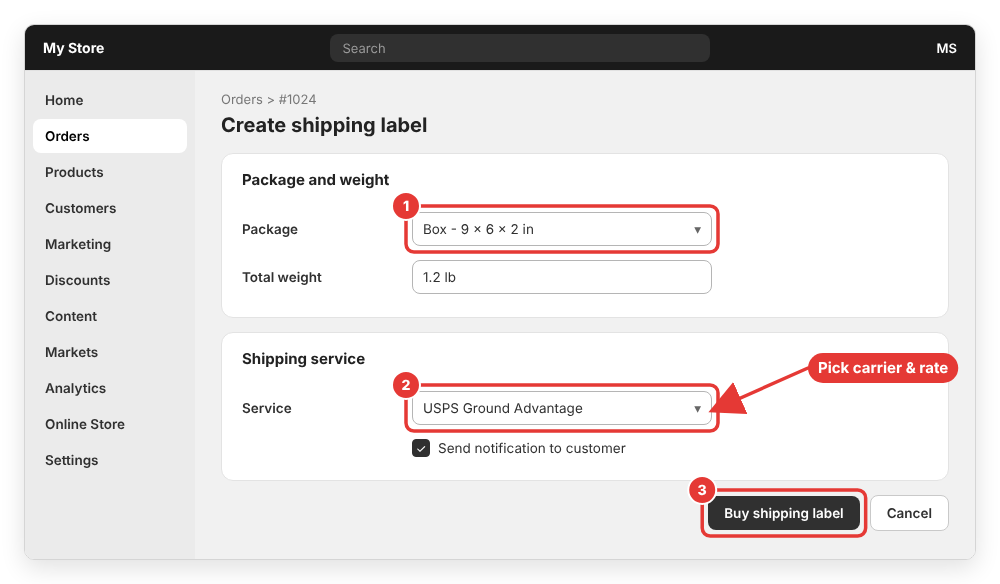
Click Create shipping label. On the label page, you need to fill in three things:
- Package: choose the box or envelope you are using. Shopify pre-selects your default package.
- Total weight: Shopify adds up the product weights plus the package weight. Adjust it if you are packing extra items or heavy filler.
- Shipping service: pick the carrier and service (for example USPS Ground Advantage, UPS Ground or Priority Mail). Shopify shows the discounted rate and estimated delivery time for each option.
Keep Send notification to customer ticked if you want Shopify to email the tracking number to the buyer automatically.
Step 4: Buy and print the shipping label
When everything looks right, click Buy shipping label. Shopify charges the postage to your Shopify bill, marks the items as fulfilled, and opens the print dialog.
Click the print button and send the PDF to your printer. If you use a thermal printer, set the paper size in your browser print dialog to 4 x 6 in, set the scale to 100% (or “Actual size”) and turn off headers and footers, otherwise the barcode may be cut off.
Lost the print dialog? No problem. Open the order again, click the … menu in the Fulfilled card and choose to print the label again. You can reprint a label as many times as you need, you are only charged once.
How to print shipping labels in bulk
If you ship dozens of orders a day, buying labels one by one is slow. Shopify lets you buy and print up to 250 labels at once:
- Go to Orders and select the checkboxes of the orders you want to ship.
- Click Create shipping labels. If you fulfill from more than one location, choose the location and click Continue.
- Review each order’s package, weight and service. Errors with a red icon must be fixed (or the order removed) before you can buy; yellow warnings do not block the purchase.
- Click Review [x] labels, then Buy shipping labels.
- Go to Orders > Shipping labels, select the orders, click Print documents, choose the labels (and packing slips if you want them) and click Print documents again.
Orders that contain only non-shipping items, orders without a valid shipping address, and orders that are already fulfilled are skipped from bulk purchase. You can read the official details in Shopify’s guide to buying and printing shipping labels.
Step 5: How to void a shipping label in Shopify
Made a mistake? Shopify does not let you edit a label after you buy it. To change a label, you void it, edit the order, then buy a new one. Voiding also gives you the postage back as a credit on your Shopify bill.
A label can be voided only when all of these conditions are true:
- It was purchased no more than 30 days ago.
- It has no tracking events (the carrier has not scanned the package yet).
- It was not bought with USPS First Class Mail.
- It was not added to a USPS manifest in the last 15 minutes.
To void a single label from your computer:
- Go to Orders and open the order.
- In the Fulfilled card, click the … (more actions) icon and choose Void label.
- Select a Reason for voiding.
- Click Void label and insurance.
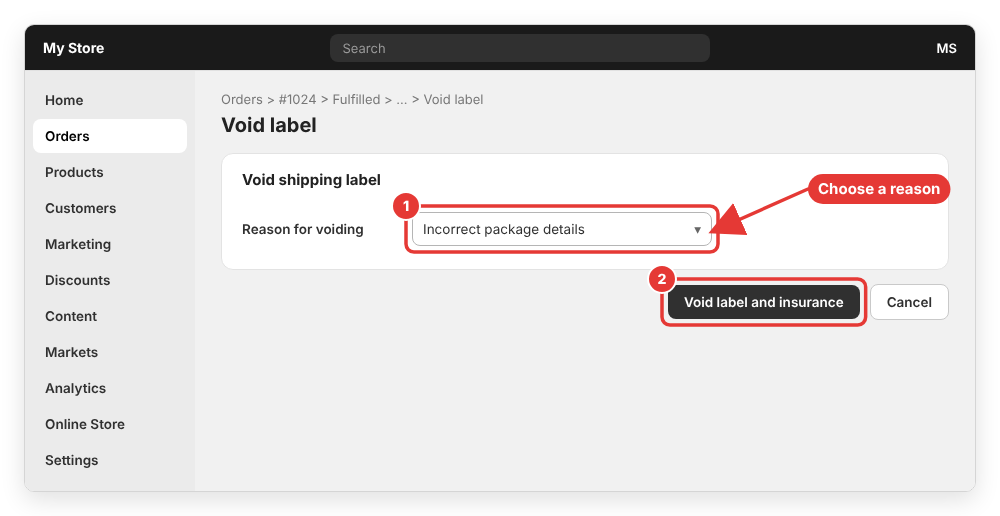
The order goes back to Unfulfilled, so you can fix the package or address and buy a correct label. On the Shopify mobile app the steps are the same: open the order, tap the menu in the Fulfilled section, tap Void shipping label, choose a reason and confirm.
Void labels in bulk
To void many labels at once, go to Orders > Shipping labels, select the labels, click Void shipping labels, choose a reason and click Void XX labels. You can void up to 250 labels in one go. Shopify’s help center has the full list of rules in changing and voiding Shopify Shipping labels.
If you are voiding the label because the customer cancelled, remember that voiding the label does not refund the customer. You still need to cancel and refund the order in Shopify separately.
Common errors
The “Create shipping label” button is missing
This usually means your fulfillment location is not eligible for Shopify Shipping, the order has no physical items, or the order is already fulfilled. Check the location assigned to the order and confirm the products have This is a physical product ticked.
The “Void label” option is missing or greyed out
The label does not meet the void conditions above: it is older than 30 days, the carrier has already scanned it, or it was a USPS First Class Mail label. Return labels also cannot be voided, but most of them expire and you are not charged if the customer never uses them. If the package has already shipped, contact the carrier with the tracking number.
The label prints too small or is cut off
The label format in Settings > Shipping and delivery does not match your paper, or the browser is scaling the PDF. Set the correct format, then print at 100% scale with no margins.
Rates look too high
Wrong package dimensions or weight is the most common cause. Fix the default package and product weights, and run a quick test order in Shopify to confirm the shipping rates at checkout match what you pay for labels.
Wrapping up
That’s it! Now you know how to print shipping labels in Shopify for a single order or in bulk, how to pick the right label format, and how to void a shipping label to get your postage back. My advice: set up your packages and product weights carefully once, and you will rarely need to void anything.
If you have any questions about Shopify shipping labels, or the void button doesn’t show up for you, feel free to leave a comment below. I’ll try to help!