You type your store address into the browser and, instead of your homepage, Shopify shows a plain white page that says “Sorry, this store does not exist” (sometimes worded as “Sorry, this shop is currently unavailable”). Customers see the same page, so every minute it stays up costs you sales.
The good news: this Shopify “this store does not exist” error almost never means your data is gone. Shopify shows this page whenever a web address reaches Shopify’s servers but can’t be matched to an active store. In this tutorial, we will learn the five real causes of the error and how to fix each one, starting with the quickest checks.
Previously, I published a tutorial on how to remove the password page and launch your Shopify store. If you have just launched and see this error on your new domain, the domain steps below are the ones you need.
Contents
Why does Shopify say “this store does not exist”?
Every Shopify store has a permanent address that ends with .myshopify.com. Custom domains such as www.example.com point to Shopify’s servers through DNS records, and Shopify then looks up which store owns that domain. The error appears when that lookup fails. In practice, it comes down to one of these situations:
- Wrong URL – a typo in the
.myshopify.comaddress, or an old address from before you changed the store. - The store is closed, paused or frozen – for example after you deactivated the store, the free trial ended without a plan, or a bill was not paid.
- The domain is not attached to any store – the DNS points to Shopify, but the domain was removed from Settings > Domains (or was never added).
- Wrong or conflicting DNS records – the domain points partly to Shopify and partly to an old host.
- An account-level problem – the store was transferred to another owner, or Shopify restricted it.
Let’s go through them in order.
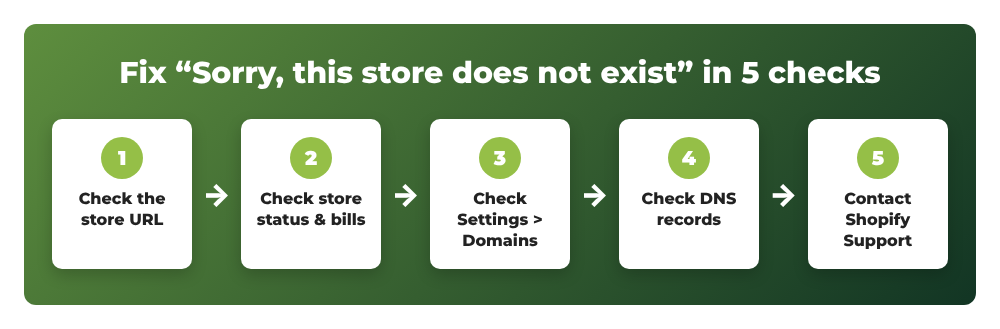
Step 1: Check the store URL you are visiting
Start with the simplest check. Log in at admin.shopify.com with the account that owns the store. If the store appears in your store list and opens normally, the store exists and the problem is with the address you typed or with your domain.
Go to Settings > Domains and look for the permanent .myshopify.com address. Copy it and open it in a private browser window:
https://your-store-name.myshopify.com
- If the
.myshopify.comaddress loads but your custom domain shows the error, skip to Step 3 – it is a domain problem. - If the
.myshopify.comaddress also shows the error, continue with Step 2.
Tip: changing the store name does not change the .myshopify.com address. If you followed my guide on how to change your Shopify store name, remember that old links built from the new name will not work – always use the permanent address shown under Settings > Domains.
Step 2: Check if the store is closed, paused or frozen
When a store isn’t on an active plan, the storefront stops being public and visitors can see “this store is unavailable” or “this store does not exist”. Log in to admin.shopify.com and open the store:
- The store was deactivated (closed) – the admin asks you to choose a plan to reactivate it. Pick a plan and the storefront comes back with your products, customers and orders.
- The free trial ended – you will be asked to select a plan before you can continue. The storefront stays offline until you do.
- The store is frozen because of an unpaid bill – open Settings > Billing, check the outstanding charges and update the payment method. My tutorial on how to change the payment method on your Shopify bill shows exactly where that setting is.
- The store is paused – a paused store keeps the admin but checkout is turned off. Go to Settings > Plan and choose to unpause or select a full plan.
If you closed the store on purpose and want to understand what each option does before reactivating, read how to pause, close or delete a Shopify store.
Can’t see the store in your store list at all? Make sure you are logged in with the right email address. Stores created by a developer or agency may be owned by another account, and you may only have staff access. If the store was transferred to someone else, only the new owner can see it.
Step 3: Re-connect your domain in Settings > Domains
This is the most common cause when the .myshopify.com address works but your own domain shows “Sorry, this store does not exist”. The DNS records still send visitors to Shopify, but no store claims the domain – usually because the domain was removed, the store was rebuilt, or the domain was only connected to an old development store.
- From your Shopify admin, go to Settings > Domains.
- Check whether your domain is listed. Note your
.myshopify.comaddress on this page too. - If the domain is missing, click Connect existing domain, enter the domain (for example
example.com) and follow the prompts. - Once the domain shows as Connected, choose it as the primary domain so customers are redirected to one address.
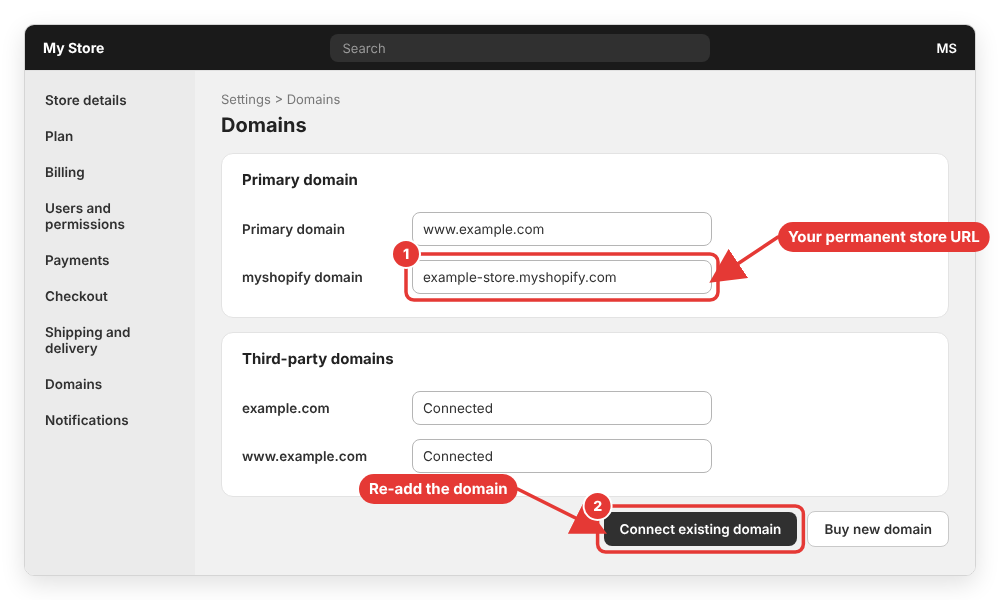
If Shopify says the domain is already connected to another store, remove it from that store first (from the other store’s Settings > Domains), then add it again in the correct store.
Step 4: Check your DNS records
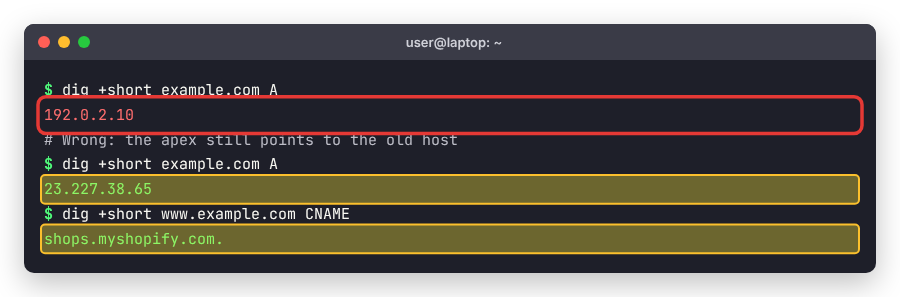
If the domain is listed but still shows the error, or Shopify reports that the connection can’t be verified, the DNS records at your domain provider are probably wrong. According to Shopify’s domain troubleshooting guide, a third-party domain needs:
- An A record for the root domain (
@) pointing to23.227.38.65. - An AAAA record for
@pointing to2620:0127:f00f:5::. - A CNAME record for
wwwpointing toshops.myshopify.com.
You can check what the internet currently sees with the dig command on macOS or Linux (on Windows, use nslookup instead):
dig +short example.com A
dig +short example.com AAAA
dig +short www.example.com CNAME
Things to fix at your domain provider:
- More than one A record for
@– delete the old ones so only Shopify’s IP is left. A leftover A record from the old host sends some visitors to the wrong server. - More than one AAAA record – keep only Shopify’s.
- Cloudflare proxy turned on – set the records to “DNS only” (grey cloud).
- DNSSEC enabled – turn it off while connecting the domain, as recommended by Shopify.
After changing DNS, wait for propagation. It is often done in under an hour, but Shopify says it can take up to 48 hours. Then return to Settings > Domains and verify the connection.
Step 5: Contact Shopify Support
If the store does not appear in any of your accounts, or your store was restricted, there is nothing you can change from the admin. Contact Shopify Support from the Help Center while logged in to the account that originally created the store, and include:
- The
.myshopify.comaddress (check old emails such as invoices or the “Welcome to Shopify” message if you don’t remember it). - The email address used to create the store.
- The custom domain that shows the error and a screenshot of the error page.
Common errors
“Sorry, this shop is currently unavailable” right after entering card details or picking a plan – this is often temporary while the plan is being activated. Wait a few minutes, clear the browser cache and try again from admin.shopify.com.
The error appears only on www or only on the root domain – one of the two records is wrong. Usually the www CNAME still points to the old host, or the @ A record is missing. Fix the record that fails in the dig output.
The error appears only for some visitors – DNS is still propagating, or two A records exist. Remove the extra record and wait.
“Your connection is not secure” instead of the error – the domain reaches the right store but the SSL certificate is still being issued. This normally resolves itself after DNS is correct; check the SSL status in Settings > Domains.
Wrapping up
The “Sorry, this store does not exist” message on Shopify means a web address reached Shopify but couldn’t be matched to an active store. Check the .myshopify.com address first, then the store’s plan and billing status, then make sure the domain is connected in Settings > Domains with the correct DNS records. In most cases one of those three fixes brings the store back within minutes.
Did this tutorial fix your store? If you are still stuck, leave a comment below with the exact error text and what you have already tried, and I’ll help you troubleshoot.