Before you open your store to real customers, you should make sure the checkout actually works: products can be added to the cart, shipping rates show up, taxes are correct, the payment goes through and the order confirmation email arrives. The easiest way to check all of this is to place a test order in Shopify.
Previously, I published a tutorial on how to remove the password page and launch your Shopify store. Placing a test order is the last thing I recommend doing right before that launch.
In this tutorial, we will learn how to place a test order in Shopify using three different methods: Shopify Payments test mode, the Test payment gateway (the old “Bogus Gateway”) and a real transaction that you refund afterwards. We will also look at the test card numbers you can use and how to clean up the test orders when you are done.
Contents
Which test order method should you use?
Shopify gives you a few ways to simulate an order. Pick the one that matches your payment setup:
- Shopify Payments test mode – the best option if you already use Shopify Payments. You keep your normal checkout and just use test card numbers.
- Test payment gateway (Bogus) – use this if Shopify Payments is not available in your country, or you want to test without setting up Shopify Payments. You must deactivate your current credit card provider first.
- Real transaction + refund – the only way to test manual payment methods (Cash on Delivery, bank transfer) or a third-party gateway end-to-end. Note that some processing fees may not be refunded.
A few rules apply to every method:
- Shopify Payments test mode and the Test payment gateway are only available on a paid plan.
- The test purchase must be greater than the equivalent of $1 USD.
- Use an email address ending in
@example.comfor the test customer, or your own inbox if you want to check the notification emails. - Deactivate fulfillment services and fulfillment apps before testing, so they do not try to ship your test order.
Method 1: Place a test order with Shopify Payments test mode
Step 1: Enable test mode
Shopify Payments must be fully set up before you can turn on test mode. Then:
- From your Shopify admin, go to Settings > Payments.
- In the Shopify Payments section, click Manage.
- In the Test mode section, select Enable test mode.
- Click Save.
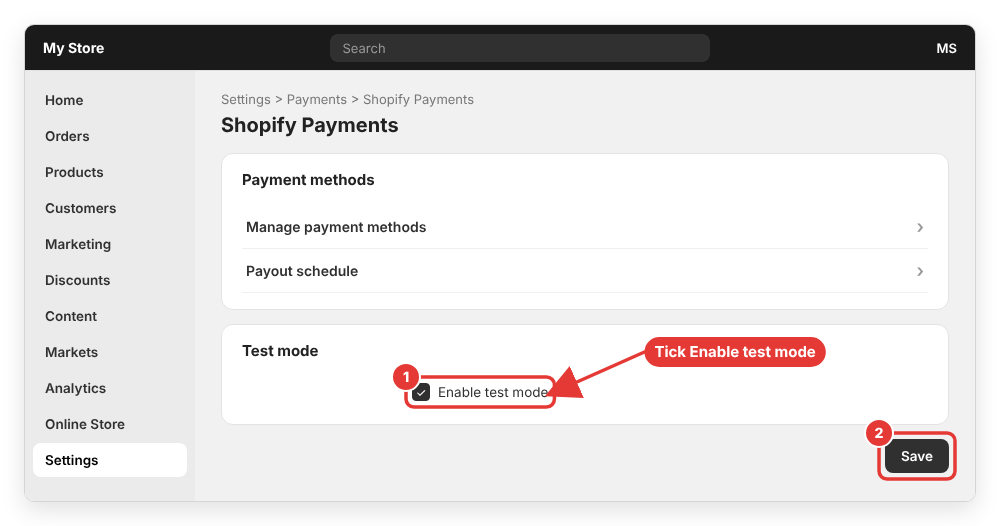
While test mode is on, real customers cannot place credit card orders, so do your testing quickly (or keep the store password-protected while you test).
Step 2: Add a product to the cart and go to checkout
Open your online store in a new browser tab (or an incognito window), add one or more products to the cart and click Check out. If your store has no products yet, follow my guide on how to add products and variants in Shopify first.
Fill in the contact and shipping information. This is a good moment to confirm that the right shipping options appear for the address you enter.
Step 3: Pay with a test card number
On the payment step, enter one of the Shopify Payments test cards:
Visa:              4242424242424242
Mastercard:        5555555555554444
American Express:  378282246310005
Discover:          6011111111111117

Name on card:      at least two words (e.g. Test Customer)
Expiration date:   any date in the future
Security code:     any 3 digits (4 digits for American Express)
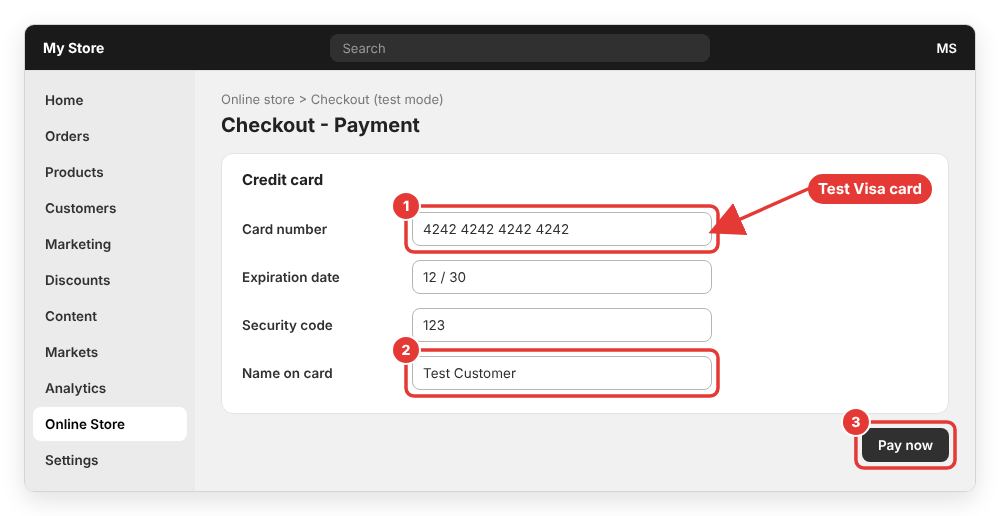
Click Pay now (or Complete order). You should land on the thank-you page, and the order appears in Orders in your admin marked as a test order.
Step 4: Simulate a failed payment (optional)
It is also worth checking what your customers see when a card is declined. Shopify Payments test mode accepts special card numbers that trigger errors:
Generic decline:     4000000000000002
Insufficient funds:  4000000000009995
Expired card:        4000000000000069
Incorrect CVC:       4000000000000127
Processing error:    4000000000000119
Incorrect number:    4242424242424241
You can also enter an invalid expiry month like 13, a past year like 2000 or a 2-digit security code to test validation errors. The full, up-to-date list is in the official Testing Shopify Payments article.
Step 5: Turn off test mode
When you are done, go back to Settings > Payments > Shopify Payments > Manage, uncheck Enable test mode and click Save. If you forget this step, real customers will not be able to pay you by card.
Method 2: Place a test order with the Test payment gateway (Bogus)
The Test payment gateway is what most older tutorials call the “Bogus Gateway”. It is useful when you can’t use Shopify Payments.
Step 1: Deactivate your current credit card provider
The Test payment gateway can’t run at the same time as another credit card provider. Go to Settings > Payments and:
- For a third-party provider: click Manage > Deactivate and confirm.
- For Shopify Payments: click Manage > Manage payment methods, scroll to the bottom and click Switch to a third-party provider, then confirm.
Step 2: Activate the Test payment gateway
- Click See all other providers (or Choose a provider under Payment providers if Shopify Payments is not available in your country).
- In the search bar, type
Bogus. The gateway is hidden until you search for it. - Select Test payment gateway, then click Activate and Save.
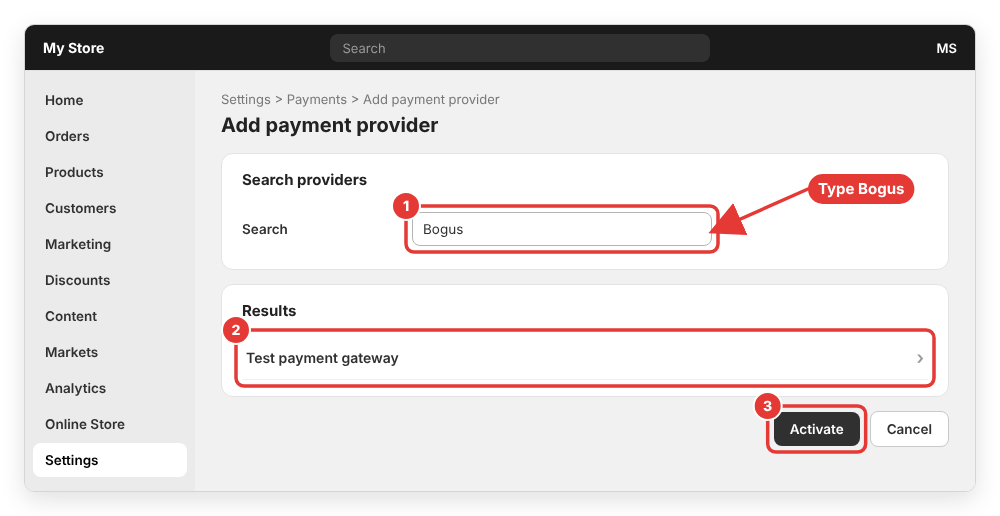
Step 3: Check out with the Bogus card numbers
Go through checkout as a customer and use these values on the payment step:
Name on card:     Test payment gateway
Card number:      1   (approved transaction)
                  2   (declined transaction)
                  3   (gateway failure)
Security code:    any 3 digits, e.g. 111
Expiration date:  any date in the future
Remember: while the Test payment gateway is active, every order placed in your store is a test order. Deactivate it and re-enable your real provider as soon as you finish testing. It also doesn’t work with Shopify POS or subscription products.
Method 3: Place a real order and refund it
If you accept manual payments or want to confirm that money really reaches your bank account through a third-party gateway, place a real order with a real card, then cancel and refund it. I explained the refund process in detail in how to cancel and refund an order in Shopify.
Keep in mind that payment processors may keep some fees, and third-party transaction fees are not refunded. If your provider supports manual capture, you can authorize the payment without capturing it, then cancel the order to release the authorization.
What to check during your test order
A test order is not only about the payment. Use it to check the full buying experience:
- Discount codes apply correctly.
- Checkout works both as a guest and when logged in to a customer account.
- Shipping options and prices are correct for different addresses. If something looks wrong, revisit how to set up shipping rates in Shopify.
- Taxes are calculated correctly for the shipping address.
- Checkout looks good on mobile and desktop.
- The order confirmation email arrives and looks right.
- You can mark the order as fulfilled and issue a full or partial refund.
How to delete test orders
Test orders paid with Shopify Payments test mode or the Test payment gateway don’t appear in your payouts or reports, and you can delete them. Open the order in Orders, cancel it first if needed, then click More actions > Delete order.
Orders placed through another gateway, even if that gateway was in its own test mode, are not considered test orders by Shopify and can’t be deleted. Archive them instead with More actions > Archive.
Common errors
“Test mode” option is missing
Test mode only appears after Shopify Payments is completely set up and your store is on a paid plan. Finish the Shopify Payments setup (business and bank details) first.
The Bogus gateway doesn’t appear in the provider list
You have to type Bogus in the search bar. Also make sure you deactivated your existing credit card provider; Shopify doesn’t let you run both at once.
“Your card was declined” with a test card
Check that test mode is actually saved, the order total is above $1 USD, the name on card has at least two words and the expiry date is in the future. Real card numbers are always declined in test mode.
I was charged for a shipping label
Shipping labels you buy for test orders are real purchases. Don’t fulfill test orders with Shopify Shipping labels, and deactivate fulfillment apps before testing.
For more details, see Shopify’s official guide to processing a test order.
Wrapping up
That’s how to place a test order in Shopify. For most stores, Shopify Payments test mode is the quickest way: enable it, check out with 4242424242424242, verify the order and emails, then turn test mode off. If you can’t use Shopify Payments, the Test payment gateway does the same job, and a real order plus refund covers manual payment methods.
Did your test order work, or did you run into an error that isn’t covered here? Leave a comment below and I will try to help.